
Copie d'entités entre généalogies
Cet outil vous aide à copier des individus et des branches familiales complètes d'une généalogie à une autre.
À partir d'une entité principale de votre choix, cet outil la copiera, l'attachera ou la fusionnera à une autre généalogie et importera tout ou partie de l'arbre généalogique lié à cette entité principale.
Seule l'entité principale est attachée ou fusionnée. L'outil de fusion peut être utilisé pour fusionner les autres entités une fois importées.
Cette entité principale peut être n'importe quel type d'entité, un individu, une famille, une note, un média, etc.
Si des fichiers multimédias locaux sont liés aux entités copiées et doivent également être copiés dans la généalogie réceptrice, Ancestris proposera de copier également ces fichiers multimédias et de les joindre correctement aux entités multimédias nouvellement copiées.
Cet outil vous permet également d'effectuer toutes les opérations ci-dessus au sein d'une même généalogie, bien que cela ait moins de sens.
Cet outil est accessible depuis le menu Outils, lorsque vous utilisez le glisser-déposer sur une entité, et depuis le menu contextuel d'une entité.
Pré-requis
Les deux généalogies doivent être de la même version Gedcom et la version 7 est nécessaire si vous utilisez des associations.
Description
Cet outil est constitué d'une seule fenêtre.
Le principe de l'outil consiste à effectuer 4 étapes.
1/ Sélection des généalogies et des entités : cela vous permet de choisir une première entité dans une généalogie que vous souhaitez extraire, et une deuxième entité à laquelle vous souhaitez l'attacher ou la fusionner,
2/ Sélection de l'action : cela vous permet de choisir l'action que vous souhaitez exécuter, simple copie, attachement ou fusion,
3/ Sélection d'autres entités : cela vous permet de sélectionner toutes les entités supplémentaires que vous souhaitez copier aussi,
4/ Fichiers multimédias locaux : c'est ici que vous vérifiez la structure des fichiers multimédias locaux qui sera créée,
Une fois cela fait, vous appuyez sur OK pour laisser Ancestris faire tout le travail.
En haut de l'écran, vous sélectionnez vos généalogies et entités, en dessous vous choisissez l'action, puis vous sélectionnez les autres entités à copier, et en bas se trouvent les informations sur les fichiers multimédias locaux concernés par la copie.
Décrivons chaque section.
Sélection des généalogies et des entités
En haut de la fenêtre apparaissent deux colonnes.
- À gauche se trouve ce que nous appelons ici la « généalogie source ». Il s'agit de la généalogie à partir de laquelle vous souhaitez extraire des informations.
- À droite se trouve ce que nous appelons ici la « généalogie cible ». Il s'agit de la généalogie dans laquelle les informations extraites seront stockées.
La généalogie cible sera très probablement votre généalogie. La généalogie source sera très probablement une généalogie qui vous a été fournie par un autre membre de votre famille ou que vous avez recueillie au cours de vos recherches.
Deux lignes s'affichent pour chaque généalogie.
- La première ligne de chaque colonne contient une liste déroulante de toutes les généalogies actuellement ouvertes dans Ancestris.
- Vous utilisez cette liste pour sélectionner quelle généalogie est la source et laquelle est la cible.
- Par défaut, la généalogie source sélectionnée est la généalogie actuellement sélectionnée au moment du lancement de l'outil.
- Par défaut, la généalogie cible est celle qui a été sélectionnée précédemment dans Ancestris, ou la même si une seule généalogie est ouverte dans Ancestris.
- À côté de cette première liste déroulante se trouve une autre liste déroulante des types d'entités de la généalogie sélectionnée.
- Par défaut, les types d'entités actuellement sélectionnés dans les généalogies respectives au moment du lancement de l'outil sont sélectionnés.
- Vous utilisez cette liste pour sélectionner quelle généalogie est la source et laquelle est la cible.
- La deuxième ligne correspond au sélecteur d'entités que vous utilisez dans d'autres parties d'Ancestris.
- Elle vous permet de trier la liste des entités et de choisir l'individu DeCujus si Individu est le type d'entité sélectionné ci-dessus et si la généalogie comporte un individu DeCujus défini.
- Par défaut, les entités sélectionnées sont celles qui s'affichent actuellement dans les éditeurs Ancestris au moment du lancement de l'outil.
- Elle vous permet de trier la liste des entités et de choisir l'individu DeCujus si Individu est le type d'entité sélectionné ci-dessus et si la généalogie comporte un individu DeCujus défini.
Lorsque nous indiquons l'entité « Source » dans cette page, il s'agit de l'entité sélectionnée dans la généalogie source. Il ne s'agit pas nécessairement d'une entité de type « Source ».
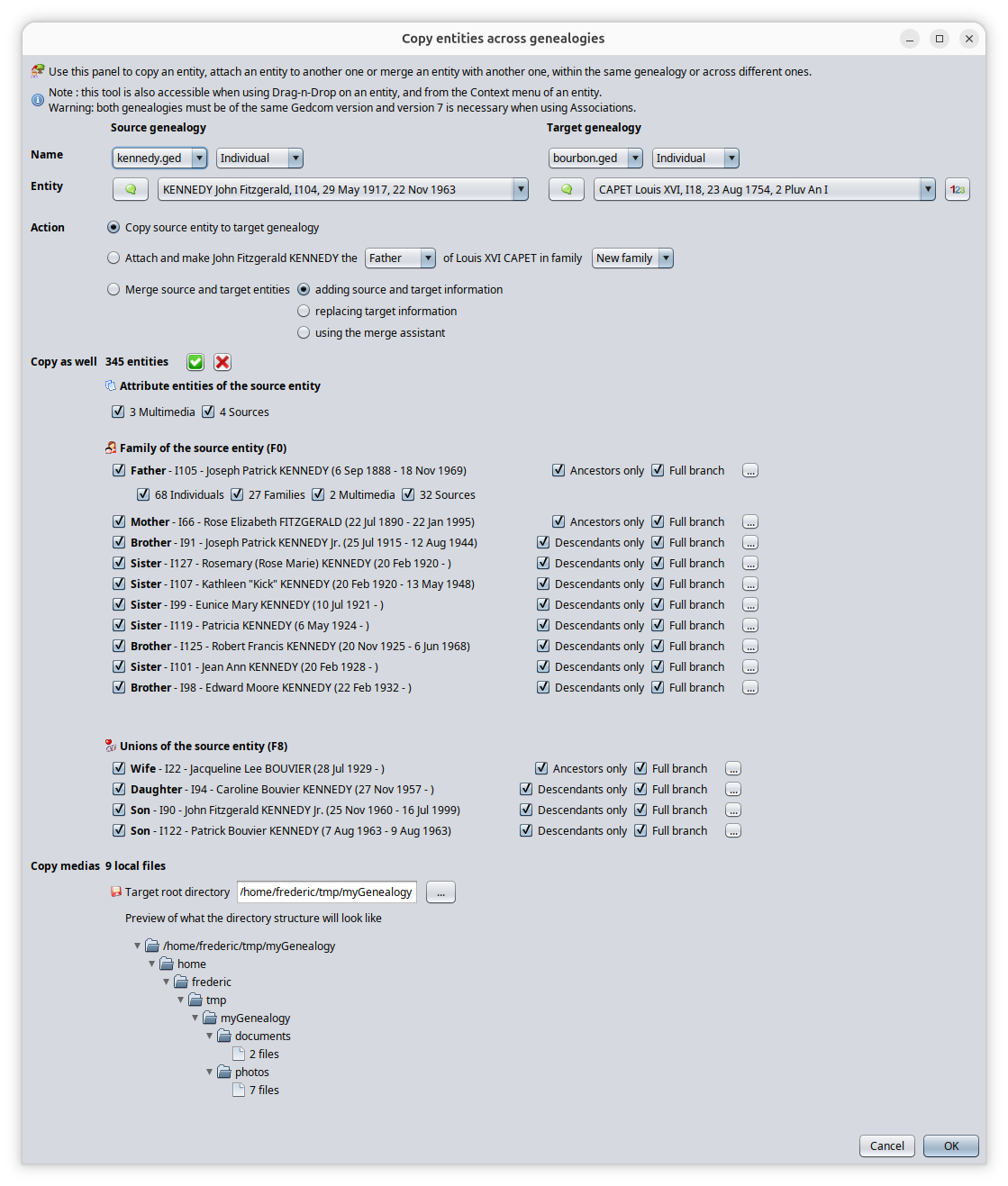
Vous pouvez voir tout cela dans l'image ci-dessus.
- La généalogie source sélectionnée est la généalogie Kennedy. La généalogie cible sélectionnée est la généalogie Bourbon.
- Pour les deux, le type Individu est sélectionné. Par conséquent, les sélecteurs d'entités de la deuxième ligne affichent les individus.
- Dans les sélecteurs, John Kennedy et Louis XVI sont sélectionnés.
- Pour le sélecteur d'entité Bourbon, nous pouvons voir le bouton DeCujus « 123 » car une numérotation Sosa a été créée dans la généalogie Bourbon.
Bien sûr, il n'y a aucune raison dans la vie réelle de mettre les Kennedy et les Bourbon dans la même généalogie, mais il est plus facile de voir ce qui se passe dans l'outil en prenant ces exemples.
Veuillez noter que les 3 listes de chaque côté (généalogie, type d'entité et entités) sont interdépendantes.
- Lorsque vous modifiez la sélection de généalogie, le type d'entité et l'entité sont mis à jour
- Lorsque vous modifiez le type d'entité, l'entité est mise à jour
Veuillez également noter que toutes les informations figurant dans le reste de la fenêtre dépendent de ces 6 sélections. Lorsque vous modifiez l'une des six sélections, le reste de la fenêtre ci-dessous est mis à jour.
Sélection d'action
Trois actions sont possibles et elles dépendent des généalogies et entités sélectionnées ci-dessus.
Quelle que soit l'action choisie, une copie des entités d'une généalogie à l'autre sera effectuée. Ce choix a donc pour but de préciser si la copie doit être enrichie d'un rattachement entre entités ou d'une fusion de l'entité principale sélectionnée.
Copier
Cette action indique à Ancestris, lorsque vous cliquez sur OK, de simplement copier depuis la généalogie source vers la généalogie cible l'entité sélectionnée dans le sélecteur d'entités et toutes les entités sélectionnées en dessous.
Il s'agira d'une simple copie. Aucun rattachement ni aucune fusion d'aucune sorte ne sera effectuée.
Si la simple copie est votre intention, l'entité cible sélectionnée n'a aucune importance et vous pouvez conserver la sélection par défaut.
Rattacher (= Copier et Rattacher)
Cette action indique à Ancestris, lorsque vous cliquez sur OK, d'effectuer la même action de copie que ci-dessus et en plus de rattacher l'entité source à l'entité cible une fois la copie effectuée.
Vous pouvez rattacher pratiquement n'importe quelle entité à n'importe quelle autre. Ancestris adaptera la logique de l'attachement.
- Si vous associez un individu à un autre individu, plusieurs possibilités s'offrent à vous. Elles sont répertoriées dans le tableau ci-dessous.
- Si vous associez un dépôt à une source, une seule possibilité existe.
Pour tenir compte de toutes les possibilités, l'action Rattacher comprend certains paramètres supplémentaires que vous devrez sélectionner.
- Le rôle de la personne rattachée du point de vue de la personne à laquelle elle est rattachée (père, époux, etc.)
- La famille dans laquelle vous effectuez ce rattachement
- L'événement auquel vous rattachez un média, une source, une note, etc.
- La source à laquelle vous rattachez un dépôt si vous sélectionnez une personne comme entité cible.

Dans l'image ci-dessus, vous pouvez voir que le rôle sélectionné est « fils » et que la famille sélectionnée est «CAPET x MEDICIS (F11)».
En fonction de l'entité que vous associez à une autre entité, le texte de l'action et les paramètres disponibles vous sont automatiquement fournis par Ancestris.
Le tableau ci-dessous vous permettra de comprendre l'intérêt de choisir ces paramètres.
Les choix qui vous sont proposés dépendent également de la possibilité ou non d'effectuer l'action de rattachement. Seuls les rattachements possibles sont proposés.
- Les possibilités de rattachement sont limitées aux possibilités offertes par la norme Gedcom.
- Les possibilités de rattachement sont également limitées par la disponibilité de ce rattachement dans la généalogie cible. Par exemple, vous ne pouvez pas rattacher une personne en tant que père d'une autre personne dans une famille donnée si le père est déjà défini dans cette famille. Vous devrez alors indiquer qu'il s'agit du père dans une autre famille, éventuellement une nouvelle.
Voici le tableau de toutes les combinaisons d'attachement possibles.
| Type de l'entité cible | ||||||||
| Individu | Famille | Note | Média | Source | Dépôt | Fournisseur d'info. | ||
| Type de l'entité source | Individu |
- Parent, époux, enfant dans une famille existante ou une nouvell - Alias |
Époux, enfant | - | - | - | - | - |
| Famille | Époux, enfant | - | - | - | - | - | - | |
| Note | Rattacher à l'entité ou l'un des ses évènements | Note de l'entité cible | ||||||
| Média | - | - | Média de la source | - | - | |||
| Source | Source de la note | Source du média | - | - | - | |||
| Dépôt | Rattacher à l'une des sources de l'entité | - | - | Dépôt de la source | - | - | ||
| Fournisseur d'info. | - | - | - | - | - | - | - | |
Merge (= Copy and Merge)
This action tells Ancestris, when pressing OK later, to perform the same copy action as above and to also merge the Source entity to the Target entiy after the copy has been made.
This action is only possible if both entities are of the same type.
Another choice is to be made here. This is the way you want to perform the merge. You have 3 possibilities.
- Adding - Merge by adding the information of the source entity to the target entity.
- Replacing - Merge by replacing the information of the target entity by the information of the source entity when there is a conflict.
- Assistant - Merge using the Merge Assistant. You will decide on a case by case basis what to do with the conflicting information. The merge assistant will be displayed after the copy is completed.
Copy as well other entities selection
Depending on the selections above, a number of entities are likely to be brought along the transfer from the Source genealogy to the Target genealogy.
You have the possibility to select very precisely which entity you want to include in the copy action.
Other entities are displayed in several possible groups.
Attribute entities of the source entity
Attributes are non individual nor family entities, so they are notes, medias, sources, repositories and submitters.
Ancestris displays the available attributes of the source entity, and how many of them are.
This section applies to any type of entity source selected.
If you leave the mouse over the attribute type, Ancestris will disply the list in the tool tip.
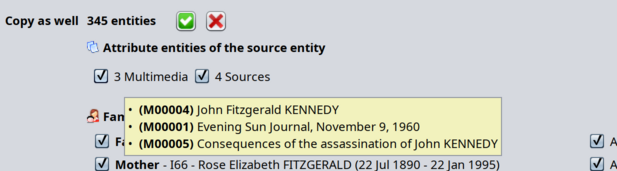
In the image above, to include the 3 multimedias in the copy, leave the chech box selected. To exclude them, unselect it.
If you select or unselect a check box, the total number of entities being copied is updated. This number does not include the source entity which is always copied.
In the image above, we can see that the source entity, in this case the individual entity "John Fitzgerald Kennedy", does not have any Note entity attached to it. So the Note box does not appear.
Family of the source entity
In this section, you can see and select individuals of the parent family of the source individual selected.
It is only displayed if the source entity is of type Individual and if this person has a family of biological parents in the source genealogy.
Here is an example of what you will see.
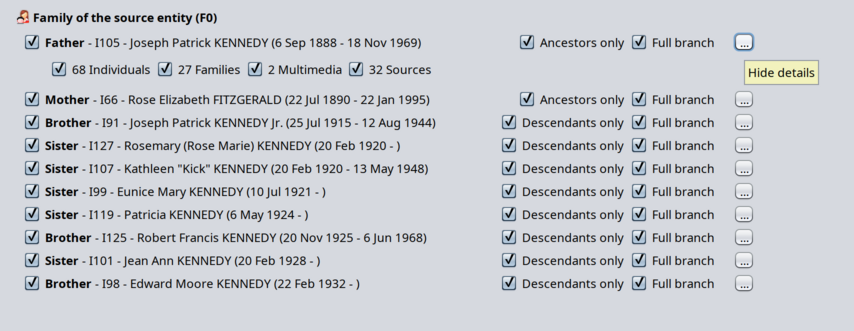
You will see the family members from the perspective of the source individual: father, mother, brothers, sisters.
The source individual is not displayed again here.
Scope
For each person, you wil see the attribute entities if you press the "Show details" button on the right hand side of each person. In the image above, details are displayed for the father.
For each person, you will have the possibility to include the ancestors or descendants of that person. You can choose between 2 types of scope here.
- Ancestors only (for the ascendants of the source individual) / Descendants only for the descendants of the source individual) : only direct ancestors or direct descendants are included. Direct in the sense of "blood related", SOSA related.
In this case, spouses of descendants and siblings of ancestors are not included. - Full branch: this will tell Ancetris to include the whole family group of the person in the copy action. So spouses of descendants and siblings of ancestors will be included in that case.
When ancestors, descendants or branches are included in the copy, Ancestris will add the corresponding entities in the details shown.
In the image above, we can see that the full branch of the Father of the source individual includes 68 individuals and 27 families, as well as 2 multimedias and 32 sources.
You can choose to unselect Multimedia and sources, but you cannot unselect 68 Inddividuals nor 27 families. To exclude them from the copy, just unselect "Ancestors only".
Note: if you select "Full branch", it will automaticaly select "Ancestors only". If you unselect "Ancestors only", it will unselect "Full branch", because one scope is included in the other scope.
Person displayed as disabled
Sometimes, a person could appear as disabled. Here is an example where Father and Mother are displayed as disabled.
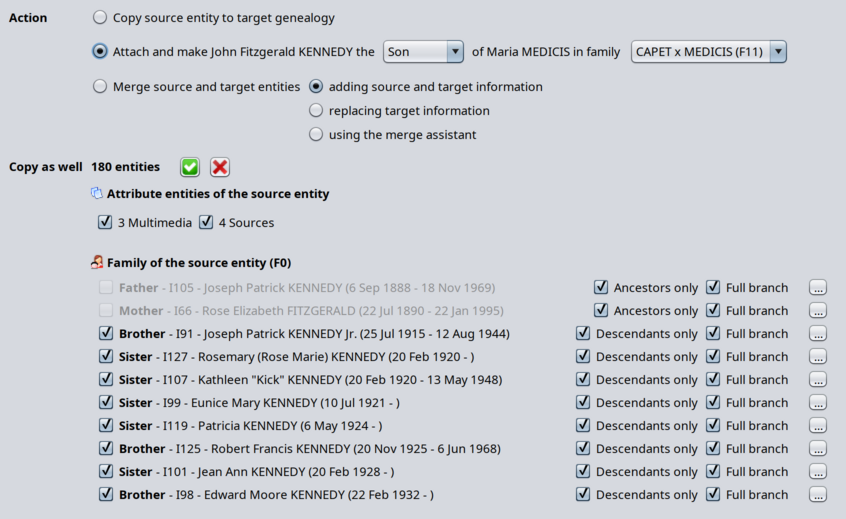
A person appears as disabled and will be excluded from the copy if it cannot be copied based on the action and parameters selected.
In the image above, we can see the action is to attach John Kennedy as son of Maria Medicis in the CAPET X MEDICIS family.
If the attachment is successful, John's parents will be Henri IV and Maria de Medicis. So the source parents, Joseph Kennedy and Rose Fitzgerald cannot also be the parents of John in the target family. Hence Ancestris disables that possibility.
If you really want to bring Joseph and Rose along in the copy action, you would have to choose a "new" family in the family list box.
Non biological families of the source entity
According to the same principle as the parent family, Ancestris will also display in this section all the found non biological families of the source individual.
It is only displayed if the source entity is of type Individual and if this person has non biological parents in the source genealogy.
Unions of the source entity
According to the same principle as the parent family, Ancestris will also display in this section all the found unions of the source individual.
It is only displayed if the source entity is of type Individual and if this person has unions in the source genealogy.
Aliases of the source entity
This section lists all the aliases of the source individual.
It is only displayed if the source entity is of type Individual and if this person has aliases in the source genealogy.
Local Media files
This section lists all the medias files involved in the selected entities above.
It is only displayed if both genealogies are different, if entities of type media/multimedia are included in the copy and if they themselves refer to local media files.
Reminder: media files are regular image, videos, sound, etc. files that are linked to the Gedcom genealogy data using file addresses called file paths.
Each piece of genealogy data that needs to reference a Media uses a FILE property in Ancestris to store the file path to the media file. This helps Ancestris find the file and display it.
If some of the entities you copy across are Media entities, you will want the corresponding files to be stored among your other media files of the target genealogy.
- For remote files, those using a web address, you may decide to leave the files remotely, or to download them. Either way, we suggest you to use the Ancestris Media manager after the entities are copied across. The media manager includes a tool to download remote files. In the tool described in this page, Ancestris will not alter their path and will copy them leaving the file path unchanged.
- For local files, those using a local file path, Ancestris will make a copy of the media files and store them in a directory of your choice - the target root directory - and modify the file path accordingly.
Choice of target root directory for copied Media files
You have to indicate one target directory to store the media files of the Source genealogy. It does not mean that all files will be in this directory, but that this directory will be a root directory and the file path structure will define correponding sub-directories to store the media files.
We highly recommend that you indicate a relative directory, i.e. a directory underneath the directory of your target genealogy Gedcom file.
You can choose otherwise and indicate an absolute directory. This will force all files paths to be absolute for these newly added media files, including file paths that were relative in the source genealogy.
Relative vs Absolute file paths: the benefit of relative paths is that you will maintain the links between your Gedcom file and the media files even if you move the whole Gedcom directory somewhere else or rename it (as long as you do not rename nor change the sub-directories)
We highly recommend that you indicate a temporary directory
- Use a temporary directory if your habit is to store media files in distinct directories depending on their nature (images, videos) or what they represent (people photographs, source documents), or the type of events (births, marriages). Ancestris will store the files there and you will take the time later to properly dispatch them manually one by one in their final directories.
- Alternatively, use the directory of your media files if your habit is to store all media files in one single directory.
By default, Ancestris will propose a directory in the Gedcom file directory.
Ancestris will not erase existing files in the Target Root directory. If you make several extracts of the same Source genealogy to the same Target genealogy, it is possible to reuse the same Target Root directory for Media files.
Media file path transformation
Ancestris will replicate the Source sub-directory structure underneath the Target Root directory
By default, if the target root directory is relative, all file paths of copied media files will be relative.
If a file path is absolute and the root directory is relative, Ancestris will replicate the sub-directory structure as relative to the Gedcom file directory.
If a file path is relative and the target root directory is absolute, Ancestris will keep the sub-directory structure underneath the target root directory.
If files are located within different directory structures in the source genealogy, Ancestris will create these structures within the root directory.
Of course, it would be nice to help arrange all the media files to your filing tastes, but that would make this tool a bit cumbersome to use. Please use the Media Manager tool instead once files are well attached to your Target genealogy.
Media files not found
Found files will be copied to their target sub-directory locations as per the Source directory structure.
If a media file is not found, it will simply just not be copied. Its file path will be transformed as described above when necessary.
Usage
The purpose of this tools is dedicated to copying entities across different genealogies. However, the option to use it within the same genealogy is described below.
Across different genealogies
In order to group two differents genealogy files, you can use the simple tool "Menu/FIle/Merge genealogies". This will simply take all entities of both files and create a unique file will all entities inside. It will not actually merge entities which look similar. It merges the files, not the entities.
If you want to be more precise and only extract some of the entities, use the "Copy entities across genealogies" tool described in this page.
This is the typical process to do that.
- Select the genealogy you wish to extract entities from
- Select the entity of the source genealogy you wish to attach to, or merge with, an entity of the target genealogy. We call this the "source entity" although it is not limited to entities of type Source.
- Open the "Copy entities across genealogies" tool from one of the following 3 ways:
- From the Tools menu
- From the Context menu with right click on the Source entity
- From the Drag-and-Drop menu, draging the source entity and droping it to the target entity. At the bottom of this popup menu you will find the option to open the full tool if the pre-selected choices are not enough.
- In the tool window, as described in the previous section, make sure you select the proper source and target genealogy and entities
- Choose the action, copy, attach or merge, that corresponds to your intention and in the case of an attachment, select the parameters
- Select or unselect the involved entities linked to the source entity in the middle section of the window
- Define the media files root directory where media files will be stored
- Press OK
Confirmation
On pressing OK, Ancestris will ask for your confirmation.
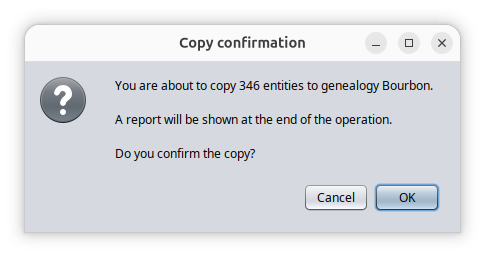
By pressing OK, Ancestris will perform the copy of the entities, of the media files, and update the media links. If you asked for the attachment, Ancestris will do it as well.
The whole process is fast and takes from less than a second to a few seconds.
If you need to undo it, press undo a a few times. Please be aware that the copy of the local media files on your disk storage cannot be undone. You would have to delete the target root directory manually. Hence our recommendation to use a relative temporary root directory.
Report
Upon completion, Ancestris will display a report document with the summary and details of all the work that has been done. It lets you know exactly what was done and you can revisit each entity that was copied and where it was copied to.
This is what the report looks like.
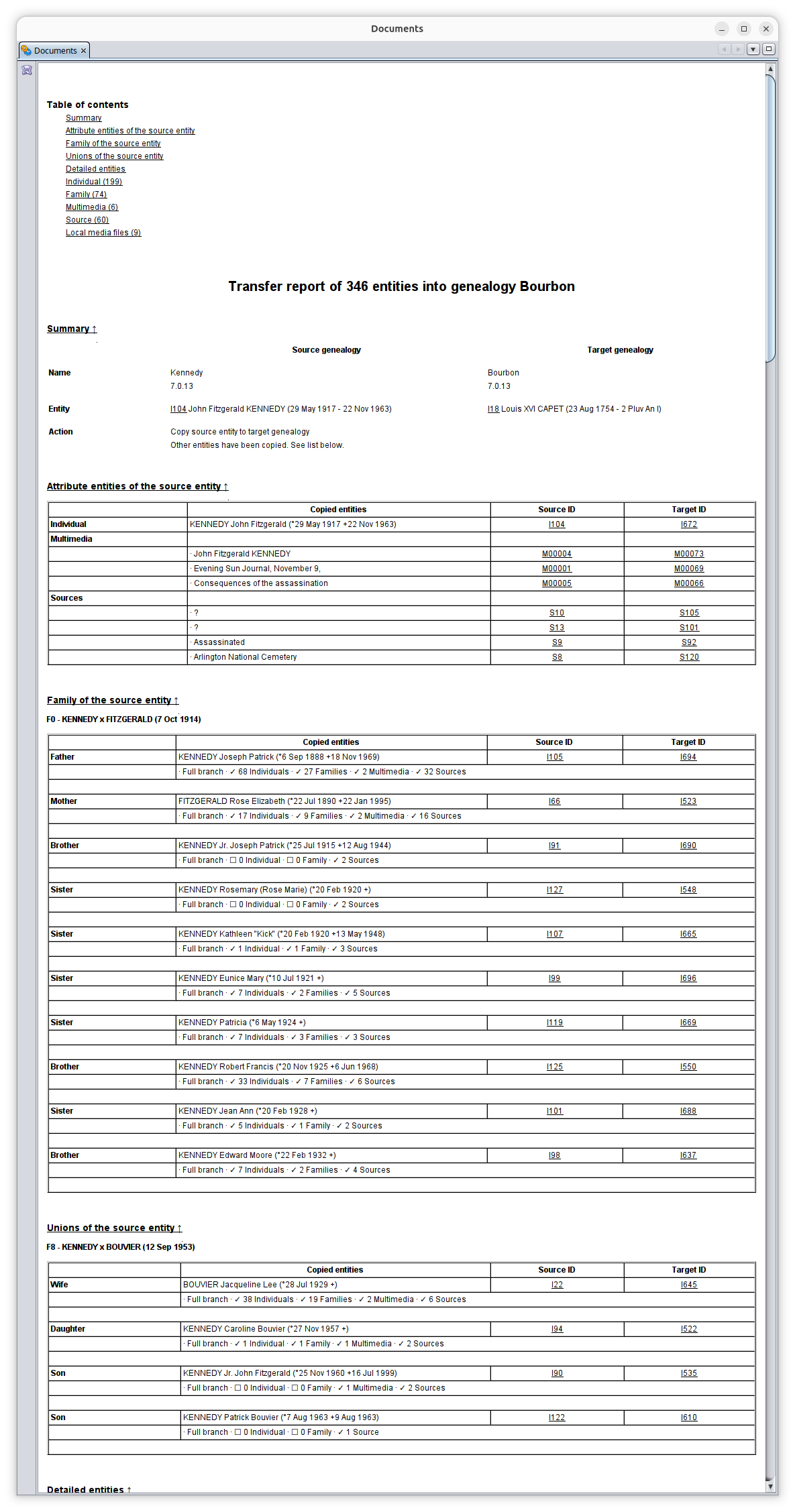
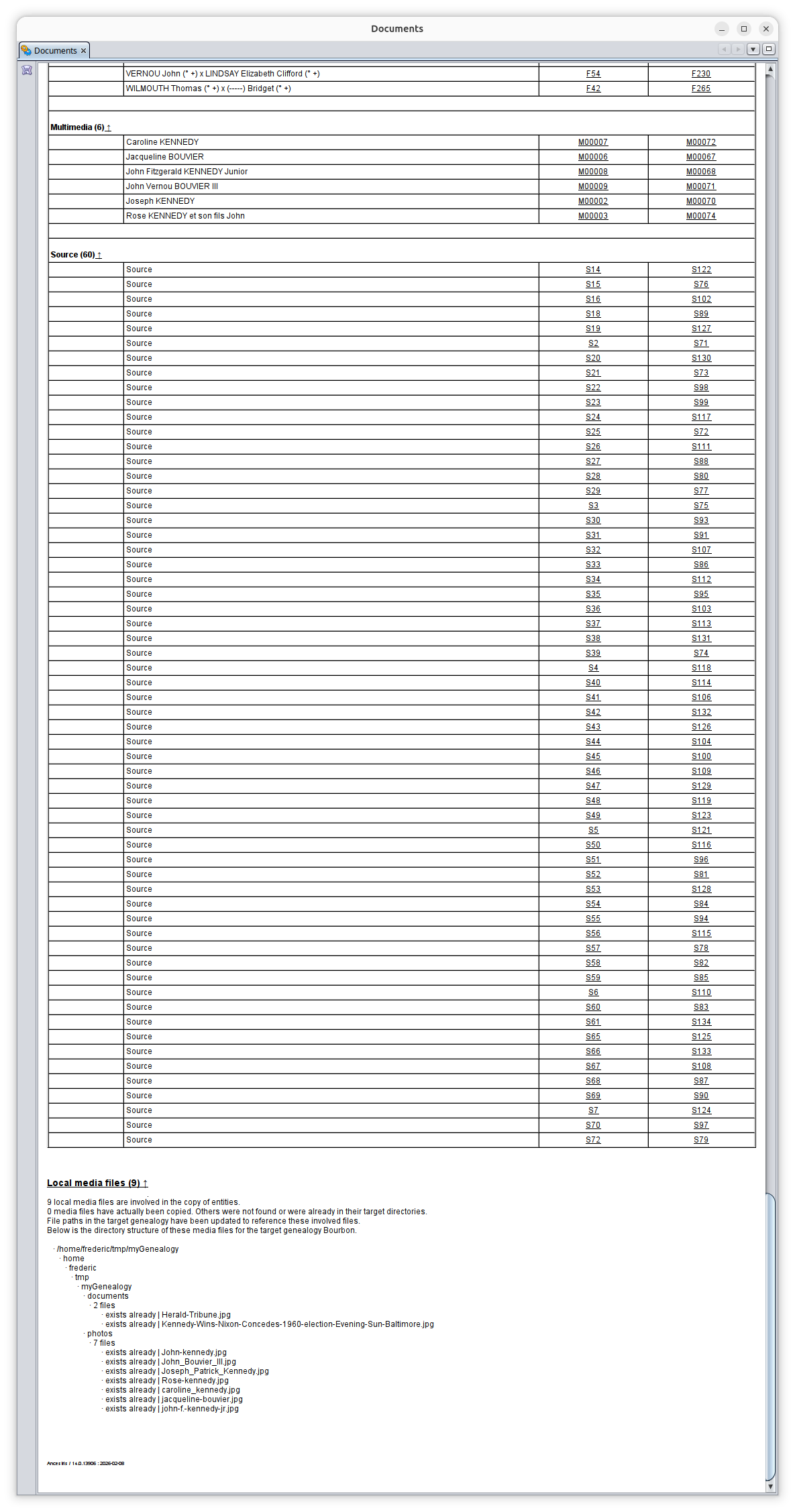
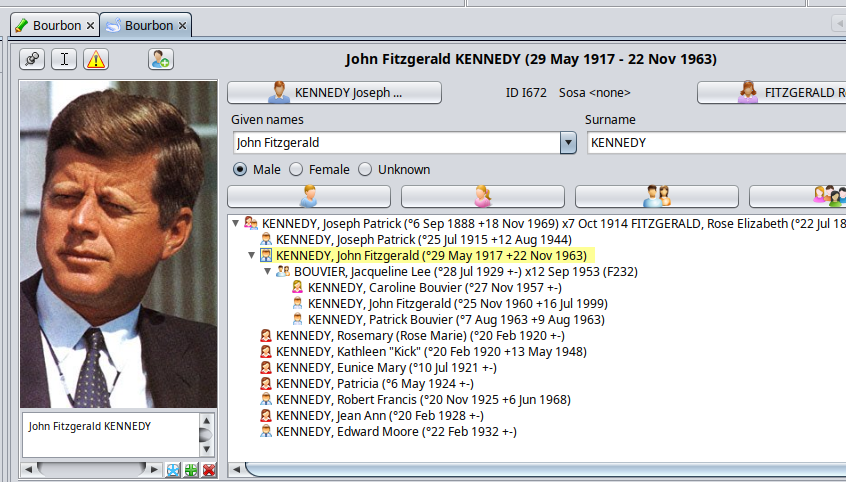
In our example, if you want to check visualy that John Kennedy was copied to the Bouron genealogy, we can click on its target ID in the report and we get this.
As you can see in the image below, we are editing the Bourbon genealogy and we can see John Kennedy with the picture. We also can see that all the family was copied across as well and integrated into the Bourbon genealogy.
Within the same genealogy
Within the same genealogy, the only two actions which are likely to be useful are the attachment of one entiy to another one and the merge of two entities. You are better using the dedicated tools for that.
- Attaching entities within the same genealogy can be done using the Context menu actions and the regular editors possibilities. There is no need to use this tool here to do that.
- Merging two entities of the same genealogy is directly made possible using the Context menu and the "Merge with..." action.
In these situation, the entities of the of the "Copy as well" section are unselected by default. Indeed, copying entities within a given genealogy is likely to generate duplicates, so it is not recommended, unless you have a good reason to do so. If no entities are selected, no copy will be made. In case you really want to do it, the copy action remains possible.
In the specific situation where both the genealogies and the entities are the same, only the copy action is available because you cannot attach an entity to itself and you cannot merge an entity to itself.
Copying media files is not possible either as it would not make sense.
Bottom line is that copying, attaching and merging entities within the same genealogy is not the purpose of this tool, but we leave the possibility open in case you have a really good reason to do so.
Customization
There are no customization settings for this tool.