
Table of places
The Table of Places is a global place editor used as a spreadsheet, to help you edit and clean all the places of your genealogy.
Description
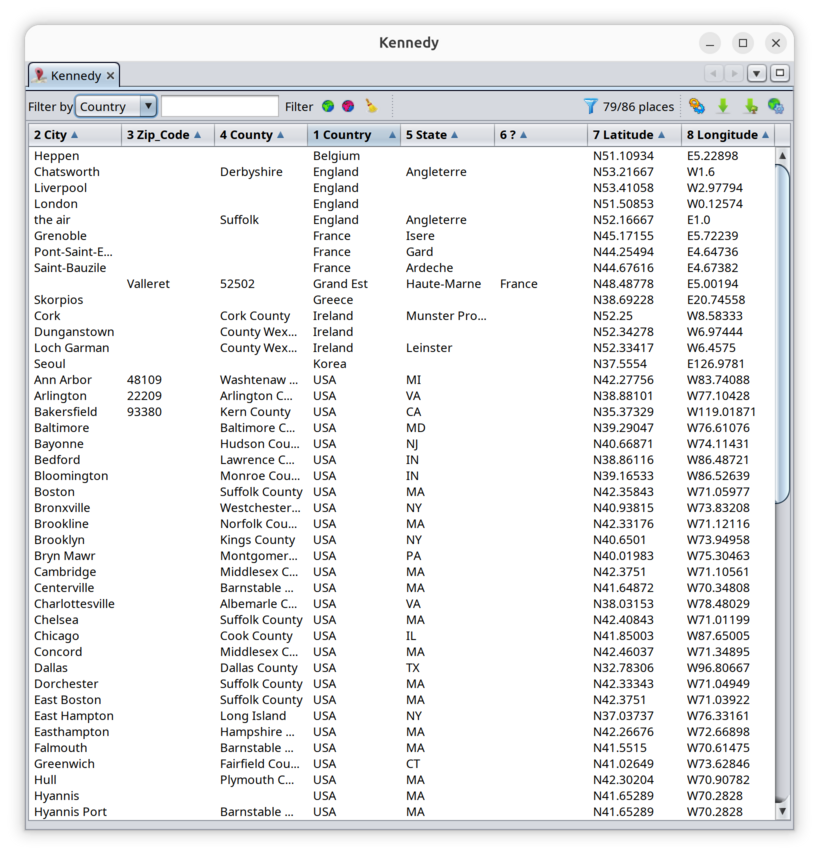
The Table of Places lists all the locations of your genealogy. Each line represents a place, and each column represents a jurisdiction.
If a place is used several times in the genealogy, only one line will appear.
Two columns with the stored coordinates are added after the jurisdictions.
If places have different formats, Ancestris will display as many columns as the place with the largest number of jurisdictions, regardless of the place format defined in the genealogy (Gedcom header). For more details on the format of places, see the Places section.
The list can be sorted on multiple columns, by clicking on the header of the column and maintaining Ctrl pressed.
The columns can be moved with the mouse by dragging the header.
A filter bar above the table can be used to filter the list for the places you are interested in.
Column's order and sizes, as well as sorting criteria and filtered column are memorized for each genealogy.
Toolbar
The toolbar displays a number of filter and buttons to display the desired places.

Filter by
The Filter by drop-down menu selects the jurisdiction column on which to filter. The list differs for each Genealogy since the list of jurisdictions is read from the Gedcom header file itself. The choice "*" filters on all columns at the same time.
Text serachsearch field
The input field is the string criteria to filter places. The filtered places have to contain this string in order to be displayed. Ancestris uses regular expressions to filter, letting you indicate smart filtering.
Filter button
Filter valid places Button 

Displays only valid places, that is places with coordinates.
Filter invalid places Button 

Displays only invalid places, that is places with no coordinates.
Remove filters Button
Removes all filters and displays the full table again.
Filter indicator 

This symbol tells you whether a filter is being applied or not.
A filter is being applied when at least one place is not displayed.
Hovering over this symbol brings up a tooltip indicating which filter is in effect.
Run reports
Run reports using the individuals involved in the displayed places.
Export in CSV format
Export the displayed table in a CSV file.
Export visible individuals into a new Gedcom file button
It is therefore possible to export visible individuals to a file that can then be sent to another person.
This can also be achieved using the "File/Save as" menu.
Format places structure
Changes the structure of the place jurisdictions of the genealogy.
Usage
The Table of Places can be used to visualize all places, to edit them as you would in a spreadsheet, to search for a place on the Internet and edit it in details, or to export places.
Visualization
The table simply gives a global overview of all your places and let to classify, analyse them, etc. as in a table.
Context menu / Show related events
From each place, you can also identify quickly which individuals and events are association with a place.
For that, a context menu accessed by right click can show you these related events. Select one to display the corresponding event in the Ancestris editors.

Global editing
You can edit places by directly editing the table cells.
Either directly enter text in the cells, drag-and-drop other cell content or paste some text in cells.
Validating changes
When a cell is modified, the OK and Cancel buttons appear at the bottom right corner of the Table Places.
For this, you need to have set your preferences to confirm changes (please refer to Preferences / Edition / Confirm changes for more details).
Press Enter or click OK to confirm changes, or else press Esc key to cancel.
If a change is confirmed, the cells of the Table of Places will be refreshed, potentially changing the order of the lines.
In the editing mode where the modifications are automatically taken into account without confirmation, the simple fact of going to another cell validates the modification made to the previous cell. This displays the table again and is likely to change the order of the rows.
For greater efficiency when modifying cells, it is best not to automatically accept changes in the Editing preferences.
Drag-and-Drop
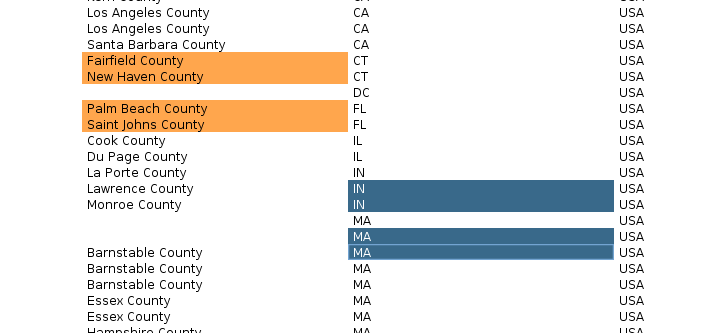
You can drag and drop one cell or several cells at a time. When dropping cells onto other cells, Ancestris will maintain the same cell structure.
For instance, in the image below, we are dragging 4 cells on one column and dropping them on the next column.
Context menu for Cut / Copy / Paste
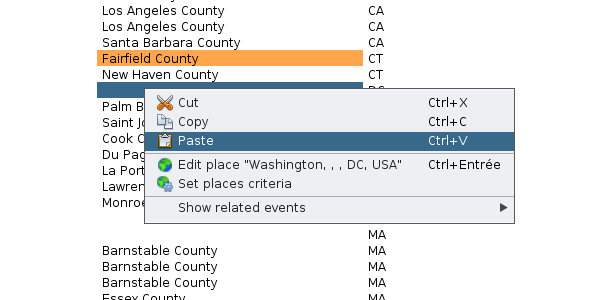
To copy and Paste cells, select on or several cells and use the context menu to either copy or cut.
In a second step, select the cells where you want to paste the content, right click to display the context menu and paste the cells.
The content will be pasted in the selection in one of two ways:
- If only one cell has been selected for the paste, the whole copied area will be pasted using this selected cell as the top left corner.
- If more than one cell has been selected, two situations can occur:
- Either the selected area is smaller than the copied area : in this case, Ancestris will truncate the content to the selected area.
- Or the selected area is larger than the copied area : in this case, Ancestris will repeat the content throughout the selected area.
Search and Detailed editing
Double-clicking on a place in any column opens the Places Editor where you can edit it.
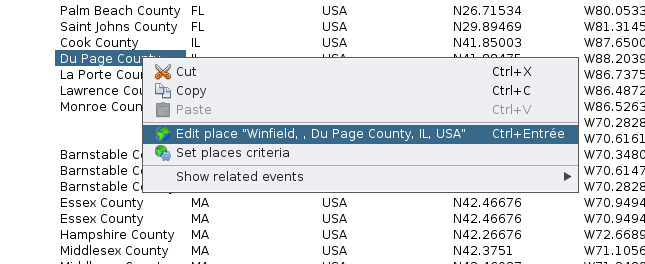
All events that use this place will be modified at the same time.
Note: when the Places editor is called from the table of places, it will edit all places of the genealogy that have the same name and coordinates.
If you only want to edit the location of a particular event, use the Cygnus, Aries or Gedcom editor to edit this particular event, and then edit the single place from within the event.
Set place criteria
If you need to align all places to a given place format, or if you want to rename or change the order of the jurisdictions, you will need to use this tool.
From the context menu or from the toolbar button, the following panel will appear.
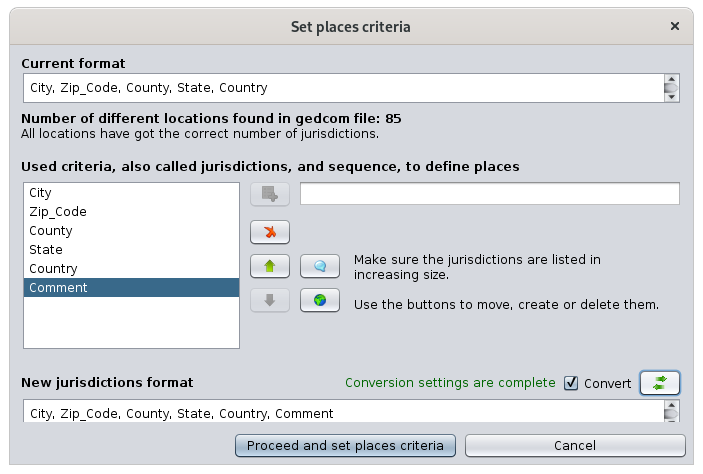
If you change the place format, yo will need to indicate to Ancestris how you convert from the existing format to the new format. Use the Convert button for this.
The following panel will appear. Follow the instructions and press OK.
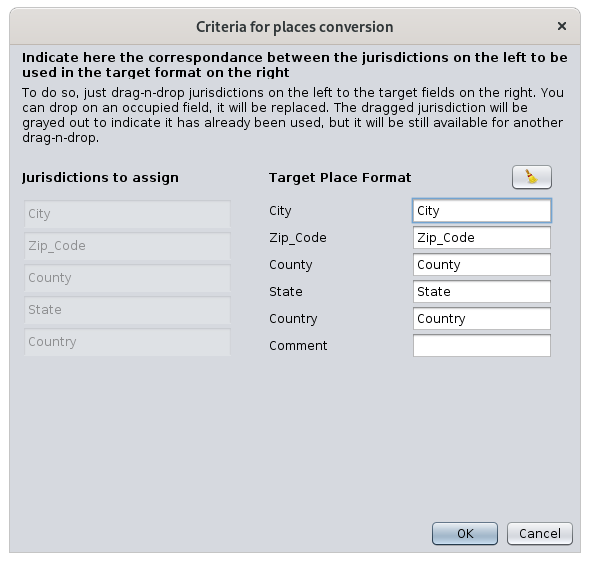
Once you confirm the transcription of the jurisdictions, yo are taken back to the previous panel. Press "Proceed and set places criteria" to make the change in the genealogy.
The cells of the Table of Places will be refreshed.
Exporting places
Use the Export button to get a file with all the places of the list. The file will be in a TXT or CSV format that can be used in any standard spreadsheet software.
It is also possible to partially export places using the clipboard.
- To do this, select the cells you ant to export, or type Ctrl+A to select all locations
- Ctrl+C to copy them to the clipboard.
- Ctrl+V from a spreadsheet to paste them
Customization
Apart from memorizing filters and columns, there are no customizable elements in the location table.