
Copy entities across genealogies
This tool helps you copy genealogy individuals and complete family branches from one genealogy to another.
From a main entity of your choice, this tool will copy it, attach it, or merge it to a different genealogy and bring along some or all the family tree linked to that main entity.
Only the main entity is attached or merged. The merge tool can be used to merge the entities brought along.
This main entity can be any entity type, an individual, a family, a note, a media, etc.
If local media files are linked to the main entity and are to be copied as well to the receiving genealogy, Ancestris will offer to copy the media files as well and attach them properly to the newly copied media entities.
This tool also lets you all the above within the same genealogy although it makes less sense to do that.
This tool is accessible from the Tools menu, when using Drag-and-Drop on an entity, and from the Context menu of an entity.
Pre-requisites
Both genealogies must be of the same Gedcom version and version 7 is necessary when using Associations.
Description
This tool is made of one single window.
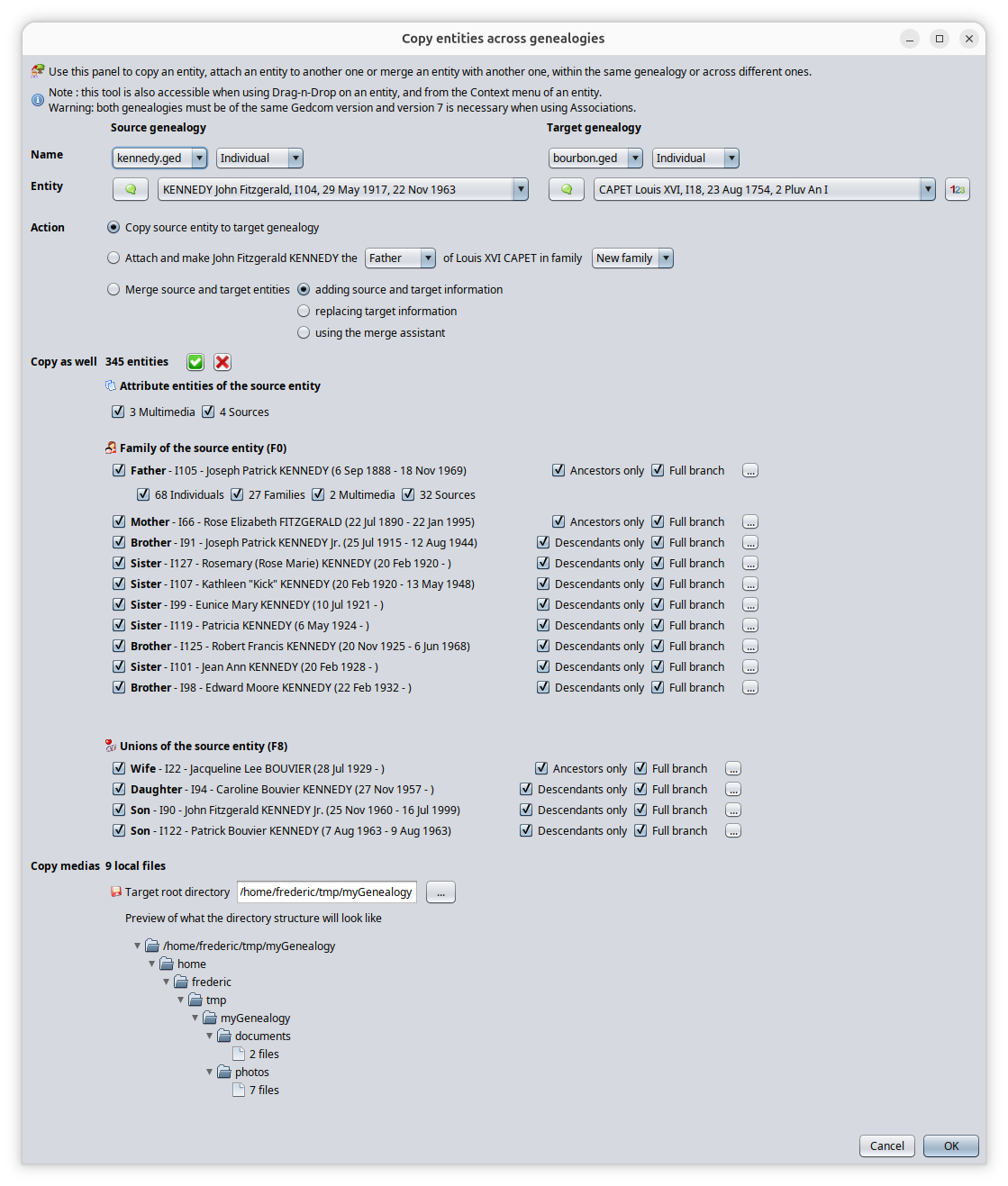
The principle of the tool is to perform 4 steps.
1/ Genealogies and entities selection: this lets you choose a first entity from a genealogy that you want to extract, and a second entity to which you want to attach it to or merge it to,
2/ Action selection: this lets you choose the action you want to execute, simple copy, attachment or merge,
3/ Other entities selection: this lets you select all additional entities you want to bring along,
4/ Local media file: this is where you check the local media files structure which will be created,
Once done, you press OK to let Ancestris do all the work.
At the top of the screen you make your genealogies and entities selection, below you choose the action, then you make your selection of the other entities top copy, and at the bottom is the information about local media files involved in the copy.
Let's describe each section.
Genealogies and entities selection
At the top of the window appear two columns.
- On the left hand side is what we call here the "Source genealogy". This is the genealogy from which you want to extract information.
- On the right hand side is what we call here the "Target genealogy". The genealogy into which the extracted information will be stored.
The target genealogy will most probably be your genealogy. The source genealogy will most probably be a genealogy you have been given from another family member or that you have collected from your research.
For each genealogy are displayed two lines.
- The first line contains a list box of all the genealogies currently open in Ancestris.
- You use this list to select which genealogy is the Source, and which one is the target.
- By default, the selected source genealogy is the currently selected genealogy at the time of launching the tool.
- By default, the target genealogy is the one that was selected previously in Ancestris, or the same one is only one genealogy is open in Ancestris.
- Next to this first list box is another list box of the types of entity in the selected genealogy.
- By default are selected the type of the currently selected entities in the respective genealogies at the time of launching the tool.
- The second line is the entity selector you use in other parts of Ancestris.
- It lets you sort the list of entities and choose the DeCujus individual if Individual is the type of entity selected above and if the genealogy has a DeCujus individual defined.
- By default the selected entities are the ones currently showing in the Ancestris editors at the time of launching the tool.
When we indicate "Source" entity in this page, this is the selected entity of the source genealogy. It is not necessarily an entity of type "Source".
You can see all that in the image above.
- The source genealogy selected is the Kennedy genealogy. The target genealogy selected is the Bourbon genealogy.
- For both, the Individual type is selected. As a consequence, the entity selectors in the second line are displaying Individuals.
- In the selectors, John Kennedy and Louis XVI are selected.
- For the Bourbon entity selector, we can see the DeCujus "123" button because a Sosa numbering has been created in the Bourbon genealogy.
Of course there is no reason in real life to put in the same genealogy Kennedys and Bourbons, but it is easier to see what's happening in the tool when contrasting the differences.
Please note that the 3 lists on each side (genealogy, entity type and entities) are depending on each other.
- When changing the genealogy selection, the entity type and entity are updated
- When changing the entity type, the entity is updated
Please note as well that all the information in the rest of the window depends on these 6 selections. When changing any of the six selections, the rest of the window below is updated.
Action selection
Three actions are possible and depend on the selected genealogies and entities above.
Copy
This action tells Ancestris, when pressing OK later, to simply copy from the Source genealogy to the Target genealogy the entity selected in the entity selector and all the entities selected below.
This will be a simple copy. No attachment nor mege of any sort will be done.
If this action is your intention, then the target entity selected has no importance and you can leave the default selection.
Attach (= Copy and Attach)
This action tells Ancestris, when pressing OK later, to perform the same copy action as above and to also attach the Source entity to the Target entiy after the copy has been made.
You can pretty much attach any entity to any other. Ancestris will adapt the logic of the attachment.
- If you attach an individual to another individual, many possibilities are available. They are listed below in the table.
- If you attach a repository to a source, only one possibility exists.
To accomodate all possibilities, the Attach action include some additional parameters you will have to select.
- The role of the individual attached from the perspective of the person it is attached to
- The family in which you make this attachment
- The event to which you attach a media, a source, a note, etc.
- The source to which you attach a repository in case you select an individual as the target entity.
Depending on which entity you attach to which other entity, the text of the action and the available parameters are automatically provided to you by Ancestris.
With the the table below, you will understand the purpose of having to choose these parameters.
The choices provided to you also depend on whether the attachment action is possible or not. Only possible attachments are proposed.
- The attachement possibilities are limited to the possibilities offered by the Gedcom standard.
- The attachement possibilities are also limited by the availability of such attachment in the target genealogy. For instance, you cannot attach a person as the father of another person in a given family is the father is already defined in this given famiy. You would have to indicate to make it the father in another family, potentially a new one.
Here is the table of all the possible attachment combinations.
| Target entity type |
||||||||
| Individual | Family | Note | Media | Source | Repository | Submitter | ||
| Source entity type |
Individual |
- Parent, spouse, sibling, child in an existing or a new family - Alias |
Spouse, child | - | - | - | - | - |
| Family | Spouse, child | - | - | - | - | - | - | |
| Note |
Attach to entity or to one of its events |
Note of target entity | ||||||
| Media | - | - | Media of source | - | - | |||
| Source | Source of note | Source of media | - | - | - | |||
| Repository | Attach to a source of the entity | - | - | Repository of source | - | - | ||
| Submitter | - | - | - | - | - | - | - | |
Merge (= Copy and Merge)
This action tells Ancestris, when pressing OK later, to perform the same copy action as above and to also merge the Source entity to the Target entiy after the copy has been made.
This action is only possible if both entities are of the same type.
Another choice is to be made here. This is the way you want to perform the merge. You have 3 possibilities.
- Adding - Merge by adding the information of the source entity to the target entity.
- Replacing - Merge by replacing the information of the target entity by the information of the source entity when there is a conflict.
- Assistant - Merge using the Merge Assistant. You will decide on a case by case basis what to do with the conflicting information. The merge assistant will be displayed after the copy is completed.
Other entities selection
Depending on the selections above, a number of entities are likely to be brought along the transfer from the Source genealogy to the Target genealogy.
Local media files
Usage
Across different genealogies
Here we consider the situation where both genealogies are different, which is the most common need.
etc...
Copying Media files
Reminder: media files are regular image, videos, sound, etc. files that are linked to the Gedcom genealogy data using file addresses called file paths.
Each piece of genealogy data that needs to reference a Media uses a FILE property in Ancestris to store the file path to the media file. This helps Ancestris find the file and display it.
If some of the entities you copy across are Media entities, you will want the corresponding files to be stored among your other media files.
- For remote files, those using a web address, you may decide to leave the files remotely, or to download them. Either way, we suggest you to use the Ancestris Media manager after the entities are copied across. The media manager includes a tool to download remote files. In the tool described in this page, Ancestris will not alter their path and will copy them leaving the file path unchanged.
- For local files, those using a local file path, Ancestris will make a copy of the media files and store them in a directory of your choice - the target root directory - and modify the file path accordingly.
Choice of target root directory for copied Media files
You have to indicate one target directory to store the media files of the Source genealogy. It does not mean that all files will be in this directory, but that this directory will be a root directory and the file path structure will define correponding sub-directories to store the media files.
We highly recommend that you indicate a relative directory, i.e. a directory underneath the directory of your Gedcom file.
You can choose otherwise and indicate an absolute directory. This will force all files paths to be absolute for these newly added media files, including file paths that were relative in the source genealogy.
Relative vs Absolute file paths: the benefit of relative paths is that you will maintain the links between your Gedcom file and the media files even if you move the whole Gedcom directory somewhere else or rename it (as long as you do not rename nor change the sub-directories)
We highly recommend that you indicate a temporary directory
- Use a temporary directory if your habit is to store media files in distinct directories depending on their nature (images, videos) or what they represent (people photographs, source documents), or the type of events (births, marriages). Ancestris will store the files there and you will take the time later to properly dispatch them manually one by one in their final directories.
- Alternatively, use the directory of your media files if your habit is to store all media files in one single directory.
By default, Ancestris will propose a directory in the Gedcom file directory with the name "Media" and the name of the Source genealogy as suffix.
Ancestris will not erase existing files in the Target Root directory. If you make several extracts of the same Source genealogy to the same Target genealogy, it is possible to reuse the same Target Root Directory for Media files.
Media file path transformation
Ancestris will replicate the Source sub-directory structure underneath the Target Root directory
By default, if the target root directory is relative, all file paths of copied media files will be relative.
If a file path is absolute and the root directory is relative, Ancestris will replicate the sub-directory structure as relative to the Gedcom file directory.
If a file path is relative and the target root directory is absolute, Ancestris will keep the sub-directory structure underneath the target root directory.
If files are located within different directory structures in the source genealogy, Ancestris will create these structures within the root directory.
Of course, it would be nice to help arrange all the media files to your filing tastes, but that would make this tool a bit cumbersome to use. Please use the Media Manager tool instead once files are well attached to your Target genealogy.
Media files not found
Found files will be copied to their target sub-directory locations as per the Source directory structure.
If a media file is not found, it will simply just not be copied. Its file path will be transformed as described above when necessary.
Within the same genealogy
Within the same ennealogy, etc.
Copying Media files
This possibility is not applicable within the same genealogy. It would not make sense.
Customization
There are no customization settings for this tool.