
Calcul des âges
Cette fonction calcule l'âge de tous les individus lors de leurs évènements de vie respectifs.
Tous les individus de votre généalogie ont des évènements de vie qui sont généralement datés.
Il peut être utile de documenter directement l'âge de l'individu à chaque évènement. Cela se fait à l'aide d'un attribut AGE qui est une étiquette ajoutée à l’évènement.
Ces informations relatives à l'âge peuvent être saisies par vos soins ou, si vous le préférez, elles peuvent être ajoutées automatiquement lors de la création ou de la modification d'un évènement daté (reportez-vous à la section Édition les préférences).
Ces informations d'âge peuvent également être recalculées pour l'ensemble de votre arbre généalogique à l'aide de cet outil.
Pour une personne, tous les évènements individuels et familiaux sont pris en compte lors du calcul des âges. Dans le cas d'un évènement familial tel qu'un mariage, les âges apparaissent sous les balises « HUSB » et « WIFE » de la balise d’évènement.
Vous pouvez utiliser le sélecteur d’évènements ci-dessous pour choisir pour quels évènements les âges doivent être calculés en masse (à l'aide de cet outil) ou calculés automatiquement (lors de la modification des évènements).
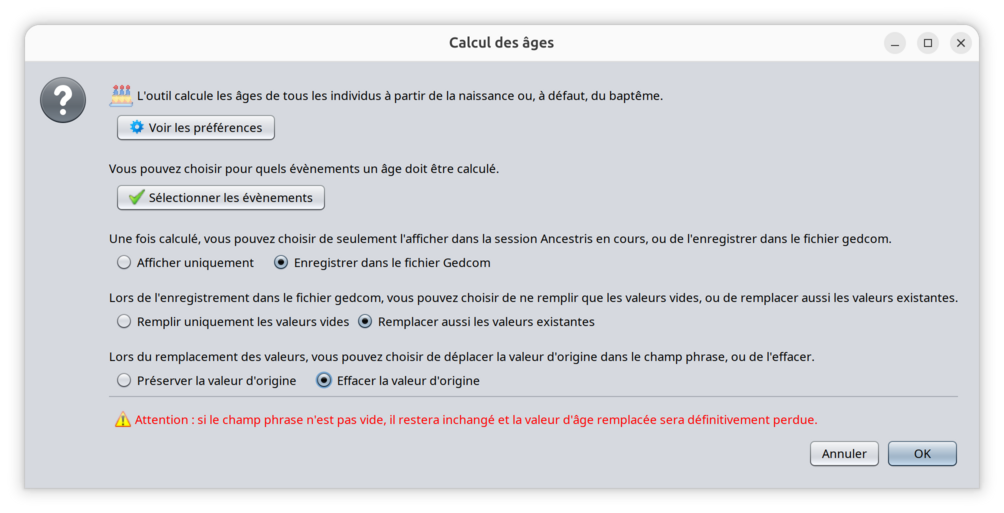
Description
TheLa abovefenêtre windowci-dessus explainsexplique whatle thefonctionnement toolde does.l'outil. 4Quatre choicesoptions aresont available.disponibles.
UseUtiliser christening« whenbaptême birth» islorsque notla availabledate de naissance n'est pas disponible
YouDans canles choosepréférences ind'Ancestris, thevous Ancestrispouvez preferenceschoisir thela eventréférence referencede tol’évènement calculateà theutiliser age.pour Ifcalculer birthl'âge.
Si notla available,date andde ifnaissance youn'est selectpas thisdisponible et que vous sélectionnez cette option, agel'âge willsera becalculé calculateden assumingpartant thedu christeningprincipe andque thele birthbaptême happenedet onla thenaissance sameont dayeu lieu le même jour. (pleaseveuillez refervous toreporter theà Datal'onglet tab« ofDonnées the» Preferences)des Préférences)
ChooseChoisissez forpour whichquels eventsévénements thel'âge agedoit isêtre to be calculatedcalculé
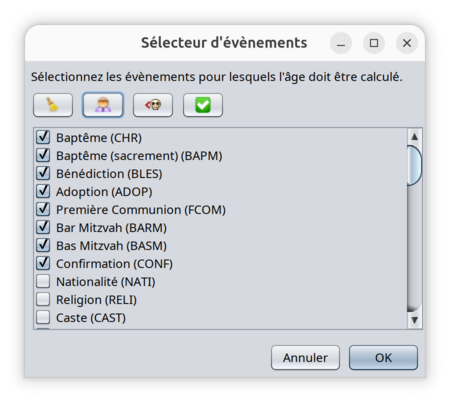
UseUtilisez itcette tooption definepour whichdéfinir eventspour shouldquels haveévénements anl'âge agedoit calculatedêtre for.calculé.
UseUtilisez anyl'un of thedes 4 buttonsboutons topour speedaccélérer upvotre your selection.sélection.

UnselectDésélectionnealltouseventsles évènements.
SelectSélectionnealltouslifeleseventsévènements de vie (thoseceuxwithmarquésa«YesYtag»accordingdansthela définition standard du format Gedcom7 standard definition)7).
SelectSélectionnealltouseventslespriorévènementstoantérieursandàincludingl’évènementthe«deathdécèsevent», y compris celui-ci.
SelectSélectionnealltouseventsles évènements.


UponLorsque pressingvous theappuyez OKsur button,le thebouton selectionOK, isla saved.sélection est enregistrée.
TheLa samemême eventsélection selectiond’évènements appliess'applique toau automaticparamètre agede calculationcalcul settingautomatique inde thel'âge Ancestrisdans preferences.les préférences d'Ancestris.SeeVoir PreferencesPréférences / Edition.Édition.
Choose whether to save ages in the Gedcom file or not
If you only use calculated ages for the duration of your session in Ancestris, it might *not* be necessary to store them in the Gedcom file.
If you choose this option, all ages for all events will be displayed only : ages will appear in grey background in the Gedcom editor.
If you choose the other option, ages will be appear with a white background in the Gedcom editor, meaning they will be saved in the Gedcom file.
All ages that are in grey background are displayed only and not stored in the Gedcom file. As a result, next time you open the genealogy, the corresponding age tags will not be displayed unless you recalculate the ages using this tool.
Please note that ages which are already being saved in the Gedcom file will remain saved in the Gedcom file. This option only applies to ages being created, not to existing permanently saved ages.
Choose to erase existing values or not
When ages are calculated, you can choose to erase the existing value of leave it unchanged.
Choose to save original overwritten values in the phrase field (only possible with Gedcom grammar 7)
When overwritting an existing age value, you can choose to move the existing value to the phrase field.
This choice only applies to Gedcom 7 genealogies because the phrase field does not exit in previous Gedcom standards.
If a phrase value already exists, the move wiil not be possible and you will loose the original value.
The red sentence warning at the bottom of the window is to let you know that you should only do this if you do not necessarily want to keep old values.
Usage
Ages are generally useful in the editors:
- In the Cygnus and the Aries editors, ages are calculated upon editing the events, even though they are not necessarily stored in the Gedcom file itself.
- In Cygnus, ages are visible in the events list itself
- In the Gedcom editor ages are all visible at once as well.
Ages can also be used when sorting the entity table. Generate the ages then sort the entity table on the Age column.
Step 1 - Launch
To generate all ages:
- Start this tool using the Edit Menu > Calculate ages.
- The window shown above appears.
- Make sure you read the instructions and select the options you need and press OK.
Step 2 - See result summary
Each time you generate ages, the following summary result window appears.
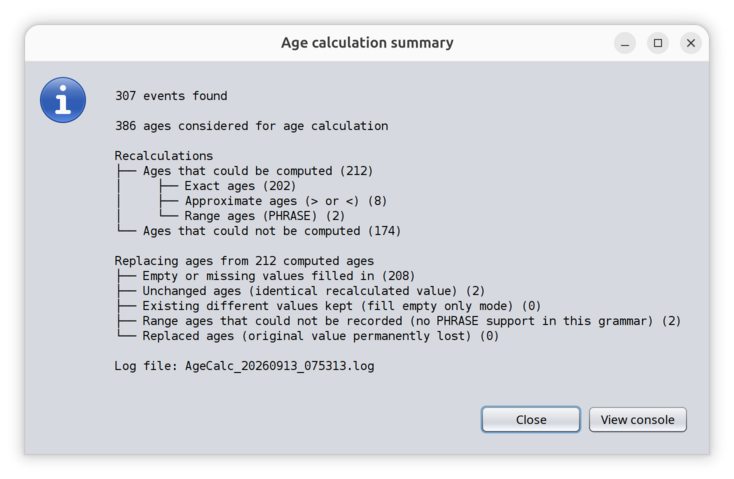
This summary is showing 5 different sections:
- The total number of events that is included in the Gedcom file and that correspond to the selected event list.
- The total number of ages to calculate. Family events have 2 ages to calculate.
- The recalculations performed explaining which ages could be calculated and how, and the number of ages that could not be calculated because of missing information. In Gedcom standard 7, range ages are aimed to be stored in Phrase field because the AGE filed does not allow that format.
- The way the recalculated ages have been used to replace existing ages in the Gedcom FIle. This list depends on whether ages are diplayed only or stored in the genealogy.
- The log file name where all the details can be found.
Step 3 - See details in the Console window
Pressing the View Console button will display the Console window.
The Console window can be displayed at any time using the Window / Output menu or Ctrl + T.
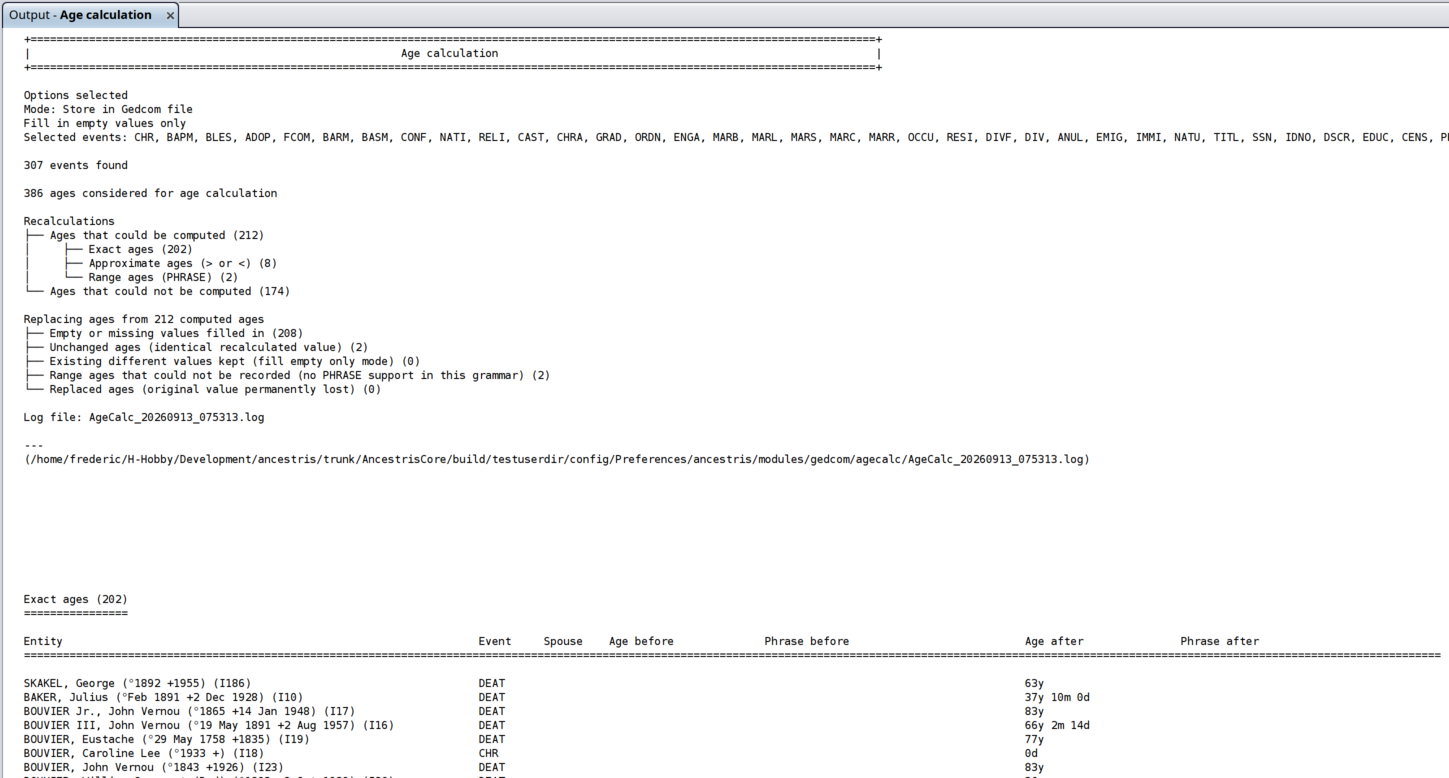
The above window details all summary items listed in the Summary result panel.
For each calculated age, you can see the corresponding entity, event, values before the change and values after the change.
Modifications applied
Modifications apply immediately.
Press Undo in the menu bar, or hit Ctrl + Z, to cancel your changes and try other settings.
Only entities where a change of value has been performed trigger an updated modification date of the entity.
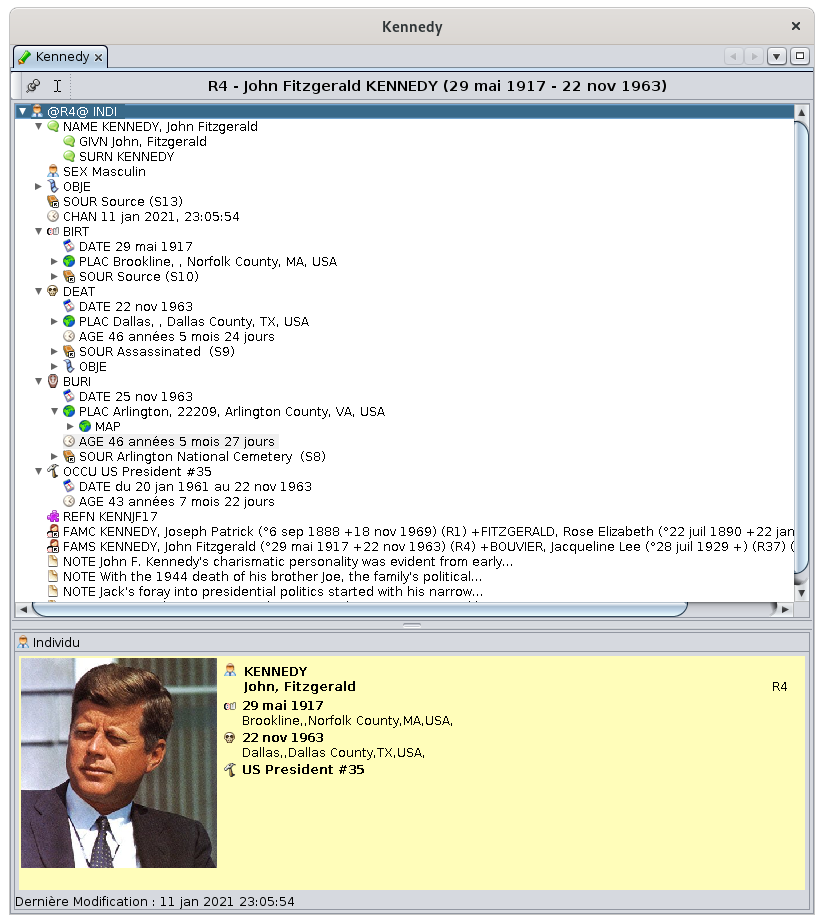
General example
Par exemple, vous pouvez voir ci-dessous :
- La naissance n'a pas d'âge, ce qui est normal
- Le décès indique l'âge calculé
- L'âge à l'inhumation est calculé et est sur fond gris, ce qui signifie qu'il ne sera pas stocké dans le fichier Gedcom
- La profession a un âge calculé également
Personnalisation
L'option "Utiliser le baptême" fait partie des préférences (veuillez vous référer à l'onglet Données des Préférences)