
Delete
This tool deletes data elements from a genealogy, or rename them. When renaming, you can even move data elements within the same entity.
Description
Terminology
- Your genealogy information is stored in a Gedcom file.
- In this file, each piece of information is stored in a data element called a Property. Example: Name, date of birth, place of marriage, etc.
- Each property is referenced by a tag. A tag is the name of the data element. See the page about the tags for more details. The tag is the last part of the tag path.
- Each tag has a unique address to be accessed which is called a tag path. This is the path from the entity to the data element. WHen data elements have the same tag path within the same entity, the tag path is suffixed by a unique sequence number.
Main tool panel
This tools is made of one panel only with everything you displayed on it.
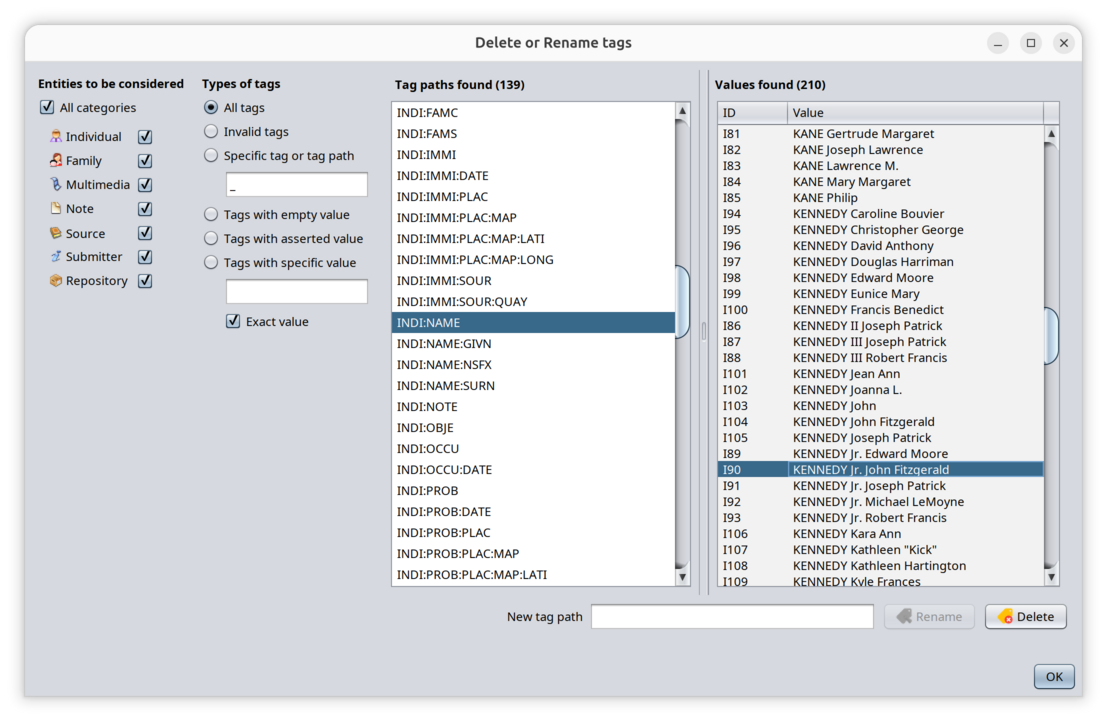
Entities to be considered
These are the entity categories included in your genealogy. Your genealogy is stored in Ancestris as a Gedcom file hence you see the Gedcom categories of entities.
The "All categories" check box can be use to select or unselect them all.
You select a category to select the types of entities you want to delete or rename tags from.
Types of tags
All tags
Includes all existing tag paths of the selected entities.
Invalid tags
Specific Tag or Tagpath
Use this option to select tags or tag paths based on their name. That what you use to select User defined properties for instance (e.g. starting with an underscore liske _SOSA, _MY_SELECTION).
Tags with empty values
Tags with asserted value
Tags with specific value
Tag paths found
This is the list of all tag paths matching the Entity and Tag type criteria.
Clicking on the list displayed the corresponding values in the right hand side table.
Double-clicking on a tag path will paste it in the rename filed underneath.
Values found
This table shows all the properties of your genealogy corresponding to the selected tag path in the list.
The table can be sorted by the entity ID it belongs to, or by the value displayed.
For properties that have no value, the sub-tags are indicated.
Double-clicking on a row of the table displays the corresponding Enity and property in the Gedcom editor.
Rename textfield and Buttons
Underneath the list and the table are the two possible actions that will apply on all the table items.
Rename action
What you rename is actually the whole tag path, not just the tag.
All properties appearing in the table, that correspond to the tag path selected, will be renamed using the new tag path you enter in the text field on the left hand side of the button.
- If you just change the tag, that is the last part of the tag path, the properties tag will be renamed. You may use it to change a christening to a birth (CHR into BIRT), or an event from FACT to EVEN, etc.
- If you change the path before the last tag, it ill actually move the properties inside their hosting entities. You may change from OBJE:TITLE to OBJE:FILE:TILE for instance. Please note changing the root part of the tag path (i.e. the entity type, the first part) has no effect because Ancestris will rename the tag within the same entity.
The Delete function is a tool to delete a tag everywhere in your genealogy.
You can choose to delete any tag, for all categories of entity or only some of them, and you can also choose to only delete those that are empty or with a specific value.
You can also choose to delete a specific sequence of tags, called a tag path. For instance, like shown in the picture above : FAM:MARR:HUSB:AGE.
In the window, you can see the list of existing tags in the genealogy on the left hand side, and the list of tag values that would be deleted if you continued and pressed Delete.
Usage
Start this tool using the Edit Menu > Delete.
The window shown above appears.
- Left hand side list: select which tag to delete from the first list of tags.
- Middle list: select the entity types the deletion should be limited to.
- Right hand side list: this displays the tags - hence the properties in your genealogy data - whichwould be deleted if you pressed the Delete button.
- You can double-click on any of this property to display it in the editors, so you can see it context of your genealogy.
- The double-click also copies the content of the property to the Value field, in case of exact value match need.
- Force Tag or Tag path to be deleted: to restrict even further the deletion, you can enter a tag path in the field below the lists.
- Values: Or else choose to delete only the properties that have an empty value or which include a specific value.
- "Asserted" values are events (birth, death, etc.) that are flagged as "Known to have happened" and without and other information.
- Check the box Exact value to match only the properties with the given value.
The deletion takes place as soon as you press the Delete button. There is no alert.
If you want to go back, press the Undo button on the toolbar or hit Ctrl + Z.
For example, you can delete all empty dates in individual and families events, and keep the other ones.
You would then select "DATE" in the tag list (or enter DATE in the tag field), you would only check the "Individual" and "Family" boxes, and you would check the box "Empty values".
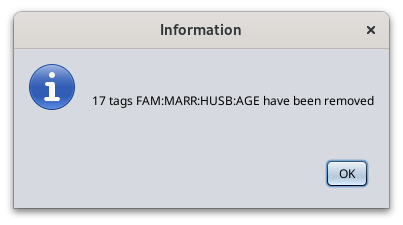
When you have pressed the Delete button, a message like the following should appear.
Customization
There is no customization of this function.