When the action has its own description page - it is bold - click on it to get all the details about it.
## [Welcome Page](https://docs.ancestris.org/books/user-guide/page/welcome-page-%28l%29 "Welcome Page") Opens the Welcome page. It provides direct access to a number of key functions in a friendly manner. ## [GEDCOM Explorer](https://docs.ancestris.org/books/user-guide/page/gedcom-explorer-%28l%29 "GEDCOM Explorer") Opens the [GEDCOM](https://docs.ancestris.org/books/user-guide/page/gedcom "Gedcom") explorer, which will display the open genealogies and a tree list of all their respective entities. ## Document Opens the **Document** window, which contains the results of the last reports. ## Favourites Opens the **favourites** list, a set of files and folders that were selected with [File / Add to favourites](https://docs.ancestris.org/books/user-guide/page/file-menu#bkmrk-ajouter-aux-favoris "Add to favourites"). ## Output Opens the **Output** window, which contains the result of internal messages. For instance, the [import](https://docs.ancestris.org/books/user-guide/page/import-%28l%29 "Import") process will return the list of changes made. ## [Configure Window](https://docs.ancestris.org/books/user-guide/page/workspace-and-windows#bkmrk-ic%C3%B4ne-de-la-barre-de "Window Menu") Configure the current window with the already discussed sub-menu that we can obtain by a right click on the window tab. See [Workspace and windows](https://docs.ancestris.org/books/user-guide/page/workspace-and-windows "Workspace and windows (VM)") for more information. [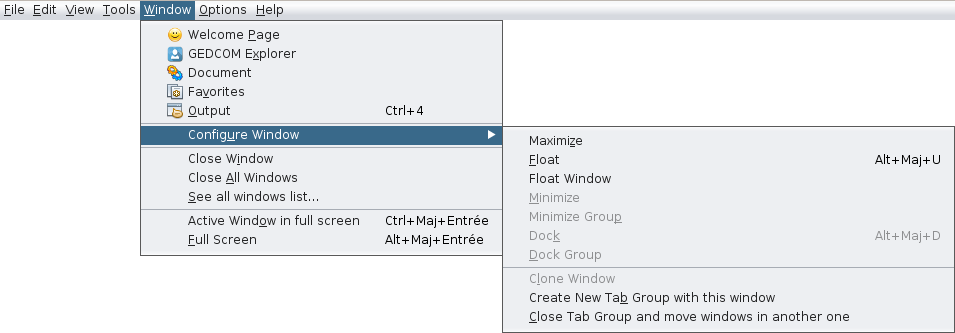](https://docs.ancestris.org/uploads/images/gallery/2020-09/en-Window-Configure-menu.png) ## Close Window Closes the active window. ## Close All Windows Closes all windows on the tab group, the one that contains the active window. ## See all windows list... Display the complete list of all open windows in Ancestris. This is a way to activate a particular window from its icon and name. [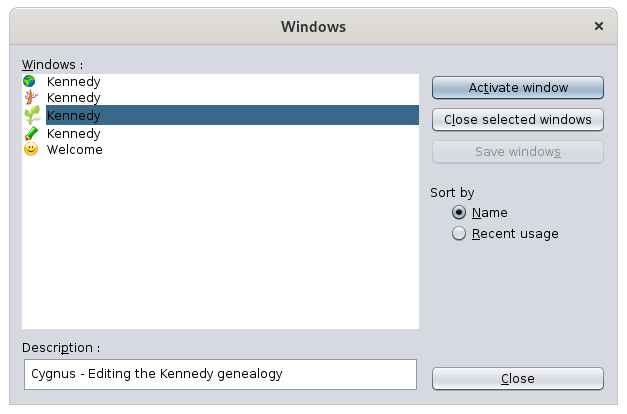](https://docs.ancestris.org/uploads/images/gallery/2020-09/en-Windows-All-menu.png) The list of currently open windows is on the left hand side. The selected window is highlighted. Its description and data are shown below. It is possible to select several windows: - Select the desired window and click on **Activate window**. - Select several windows and click on **Close the selected windows**. The radio button **Order by** will sort the list in different ways.There is another way to go straight to another window. Press **Ctrl+Tab**, keep **Ctrl** pressed and use **Tab** or **Shift+Tab** to scroll through the list.
This will bring up a small window with the list of open windows: [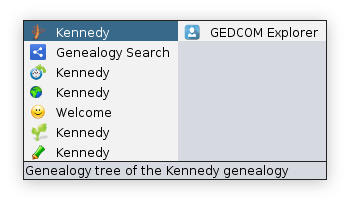](https://docs.ancestris.org/uploads/images/gallery/2020-09/en-Windows-List.png) The concealed windows are last on the list and to the right hand side. Above we can see the GEDCOM Explorer window which is a concealed window. The lower line indicates the window description. ## Active window in full screen Check this option to move the **active window to full screen**, or place it back to its original position and size. ## Full screen Check this option to move **Ancestris main window to full screen**, or place it back to its previous state.