The WebBook works with the Map View if you want to generate a map.
## Navigation in the generated pages The pages generated constitute the sections of a "web book". Many sections are accessible from the home page and part of the content can be customized. **Lastnames:** This section lists the surnames and their frequency of appearance in the family tree. **Individuals list**: This section lists all the individuals in the tree in alphabetical order. **Individuals details**: This section gives a detailed description of all the individuals. For each individual, there are details about birth, marriage and other events. Details also include grandparents, parents, half-brothers and half-sisters, marriages, children, relationships (godparents, godmother, witnesses, etc.), and notes. This section also displays up to five photos or media related to each individual or their marriage(s). For each event a source icon allows you to see if a source exists. Simply click on the icon to see it. The images and media of the sources are not displayed in this section but in the **sources** section. **Sources**: The first page of this section displays the list of all the sources of the genealogy. The following pages give the details of each source. The source details include, where available, the text of the source and the images and media of the source and associated individuals and families. If the media is not an image then the document is considered to be of a different nature and an image representing a media file is displayed. Clicking on the image brings up the source document in its original size or launches the media (sound, video, etc). **Photos and other media**: The first page of this section displays a list of all the media in the genealogy that are associated with individuals and families. The following pages give the images of these media in the form of a photo album. This section does not contain the source material. If the media is not an image then the document is considered to be of another nature and an image representing a multimedia file is displayed. Clicking on the image brings up the source document in its original size or launches the media (sound, video, etc). If the media is not found, an image indicates this, allowing you to rectify your genealogy if necessary. **Geo map**: This section displays a geographic map with the location of all the cities identified in the family tree. This map is interactive and you can zoom in, show ancestors or cousins, birth, marriage or death, or events between two given years. By clicking on a city, you will see the main information about the events that took place there. These maps only work if the coordinates of the locations exist and are correct. For this, it is recommended to check the [Geographic map view](https://docs.ancestris.org/books/user-guide/page/geographic-map "Geographic map"). **Cities list**: This section gives the list of cities where at least one event in the family tree took place. **Cities details**: This section details for each location all the events that took place there. If you have generated the map, a small icon may show you the location of the city on the map. **Family Calendar**: This section lists the days of the year when at least one event in the family tree took place. **Calendar Details**: This section details for each day of the year all the events that took place there. **Statistics**: This section presents the frequency of surnames, places and days of the year, from the most to the least frequent. **Inbreeding degree**: This section presents the inbreeding ratio of the selected main individual. **Ancestors List**: This section presents the ancestors of the selected main individual. The ancestors are displayed in ascending order of [Sosa number](https://docs.ancestris.org/books/user-guide/page/generate-sosa-numbers#bkmrk-g%C3%A9n%C3%A9ralit%C3%A9s "Generate Sosa numbers"). **Individuals search**: This section is a tool to search for individuals in your family tree using a set of criteria. ## Web book generation wizard The wizard assists you to customize the pages of the Web book through 7 panels. At the end, it shows you the log of the generation. ### Welcome page This panel customizes the Welcome page of your family tree book. Hovering over a field displays a tooltip explaining its role. [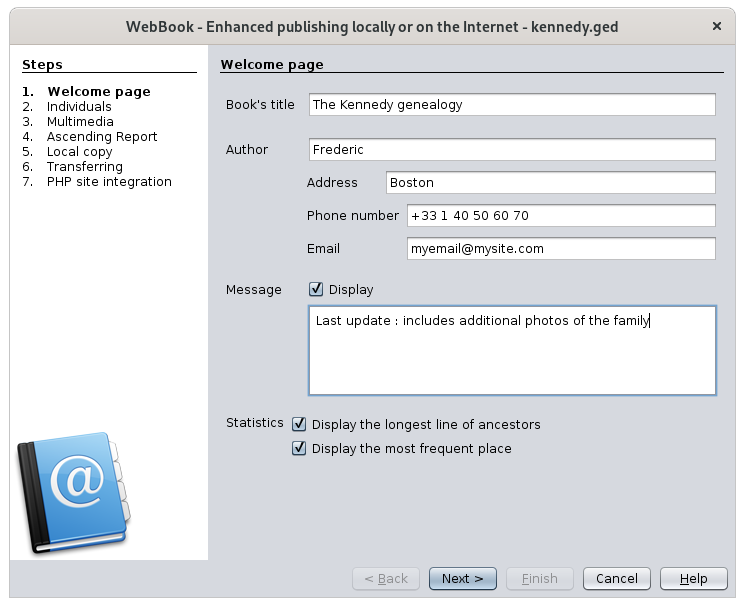](https://docs.ancestris.org/uploads/images/gallery/2020-09/en-webbook-1.png) - **Book's title**: title of your Genealogy book. It appears on the home page and in the title bar of the browser. - **Author**: name of the author of your Genealogy. - Address: address of the author. - Phone number & Email: contact information of the author. - **Message**: check the box and write a message to display it at the beginning of the home page. - **Display the longest line of ancestors**: display information about the longest ancestor line in your Genealogy. - **Display the most frequent place:** display this statistic on the home page.The first time you open this window for a genealogy, Ancestris will populate the fields with the information from the DeCujus individual if it has been defined.
### Individuals [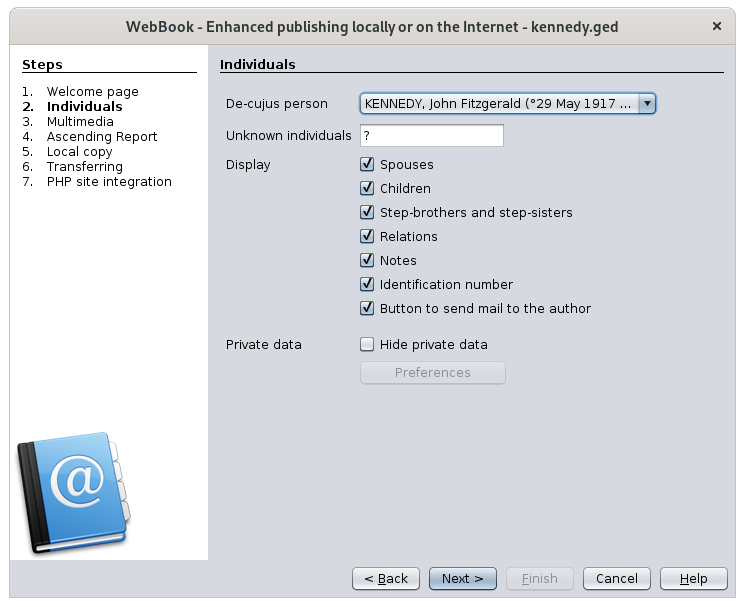](https://docs.ancestris.org/uploads/images/gallery/2020-09/en-webbook-2.png) - **De-cujus person**: main individual who will be accessible from the home page, and from whom the longest line of ancestors and the ancestor report will be built. - **Unknown individuals**: This is used to designate a person whose first and last names are unknown (example: you can put the word "unknown" in this field). - **Display:** information to display in the individuals details sections** ** - Spouses: display spouses information - Children: display children underneath the family information - Step-brothers and step-sisters: display step-brothers and step-sisters. These are referred to as uterin or consanguineous siblings. - Relations: display the relationships of the individual (events' witnesses, godparents, etc.) - Notes : add the notes associated with individuals and families. - Identification numbers: adds Ancestris ID numbers after the person's name. - Button to send mail to the author: display a "send email" icon at each individual section so that the visitor can easily send an email to the author about this individual. - **Private data**: - Hide private data: hides data defined in the [privacy preferences](https://docs.ancestris.org/books/user-guide/page/preferences#bkmrk-onglet-donn%C3%A9es-priv%C3%A9 "Preferences"). - Preferences: takes you to the privacy preferences to change them if necessary for the Web book - On a PHP site, private data will be generated but hidden ; a profile php function will have to exist in the site. - On an html site, data is static and private information will not be generated at all ### Multimedia [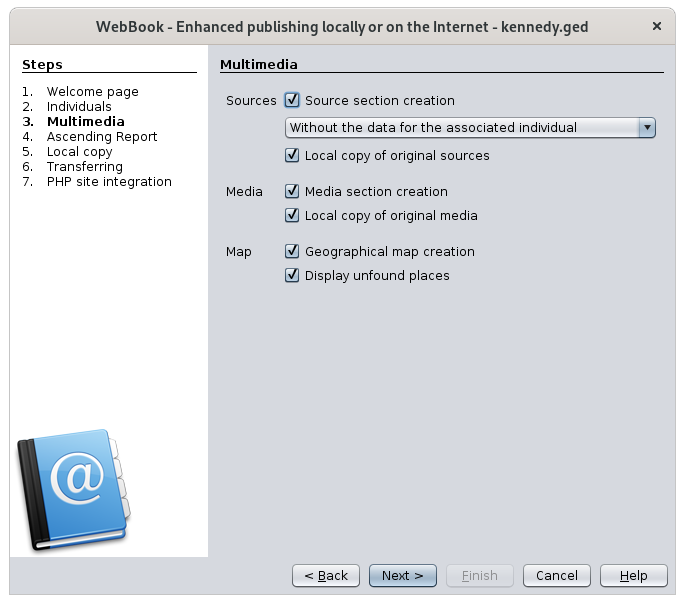](https://docs.ancestris.org/uploads/images/gallery/2020-10/en-webbook-3.png) - **Sources** - Source section creation: add a section to access sources. - Drop-down menu: choose how you want sources to be displayed : with the individual information only, with the text of the source and with the media. - Local copy of original sources: copy the original documents to your destination directory (local or website). Otherwise, file links are used. It is recommended not to select this option if the total size of your documents is large. If you later want to have these documents on your website, you can always replace the link files with smaller size files using the copy function of your system. - **Media** - Media section creation: add a section to access media. - Local copy of original media: copy the original media files to your destination directory (local or website). Otherwise, link files are used. This option is similar to the source option described above. - **Map** - Geographical map creation: add a section to display of map of events. - Display unfound places: display markers for cities whose coordinates were not found. Markers will appear in the middle of the Atlantic Ocean ### Ascending Report [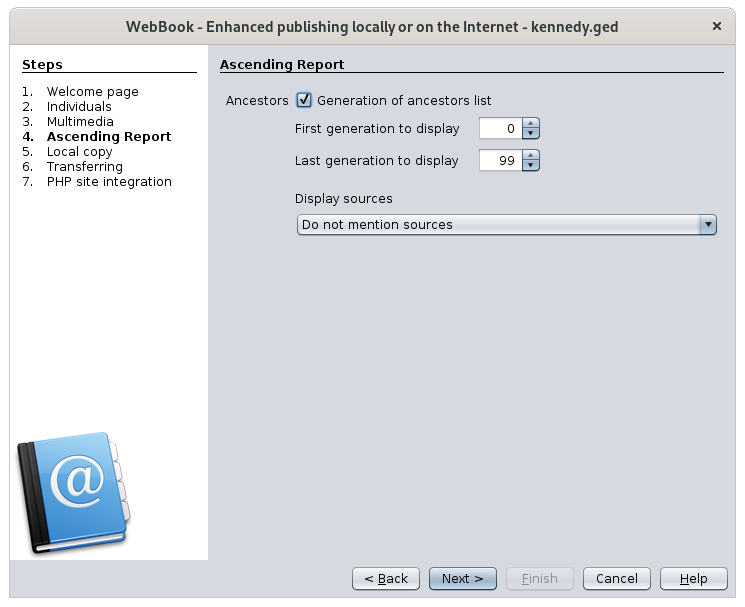](https://docs.ancestris.org/uploads/images/gallery/2020-09/en-webbook-4.png) - **Generation of ancestors list**: add the ancestor report using the De-cujus individual as the root. In this case you will be asked for the following options when generating this section - First generation to display: generation number from which the ancestors list will start. - Latest generation to display: generation number to which the ancestors list will stop. - Display sources: choose if and how to display sources in the ancestors report. ### Local copy [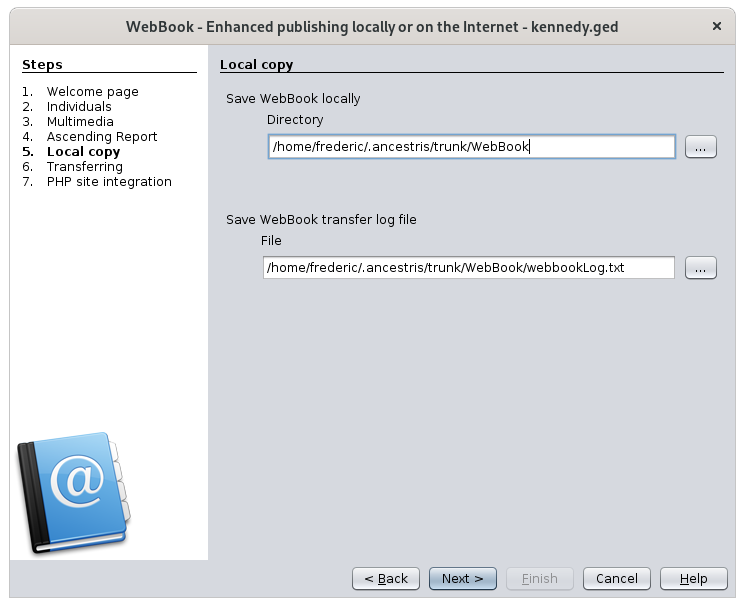](https://docs.ancestris.org/uploads/images/gallery/2020-09/en-webbook-5.png) - **Save WebBook locally**: specify the directory where the WebBook will be located on your disk. It is this directory that you will consult locally with an internet browser if you do not want have your genealogy on the Internet. If you want to upload it onto an Internet web site, the content of this directory will be uploaded. This is an option on the next panel.Watch out! This directory must be empty, otherwise the documents it contains will be deleted.
- **Save WebBook transfer log file**: indicate the directory where the WebBook creation log report will be located. It will contain the step-by-step creation and possible errors. ### Transferring - optional [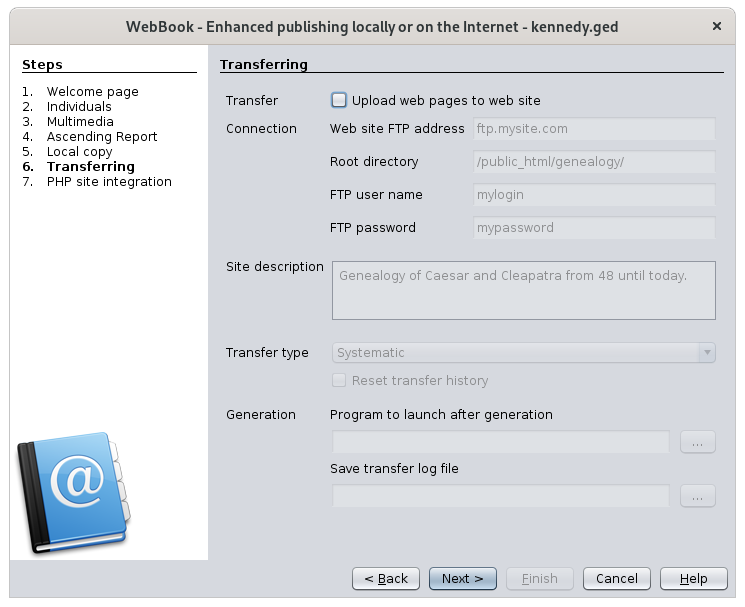](https://docs.ancestris.org/uploads/images/gallery/2020-09/en-webbook-6.png)If you only want to generate the pages locally, uncheck the first check box and simply click **Next**.
- **Upload web pages on web site**: uploads the pages that were saved locally on a website of your choice. You will need to provide additional information to enable the upload. These are the following options. If you choose to upload the pages on a website, the report will ask you to fill in the name of a log file. This file will contain a complete list of the uploaded files. - **Website FTP address**: address of your FTP site. Ex: ftp.mysite.myinternetprovider.com - **Root directory**: target directory where the pages must be uploaded. ex: /home/ - **FTP user name**: login to be used to access the FTP site. - **FTP password**: password to access the FTP site. - **Site description**: the sentence you will put here will appear in the headers of the html pages created as "meta name - Description". This element is important, because robots, search engines, will use this to index your pages. - **Transfer type**: allows you to improve the upload time. For example, if a photo of an ancestor is generated in the WebBook but it is identical to the one previously uploaded, there is no need to upload it again. - Drop-down menu: three options are possible: transfer all locally generated files to the server, even if they have not changed; transfer only those that have changed; or transfer those that have changed and also delete from the server those that are no longer generated. - Reset transfer history: restart file transfers from scratch. This will mean that all files will be systematically uploaded the next time they are transferred. The registry retains the details of the previous uploads and therefore allows you to determine which of the newly generated files need to be uploaded again. As long as you only use the WebBook to upload your pages, you should not need to reset the registry. However, if you sometimes use another FTP client, this registry may need to be completely refreshed, which is done by checking this option. - **Program to launch after generation**: name of a executable program to launch at the end of the WebBook creation. If the first character is '0' then this option is ignored. Launching a program at the end can be useful if there are still other things to do on your site to finalize its update. - **Save transfer log file**: directory where the upload log report will be saved. This log report shows the results of the uploaded pages. ### PHP site integration - optional [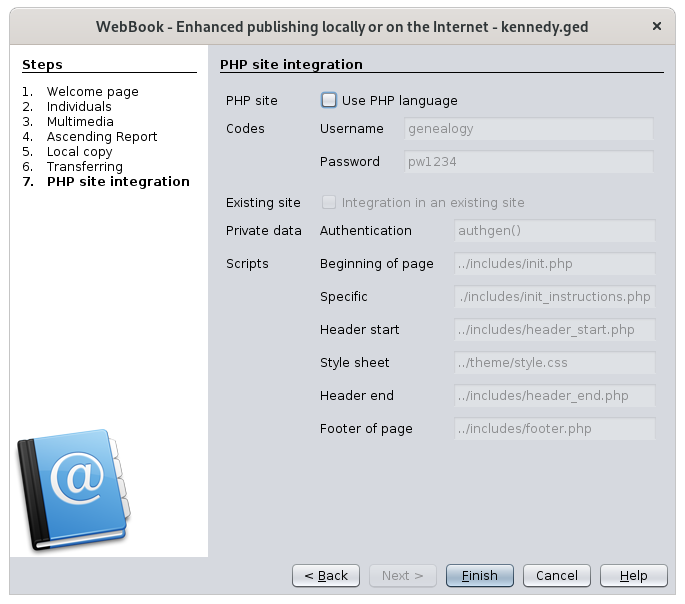](https://docs.ancestris.org/uploads/images/gallery/2020-10/en-webbook-7.png)If you only want to generate the pages locally, uncheck the first check box and simply click **Finish**.
This part is technical and requires to know the principles of a PHP site including very precise page structures. - **PHP site**: if you want to leverage the fact that your site is written in PHP - **Codes:** username and password used to view private information. - **Existing site**: check this box if the genealogy pages are integrated in a larger site, and must then respect the same headers and footers for example - **Private data**: Indicate here the name of the PHP function that will test the codes for private data. - **Scripts**: Indicate here the PHP scripts corresponding to the different components of your PHP website ### Result of the creation of the pages Ancestris displays the [Output window](https://docs.ancestris.org/books/user-guide/page/window-menu#bkmrk-sortie "Window Menu") at the end of the process. You will see each of the two logs: creation of the pages and transfer of the pages if you asked for the upload.. Here is an example of a successful pages creation. [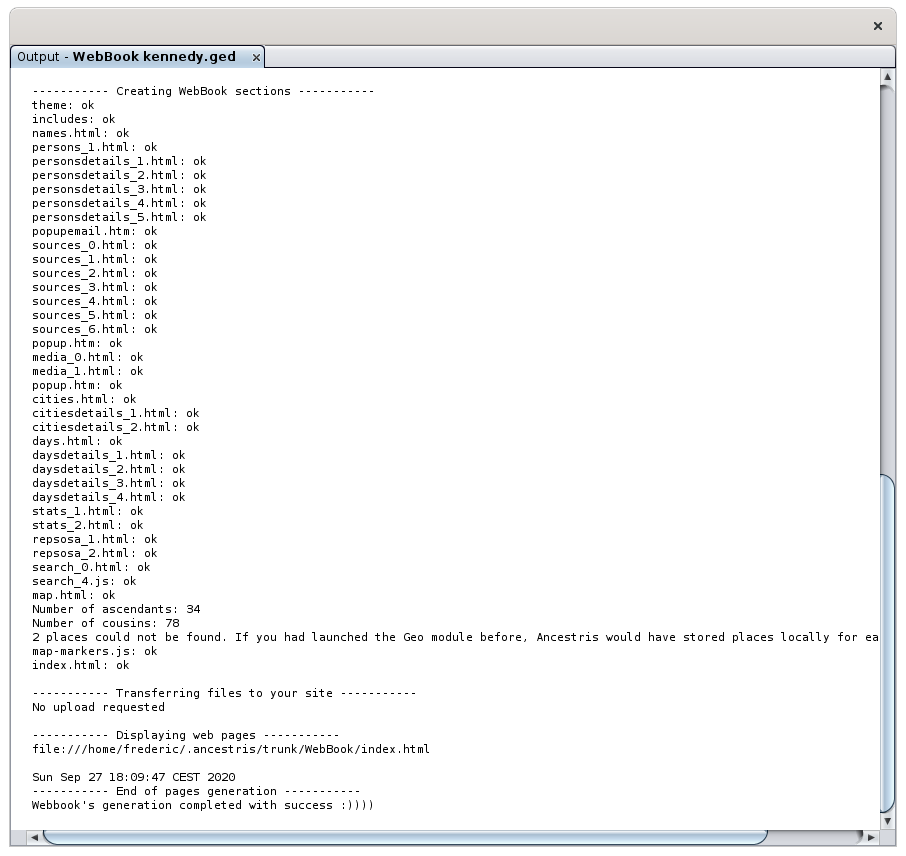](https://docs.ancestris.org/uploads/images/gallery/2020-09/en-webbook-log.png) ### Result of the transfer Here is an example of an unsuccessful transfer. [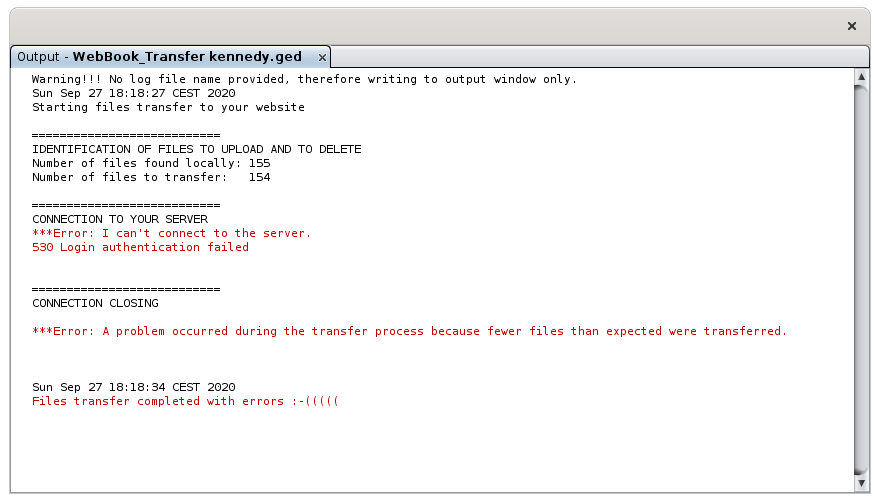](https://docs.ancestris.org/uploads/images/gallery/2020-09/en-webbook-log-failed.png) ### Additional information - Private information is managed using the Ancestris options. If an individual is considered private according to the Ancestris options, the WebBook will display "..." instead of the plain text details. - The Sosa numbering is taken into account if the labels "\_SOSA" or "\_SOSADABOVILLE" have been generated. Check out the [Generate Sosa numbers documentation](https://docs.ancestris.org/books/user-guide/page/generate-sosa-numbers "Generate Sosa numbers"). Make sure in this case that the main DeCujus individual defined at the beginning of the WebBook is the same as for the Sosa numbers. - If the local directory in which the pages will be saved is not empty, a message tells you so. - Generated html pages are W3C XHTML 1.0 certified. - Special characters are replaced in the pages by the equivalent html sequence (example: "é" is replaced by "é") - In order to optimize performance, media and source files are not copied (or linked) if they already exist in the target directory. To force this copy (or these links), just delete the files in the target directory. - A feature makes it easy for the website user to send email to the author - An feature saves considerable amount of time by only uploading files whose content has changed. This works very well as long as the WebBook is the only program used to upload pages because it keeps the details of the files transferred each time.