**Foreword 1**: the installer automatically installs Java. [See the version compatibility page for more information aboàut the versions.](https://docs.ancestris.org/books/user-guide/page/versions-compatibility "Compatibilité de versions")
**Foreword 2** : if you have already installed a previous stable version: - Uninstall it - Unintall all installed Java versions - Run the installer of the new stable version
## Install Ancestris stable version Follow the instructions below. ##### 1/4 - DownloadAncestris - Go to [https://www.ancestris.org](https://www.ancestris.org) - Click on 'DOWNLOAD' in the menu - Click on the **Ancestris 13** button of the Windows panel. - Downloading may take 3 to 4 minutes as it is about 131 Mb. [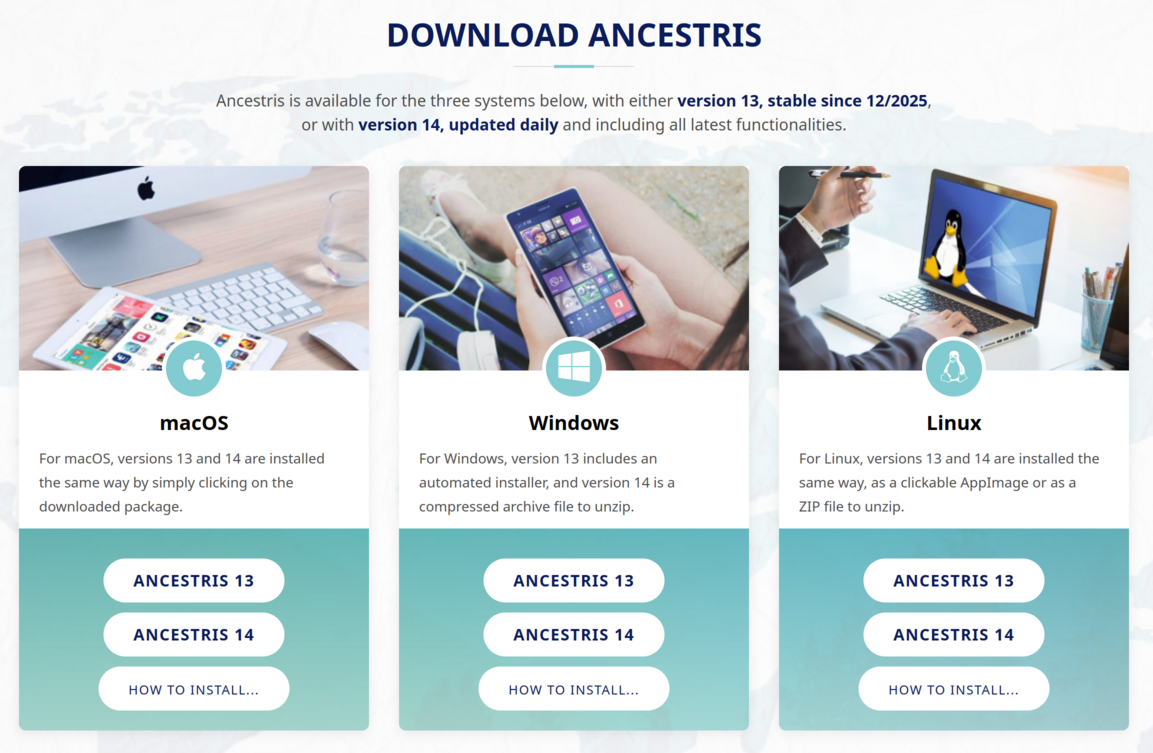](https://docs.ancestris.org/uploads/images/gallery/2025-11/en-install-download.png)If your browser is preventing you from downloading, you can bypass the download by following the procedure at the bottom of the page.
##### 2/4 - Double-click on the downloaded file - Ancestris 12 has a setup wizard for Windows. The downloaded file is `Ancestris13Setup.exe` and its size is 131Mb. [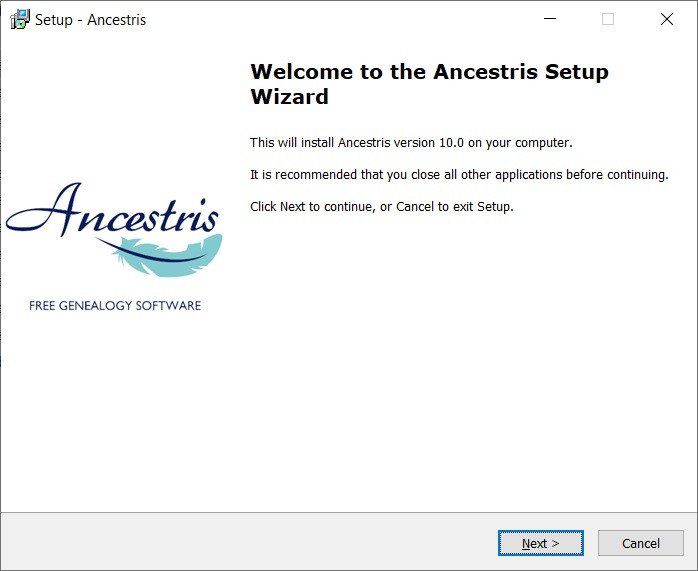](https://docs.ancestris.org/uploads/images/gallery/2020-07/Ancestris10Setup-en-02.jpg) - Click on **Next** [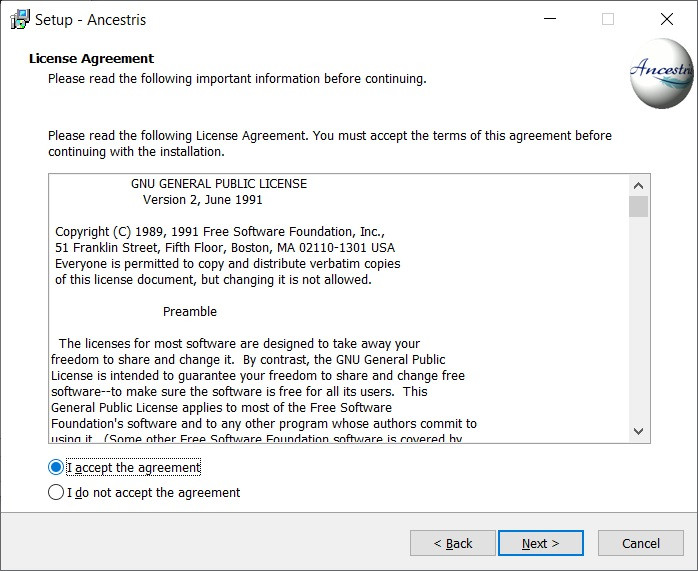](https://docs.ancestris.org/uploads/images/gallery/2020-07/Ancestris10Setup-en-03.jpg) - Accept the agreement then click on **Next** [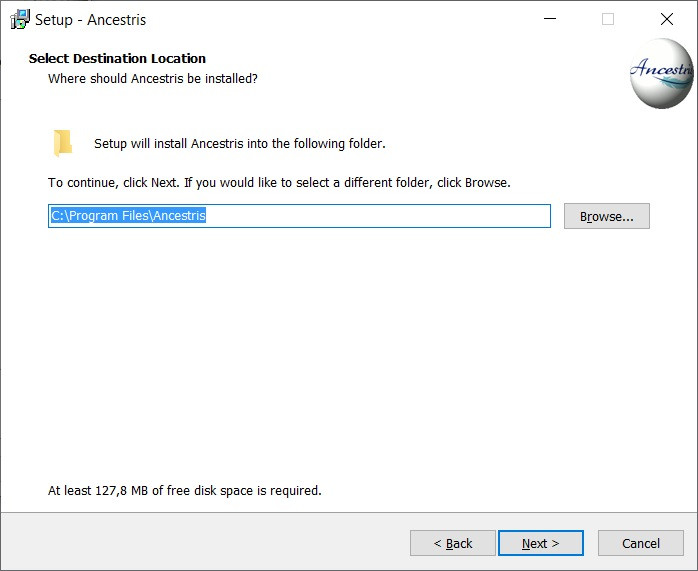](https://docs.ancestris.org/uploads/images/gallery/2020-07/Ancestris10Setup-en-04.jpg) - Choose an install path.The path shouldn't have any accent not special caracters.
- Then click on **Next** [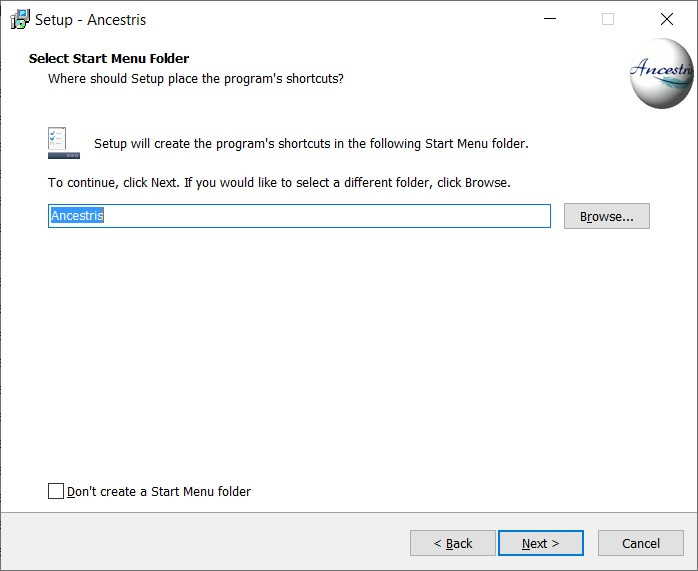](https://docs.ancestris.org/uploads/images/gallery/2020-07/Ha1Ancestris10Setup-en-05.jpg) - Define a name for the short-cut in "Start" Menu. - You can choose not to create any short-cut with the check-box on the bottom of the screen. - Then click on **Next** [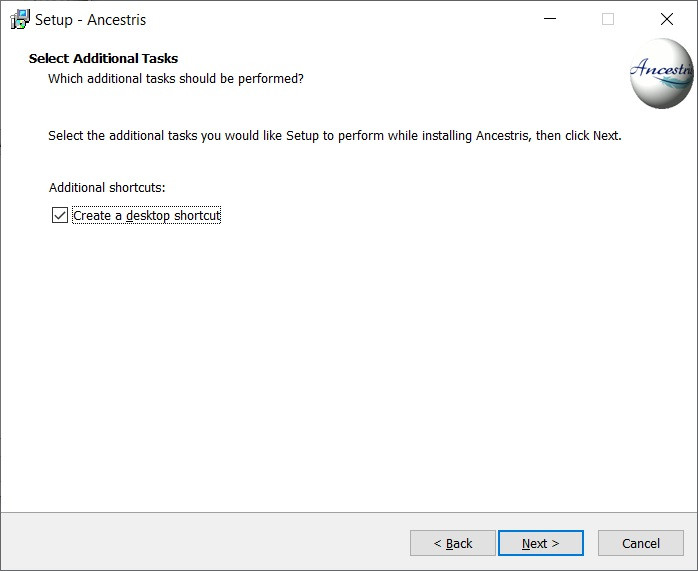](https://docs.ancestris.org/uploads/images/gallery/2020-07/Ancestris10Setup-en-06.jpg) - Check the box to create a short-cut on the desktop. - Then click on **Next** [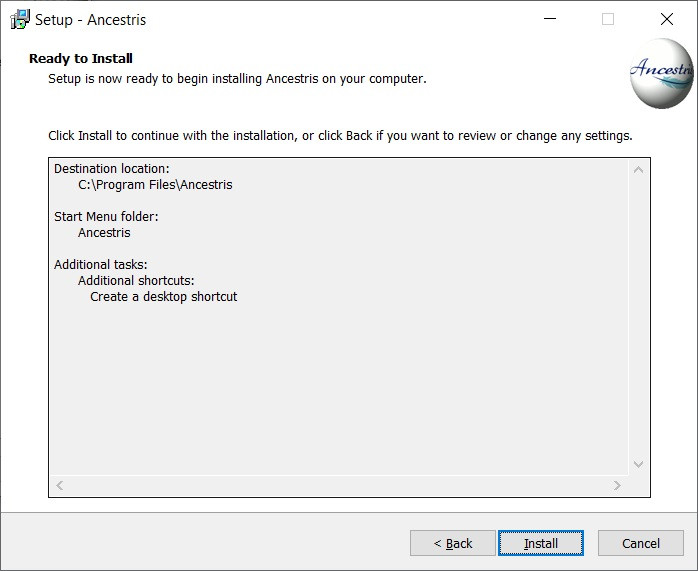](https://docs.ancestris.org/uploads/images/gallery/2020-07/Ancestris10Setup-en-07.jpg) - Click on **Install** [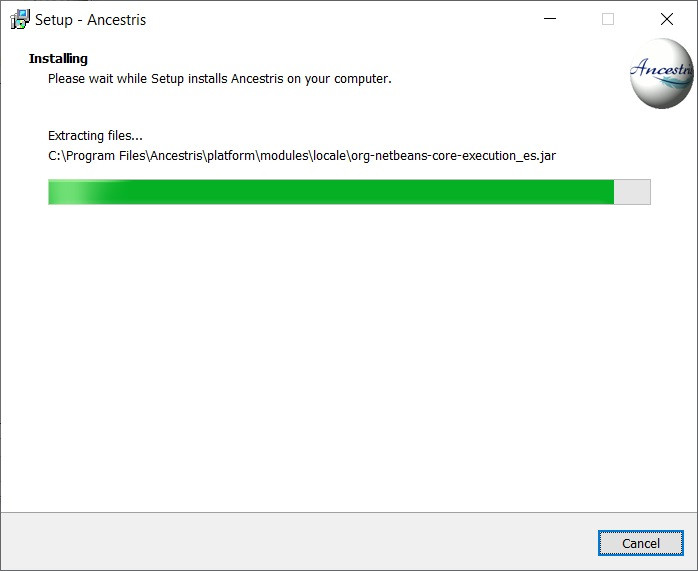](https://docs.ancestris.org/uploads/images/gallery/2020-07/Ancestris10Setup-en-08.jpg) - The software is installed on your computer. [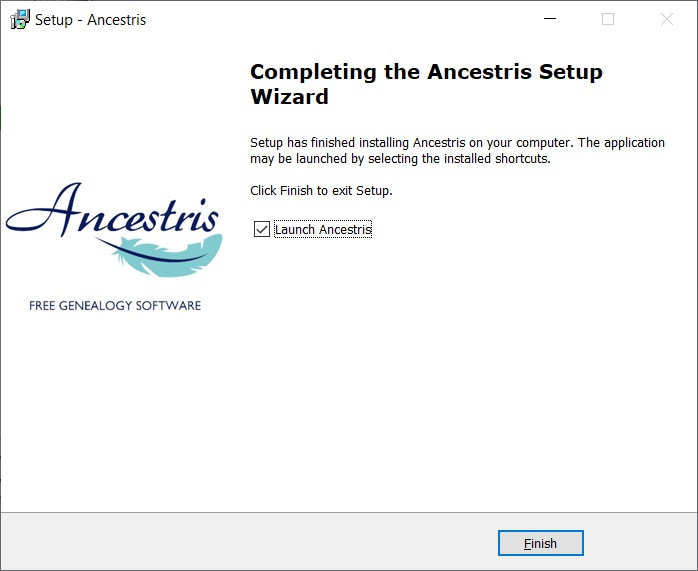](https://docs.ancestris.org/uploads/images/gallery/2020-07/Ancestris10Setup-en-09.jpg) - You can launch directly the application with the "Launch Ancestris" check-box ##### 3/4 - Click the short-cut and Ancestris then starts.  ##### 4/4 -The Welcome page then appears. You are now ready to use Ancestris. [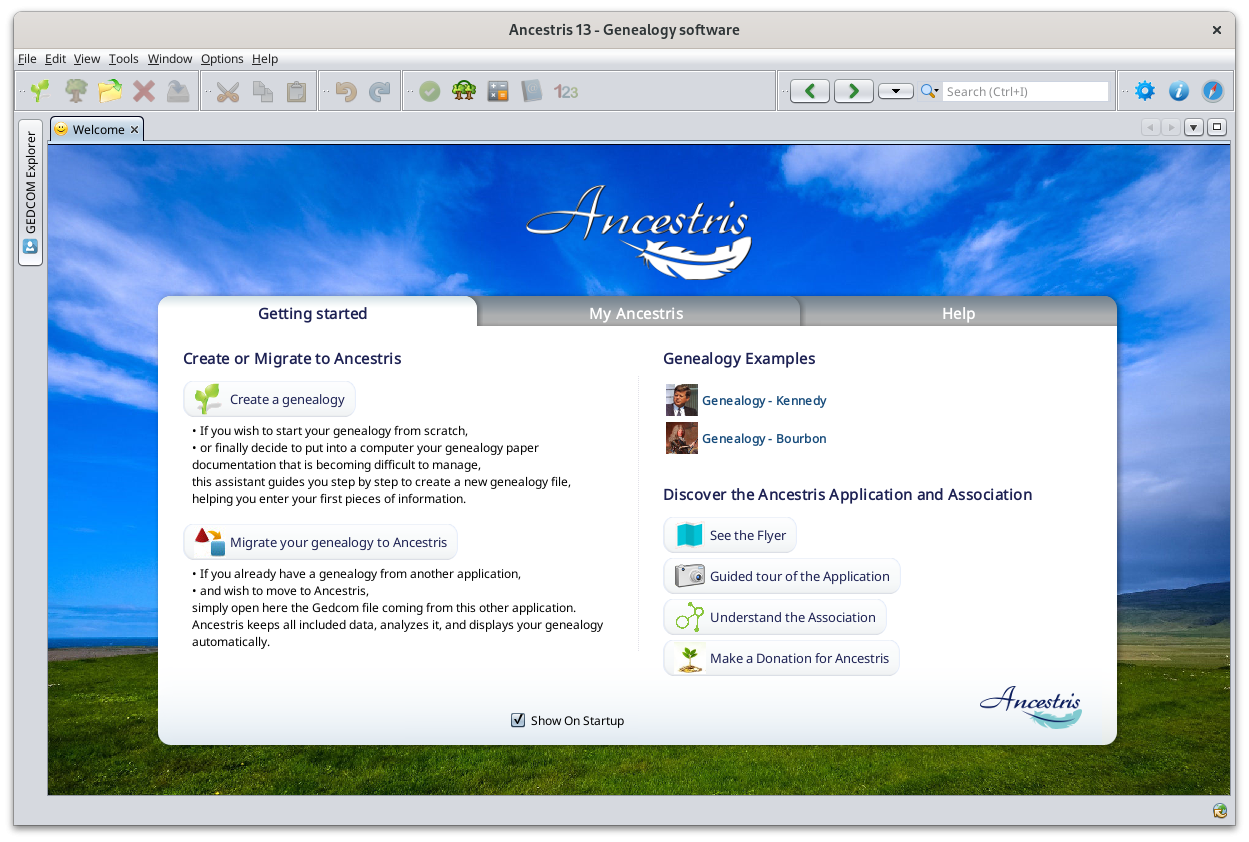](https://docs.ancestris.org/uploads/images/gallery/2024-06/en-accueil.png) #### #### Appendix : Unblock downloading with Edge or Chrome 1\. Click on the three dots : [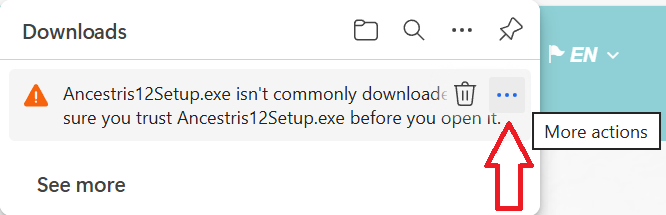](https://docs.ancestris.org/uploads/images/gallery/2025-11/ance-tele-01.png) 2\. Choose "Keep" [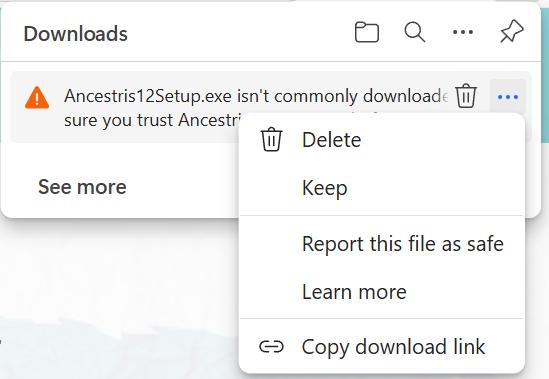](https://docs.ancestris.org/uploads/images/gallery/2025-11/ance-tele-02.png) You can also click on "Report this file as safe" to help us to remove this alert. 3\. Click on the arrow beside the "Delete" button and select "Keep anyway" [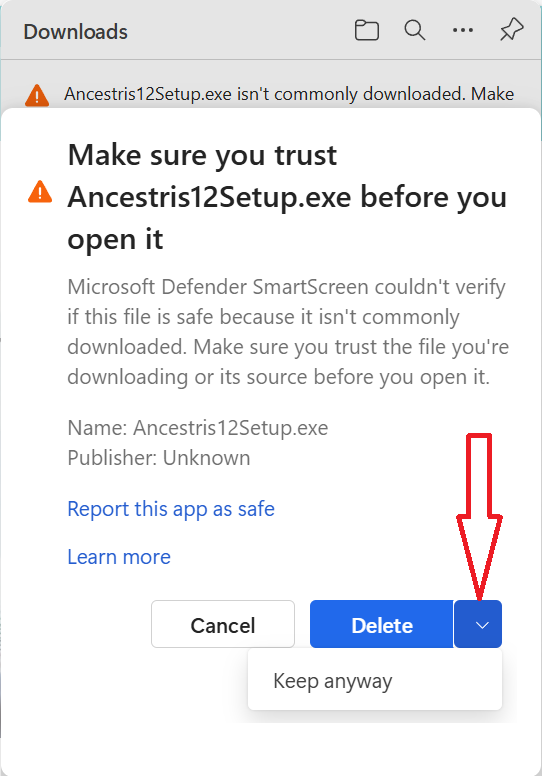](https://docs.ancestris.org/uploads/images/gallery/2025-11/ance-tele-03.png) 4\. You can use the downloaded file and install Ancestris.