Step-by-step installation of the stable version on Windows
This page shows step-by-step how to install Ancestris stable on a Windows system.
Foreword 1: the installer automatically installs Java. See the version compatibility page for more information aboàut the versions.
Foreword 2 : if you have already installed a previous stable version:
- Uninstall it
- Unintall all installed Java versions
- Run the installer of the new stable version
Install Ancestris stable version
Follow the instructions below.
1/4 - DownloadAncestris
- Go to https://www.ancestris.org
- Click on 'DOWNLOAD' in the menu
- Click on the Ancestris 13 button of the Windows panel.
- Downloading may take 3 to 4 minutes as it is about 131 Mb.
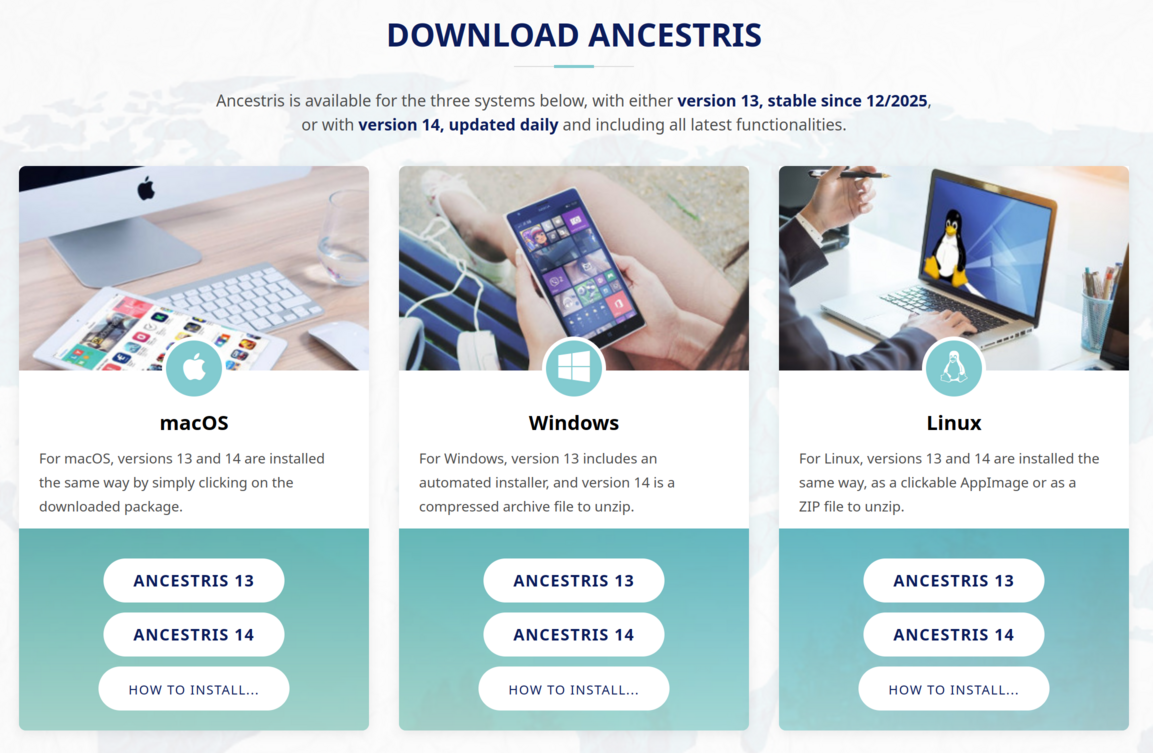
If your browser is preventing you from downloading, you can bypass the download by following the procedure at the bottom of the page.
2/4 - Double-click on the downloaded file
- Ancestris 12 has a setup wizard for Windows. The downloaded file is
Ancestris13Setup.exeand its size is 131Mb.
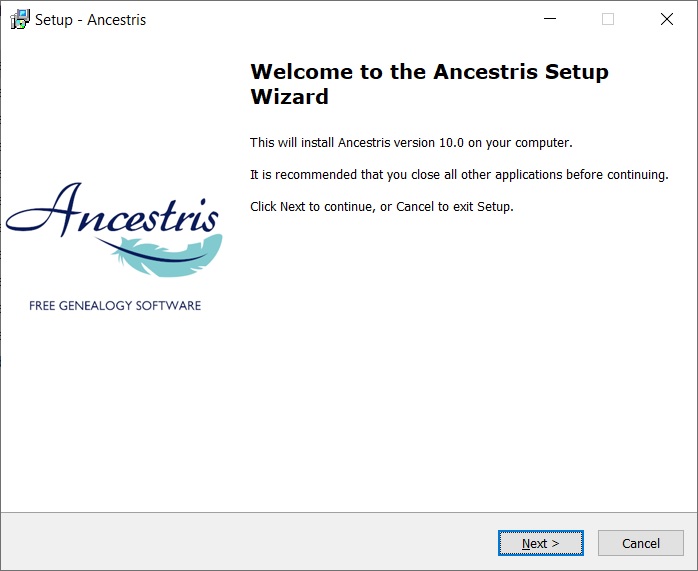
- Click on Next
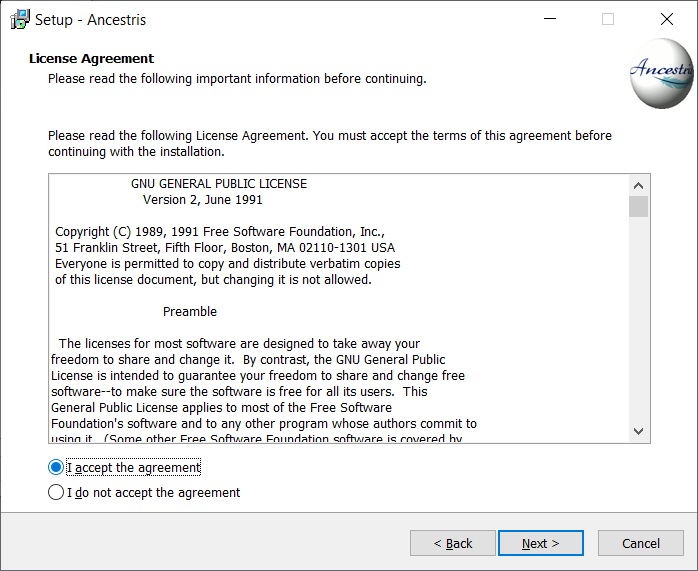
- Accept the agreement then click on Next
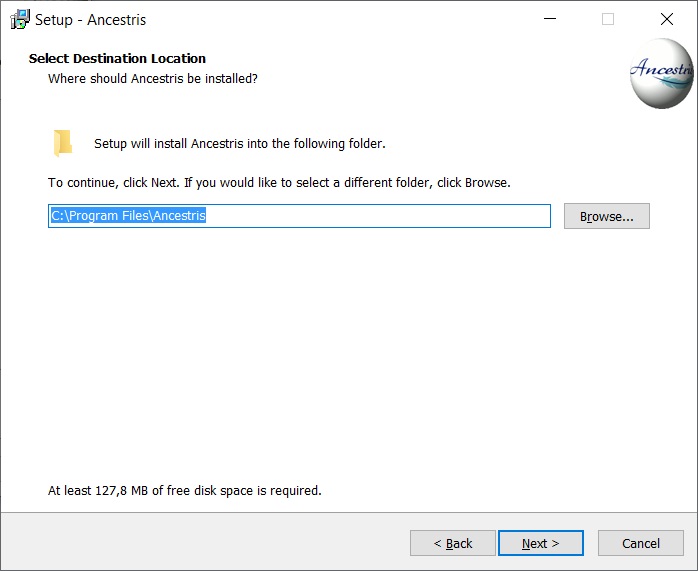
- Choose an install path.
The path shouldn't have any accent not special caracters.
- Then click on Next
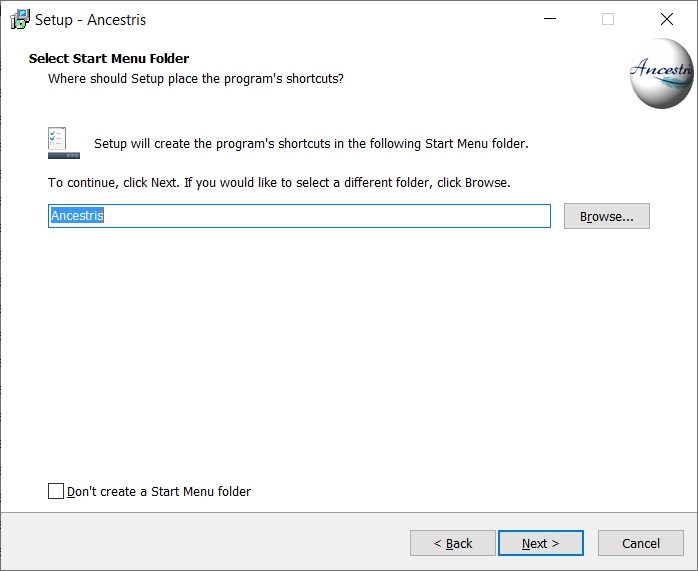
- Define a name for the short-cut in "Start" Menu.
- You can choose not to create any short-cut with the check-box on the bottom of the screen.
- Then click on Next

- Check the box to create a short-cut on the desktop.
- Then click on Next
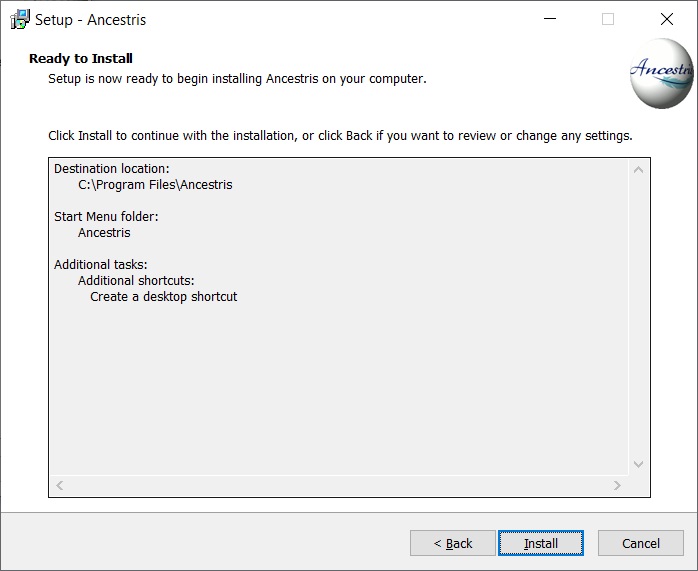
- Click on Install
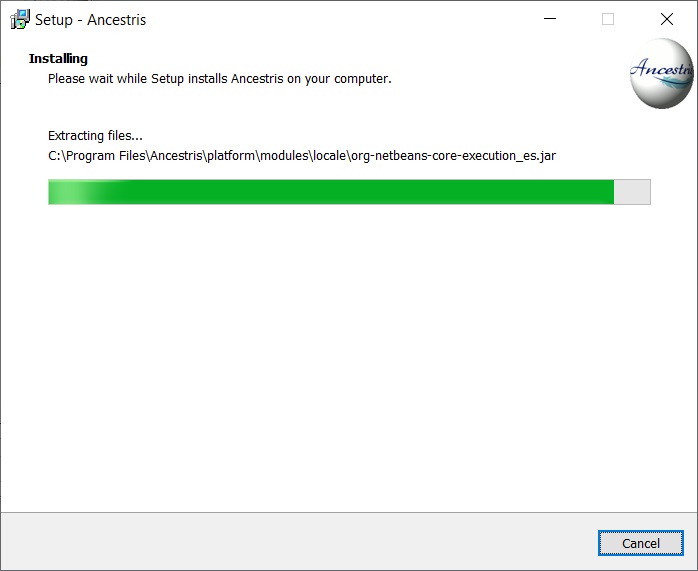
- The software is installed on your computer.
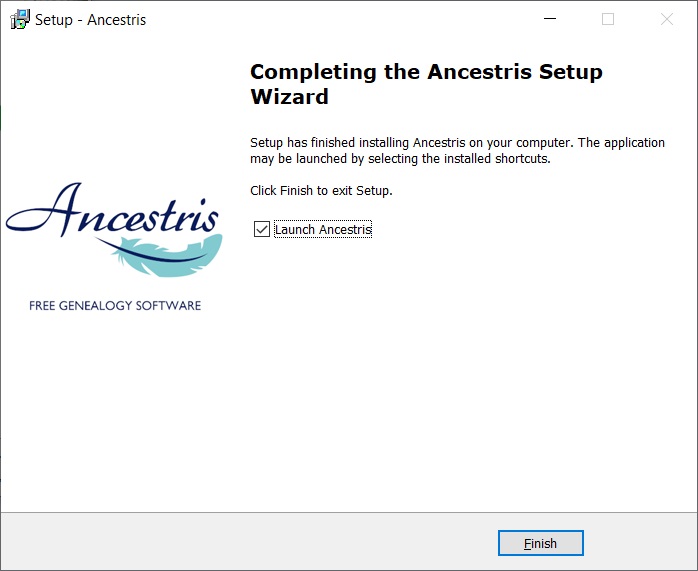
- You can launch directly the application with the "Launch Ancestris" check-box
3/4 - Click the short-cut and Ancestris then starts.

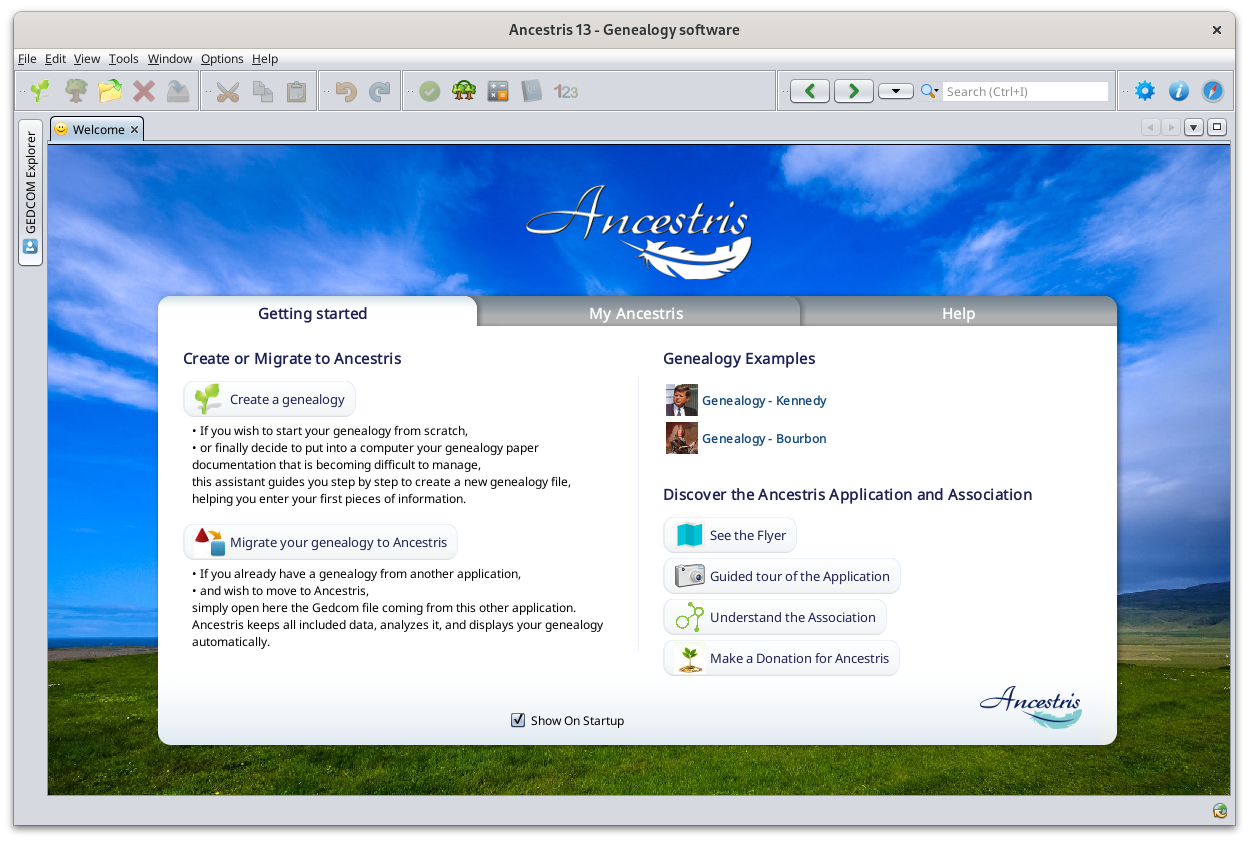
4/4 -The Welcome page then appears. You are now ready to use Ancestris.
Appendix : Unblock downloading with Edge or Chrome
1. Click on the three dots :
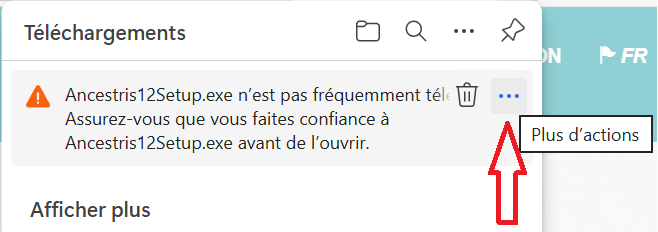
2. Choose "Keep"

You can also click on "Report this file as safe" to help us to remove this alert.
3. Click on the arrow beside the "Delete" button and select "Keep anyway"
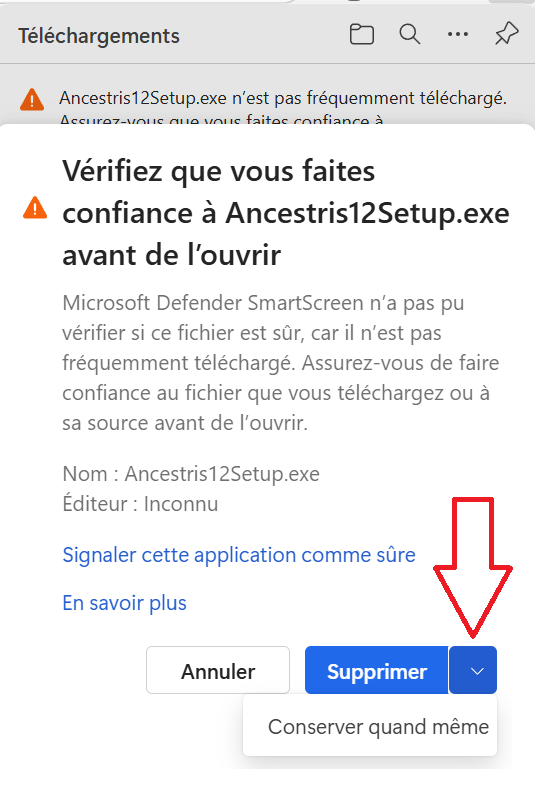
4. You can use the downloaded file and install Ancestris.