Media viewer
The Media viewer displays all the media files of the genealogy in one single window.
You can visualize all of them easily with filters and sorting possibilities. You also identify how they are used the genealogy.
The Media viewer can be accessed from the Media manager and from the Cygnus editor.
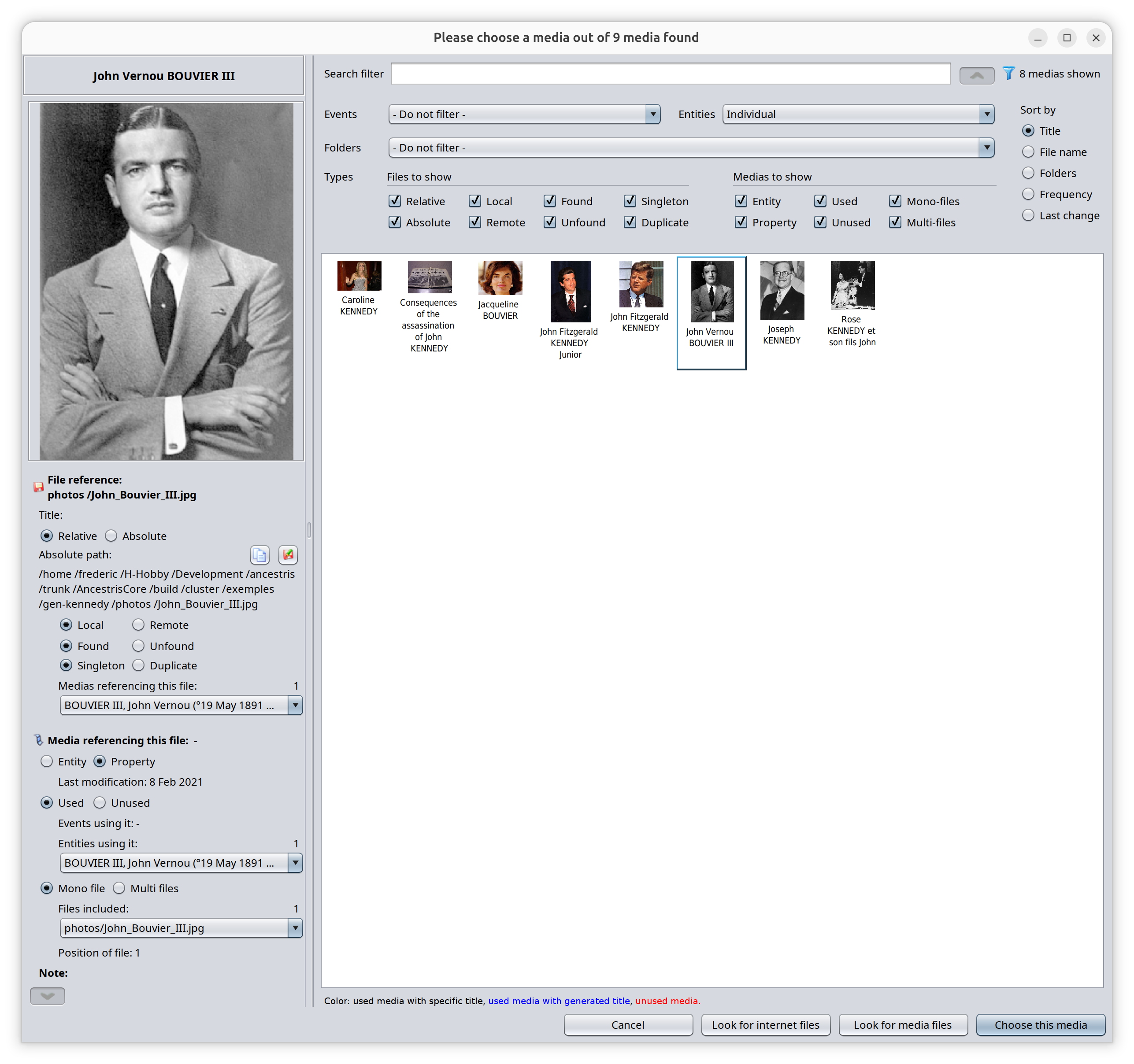
Description
All media files appear in the list as pictures. For media files like video or sounds, they appear as simplified icons.
On top of the list of pictures are some filters and a sorting choice.
When a media is selected, its image appears on the left-hand-side with its details.
Both the filter panel and the details panel are retractable.
List
Each item in the list is a Media File, which is the combination of a reference to a file included in a media element.
A file is always attached to one media, but a media can include more than one file. For instance, a media with 3 files will appear 3 times, once for each file.
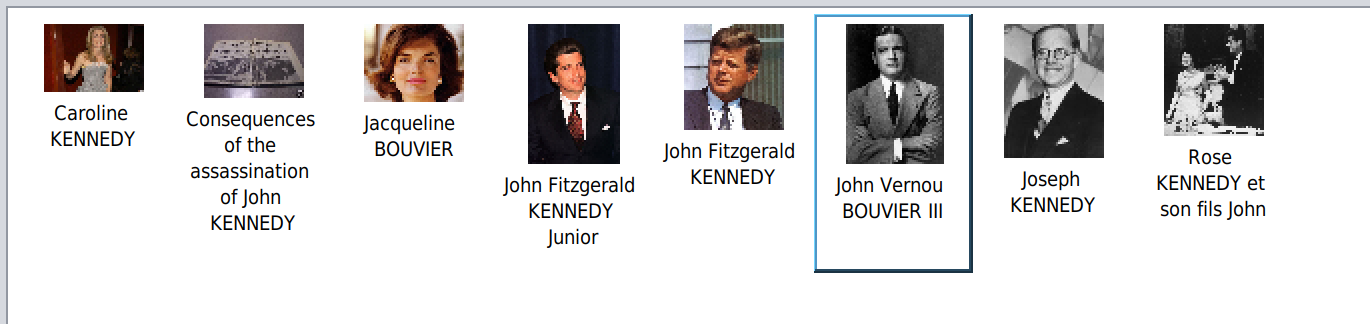
Pictures appear dynamically as you scroll. Once the pictures have appeared once, they are quicker to appear the next time you scroll.
Clicks
- Right-clicking on a picture lets you show it in the other Ancestris editors in their entity contact.
- Double-clicking on a picture in the list will choose it to include it in the edited entity, and close the viewer.
Titles that appear underneath the pictures are the media titles used in the genealogy if you have provided them, or else the name of the entity it is attached to, or else "Multimedia" if it has no title and is not used in the genealogy.
A foot note at the bottom of the window specifies how the title was generated and associates it to a color.
Filters
A number of filters can be used to reduce the list of media files to be displayed, for quicker search.
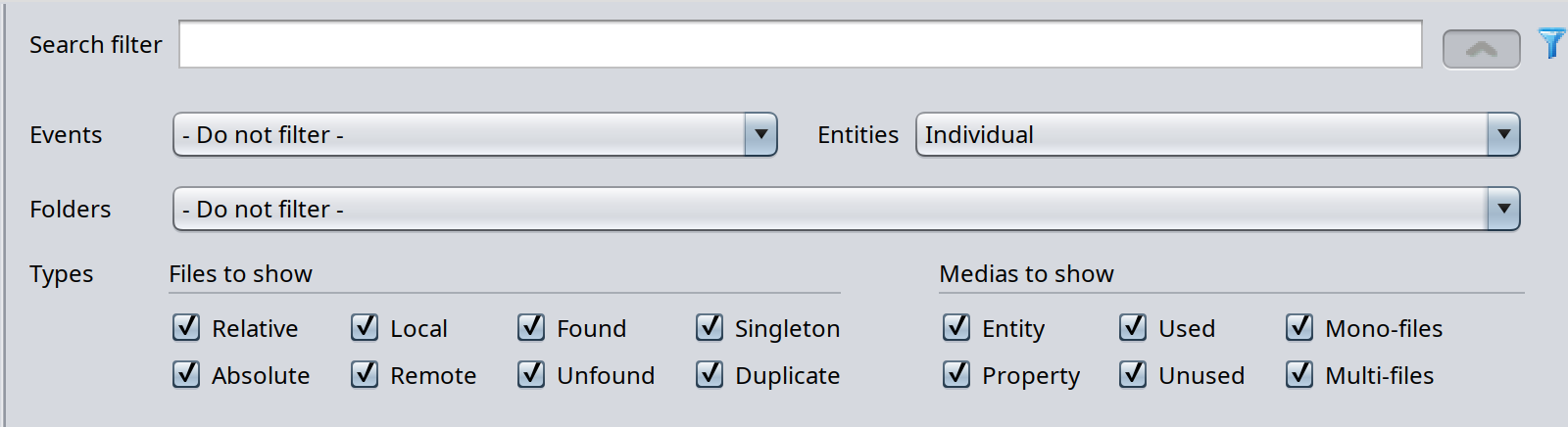
If a filter is on, the filter icon  appears next to the retractable button on the top right corner of the window.
The search filter lets you enter any string of characters that Ancestris will use to match the title, the file name or the hosting entity of the media files.
Filters include the type of Event or Entity the media file is attached to. It is also possible to filter on the folder the file belongs to.
It also includes seven binary filters such as whether the media file is used or not, whether it is found or not, etc.
These filters apply to the File characteristics of the Media File, or to the Media characteristics par of it. The meanings are listed here.
Files to show
- Relative, if the file is located relative to the Gedcom file
- Local, if the file is on your local disks
- Found, if the file exists on your local disks or on the Internet
- Singleton, if the file is referenced only one throughout the genealogy
Medias to show
- Entity, if the media file is attached to a media entity - rather than a media property, which means the same file can be reused to various other entities without having to reference the physical file more than once.
- Used, if at least one entity is referencing the media file
- Mono-file, if the file is alone in the media property or entity. For information, media properties can be used in Gedcom version 5.5.1 or below, but are no longer possible using Gedcom version 7.0 and above.
The filters help you quickly clean your genealogy from unwanted media files.
Unwanted media files are generally the ones corresponding to the lower row of the binary filters.
- Absolute, because you cannot move your genealogy to another disk or computer without having to reattach the media files
- Remote, because they tend to be slower to appear
- Unfound, because they are not usable
- Duplicate, because a file does not need to be referenced more than once. If you change the filename, you would need to change several media.
- Property, because files cannot be reused without repeating the attachment of the file. If the file name changes, you would have to change it il several properties for instance.
- Unused, unless they are there waiting to be used
- Multi-files, unless the same media has got several type of files to take into account.
Sorting choices
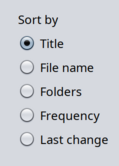
The list of media files can be sorted based on their Title, their File name, their folder location, their frequency of usage in the genealogy or last modification date of the media.
Media file details
The details of the media file are displayed under the image.
Image
The title of the image is calculated: it is the first title found starting from the file and looking up the media and then the entity using it. Please note that in the Gedcom standard, a Media entity does not have any title per se.
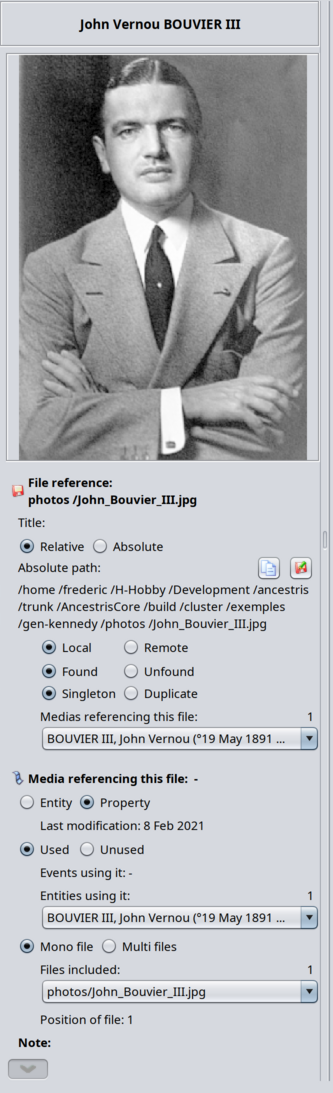
Under the image are displayed the details for the file reference and the media referencing the file.
Apart from renaming files, you cannot modify any of the information displayed directly. You would have to use the editors for tha.
File reference
- File value: this is the value of the FILE property referencing the physical file. You can see if it is an absolute path (starting with '/' or 'C:\' for instance), or else is it called a relative path.
- Title: this is the title of the file in the media (see filters above)
- Relative or Absolute (see filters above)
- Absolute path, i.e. the full path of the file. This is the full path of the physical file, either local or on the Internet, which is different from the relative path value.
- To the right hand side of the absolute path are 2 buttons
 Copy the absolute file path to the clipboard in case you need to use it somewhere else.
 Rename file on disk. Ancestris will ask for a new name and automatically update the genealogy. See below for details about this.


- Local or Remote (see filters above)
- Found or Unfound (see filters above)
- Singleton or Duplicate (see filters above)
- List of medias referencing this file. For property media, these are the entity where this property belongs.
Media referencing the file
- Entity / Property (see filters above): this attachment of the media file indicates whether the media file is attached to an entity or to a property. In case it is attached to a media entity, a drop down list box displays all the entities using it. This corresponds to the frequency sort criteria mentioned above.
- Used / Unused (see filters above)
- Mono / Multi files (see filters above)
- File position within the media: if several files are attached to the same media, this gives its position. When a media content does not fit onto one single file, it is useful to bundle them to the same Media entity (or property). No problem there.
- Note: this note relates to the media entity or media property and can somethimes be used as the title of the media.
Usage
Usage is pretty straight forward. The main goal is to select a media to be used by the Cygnus editor.
The other goal of this tools is to manage all your media files, and detect anomalies or missing information. It is to be used in association with the media manager when it comes to organising and cleaning your media files.
The values and information provided in this window match the information provided in the Media manager window.
Regarding filters, you can select multiple filters at a time.
Renaming a file
To rename a file, press the Rename button.
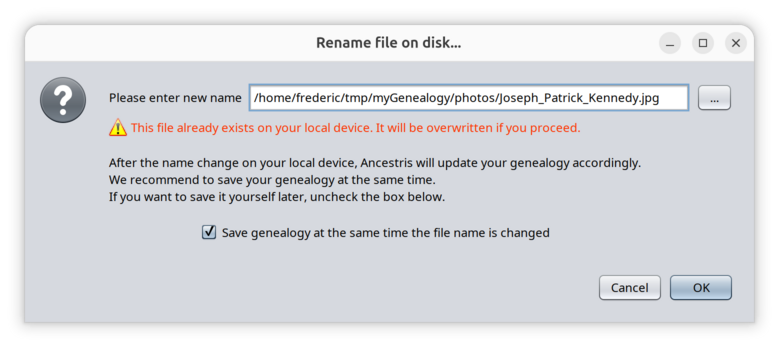
- Renaming a file on disk will rename all the files with that given absolute file path.
- A warning will be displayed if the new file already exists on disk to prevent you from overwriting it. You can still confirm to proceed.
- Ancestris will update the genealogy accordingly to maintain the link between your genealogy data and the fiels on disk.
- Ancestris will propose to save your genealogy at the same time because file name changes on disk are not undoable automatically and you probably do not want the links to break. Alternatively, you can not to save the genealogy at the same time and do it later once several files have been renamed.
Customization
All filters, sort criteria and fold/unfold of filters are memorised for the next time you open the Media viewer.
This customization is attached to a Gedcom file. That means that two different genealogy files have different settings.