Ancestris needs Java. Check the [Versions compatibility page](https://docs.ancestris.org/books/user-guide/page/versions-compatibility "Versions compatibility").
**If Ancestris does not start**, or shows the Ancestris splash screen and stops, it is most generally related to an issue with the Java installation. Either Java is not installed or Ancestris does not find it or finds an incompatible version or finds a corrupted version.
The following sections offer a step-by-step check to ensure Ancestris is using a valid Java version.
### ## General principle - **Ancestris works with all Java versions listed in the [Compatibility page](https://docs.ancestris.org/books/user-guide/page/versions-compatibility "Versions compatibility")**. - Ancestris has been tested with several versions which are LTS (Long Term Support) versions. - We do not systematically test Ancestris with Short Term versions. They are quickly obsolete and cannot be downloaded after 18 months but some users regularly confirm that Ancestris works well with all java versions. - Ancestris is compiled with a former long-term version for better compatibility with most users. - If a functioning version of Java is available on your system, **Ancestris will find it without having to configure anything**. - Otherwise, you can [install Java](#bkmrk-install-java) from any vendor. Our users find it easier to download it from [Adoptium](https://adoptium.net/ "Go to Adptium.net"). - Ancestris [needs a GUI version of java](https://docs.ancestris.org/books/user-guide/page/versions-compatibility "Versions compatibility"), not a headless one. - To know whether Java is installed on your system, [follow these instructions](#bkmrk-identify-which-java-). - In case Ancestris does not start although Java is installed, please check the [Troubleshooting section](#bkmrk-troubleshooting). - You can have multiple versions of Java installed on your system. To tell Ancestris which one to use, you will need to - either update the Ancestris configuration file. For this, [follow these instructions.](#bkmrk-identify-which-java--0) - or change the default Java version. For this, [follow these instructions](#bkmrk-using-several-java-v). ## Install JavaA simple way to get an official Java version is to get it from [Adoptium.net](https://adoptium.net/ "Latest official Java releases from Adoptium.net") - On **macOS** and **Windows**, Adoptium provides installable packages that you simply need to run. - On **Linux**, it may be easier to install it via the command line. For example, on Ubuntu, you would use the command ‘`sudo apt install openjdk-21-jdk`’ to install the complete version 21 or else "`sudo apt install default-jre`" to simply install the Java Runtime Environment.
If Java is not installed or if you want the latest or a specific version of Java, just download it from the site above.If you use **Windows**, when you install Java with Adoptium, install the registry keys Javasoft [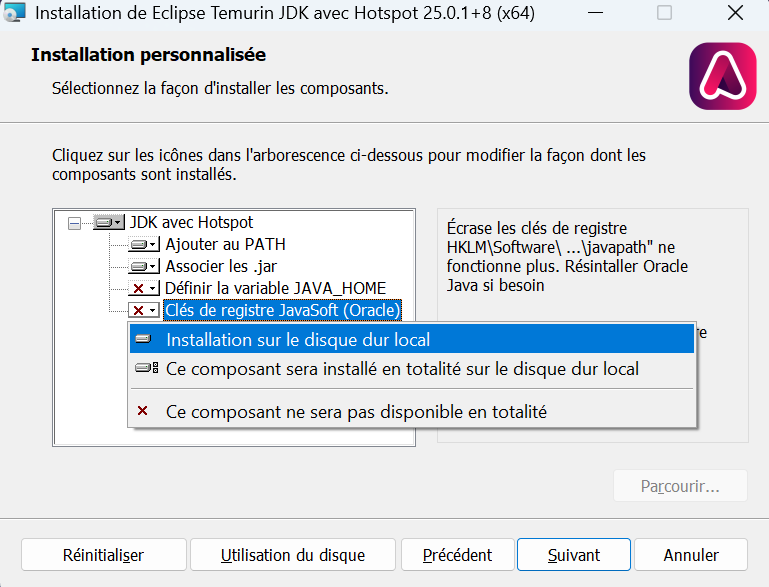](https://docs.ancestris.org/uploads/images/gallery/2025-11/adoptium-install.png) This allow to all software to detect Java.
If you use **Linux**, another easy way to install java is simply to type the following in a terminal:
`sudo apt install openjdk-17-jdk
`( replace the version number 17 by the version you want to install)
If you have a Java version installed as per the example above, and are happy to use this version, you may disregard the rest of this page.
## Troubleshooting If Java is installed and Ancestris does not start, either Ancestris does not find Java or finds an incompatible version or finds a corrupted version. In the first and third case, you will generally have an error message somewhere when you start Ancestris from the prompt. In the second case, you may have an error message, or not, in particular if it is a headless version. For compatible versions, check the [compatibility versions page](https://docs.ancestris.org/books/user-guide/page/versions-compatibility "Versions compatibility"). Whether only one version of Java or several versions are installed on your system, you will then need to [check and potentially update the configuration file](#bkmrk-identify-which-java--0 "Location of the configuration files") to tell Ancestris where to look for Java. Rather than changing the Ancestris configuration file, and if several version of Java are available on your system, an alternative would be to [change the default Java version](#bkmrk-using-several-java-v). - The default Java version is the one appearing when you type `java -version` like indicated in the section above. This is the one Ancestris will use if an Ancestris configuration file does not exist or does not include the instruction of where to find Java. ##### If in doubt, please run Ancestris manually from a terminal window, and send us the trace that is displayed on the screen. - Regardless of the OS you use, open a terminal window - Go to the application directory called `ancestris/bin` - Start Ancestris manually - by typing `./ancestris` from macOS or Linux, - by typing `ancestris.exe` or `ancestris64.exe` from Windows - The terminal window displays what it is doing - Send us this display ## Update the Ancestris configuration fileYou only need to worry about what is detailed below if Java is installed and Ancestris does not start.
You need to update the [Ancestris configuration file](https://docs.ancestris.org/books/user-guide/page/software-files-and-user-settings-files "Location of the configuration files") to tell where Ancestris should look for Java, if Ancestris does not seem to find it. The principle is the following: - If a configuration file exists which includes a **jdkhome** parameter indicating where to find java, Ancestris will use the corresponding java version - Otherwise Ancestris will use the default Java version indicated in the section above{{@196#bkmrk-ancestris-uses-two-c}}
Chech [here](https://docs.ancestris.org/books/user-guide/page/software-files-and-user-settings-files "Software files and User settings files") to know where the configuration file is depending on your system. ### The path to Java in the configuration file So open the configuration file with a regular text editor. **1. Check the line defining `default_options`** This line should look like this: `default_options="--branding ancestris -J-Xms96m -J-Xmx1g --laf javax.swing.plaf.nimbus.NimbusLookAndFeel"` If one of the options in this line includes `--jdkhome="/path/to/java`, make sure the path specified in this option is the path to the Java version you want to use. If this line does not include a java path, locate jdkhome elsewhere. **2. Check the line defining `jdkhome`** If the line looks like `jdkhome="/path/to/java"`, then make sure the path specified in this option is the path to the Java version you want to use. If the line starts with "#", a comment markup, Ancestris will disregard as if it did not exist. If Ancestris does not start, it could be that the jdkhome folder name is incorrectly spelt or points to an incorrect Java version. Whatever your operating system is, if the default active Java version is different from the one to be used with Ancestris, you have to modify the jdkhome line like this: ``` jdkhome="/path/to/java" ``` ### Case of macOS For macOS, if for example Java 21 and Java 17 are installed on your Mac and you want to force the use of Java 17 for Ancestris, the complete manipulation to force the version of Java would be the following: -