**Ancestris works on all latest macOS, Windows and Linux platforms running Java. If Ancestris does not start**, or shows the Ancestris splash screen and stops, it is most generally related to an issue with the Java installation.
To use Ancestris, it is required to have the following hardware configuration: - 2 Gb RAM - 200 Mb of available disk space - A big enough screen, 1920 x 1080 minimum recommended #### Java is a prerequisite To use Ancestris, you need to have [Java](https://adoptium.net/ "Go to the Java download site") installed on your system.See [Version compatibility](https://docs.ancestris.org/books/user-guide/page/versions-compatibility "Versions compatibility") to identify which version of Java is compatible.
Ancestris is compatible and has been tested with the version listed above. To identify which Java version is installed on your system, other Java versions available, how to swap between Java versions, or the Java technical requirements, check out the [Java installation page](https://docs.ancestris.org/books/user-guide/page/java-installation-%28m%29 "Java installation"). #### Note to macOS users See macOS [version compatibility](https://docs.ancestris.org/books/user-guide/page/versions-compatibility#bkmrk-note-to-macos-users "Versions compatibility"). #### Note to Chomebook users Chromebooks do not allow Ancestris to be launched. The limitation is that there is no version of Java that can be installed on a Chromebook and used to launch an application. - If you have the option to install Linux instead of the Chromebook OS, you will be able to install and use Ancestris. - You can also try these steps to activate the Linux development environment: [https://www.youtube.com/watch?v=P9PYMkAQNhk](https://www.youtube.com/watch?v=P9PYMkAQNhk). This activates a Linux console that should allow you to install Java and run Ancestris. ## InstallationIf you need detailed installation steps, we provide you with a step-by-step guide corresponding to your system : ✔ [Step-by-step installation guide for macOS](https://docs.ancestris.org/books/user-guide/page/step-by-step-installation-on-macos "Step-by-step installation on MacOS") ✔ [Step-by-step installation guide of the stable version for Windows](https://docs.ancestris.org/books/user-guide/page/step-by-step-installation-of-version-10-on-windows "Step-by-step installation guide of the stable version for Windows") ✔ [Step-by-step installation guide of the daily version for Windows](https://docs.ancestris.org/books/user-guide/page/step-by-step-installation-of-version-11-on-windows "Step-by-step installation guide of the development version for Windows") ✔ [Step-by-step installation guide for Linux](https://docs.ancestris.org/books/user-guide/page/step-by-step-installation-on-linux "Step-by-step installation guide for Linux")
What follows is the general overview of the installation and the links in case of troubles or to change launch settings. ## Go to Download on the Ancestris site Ancestris can be downloaded for free on our page [https://www.ancestris.org](https://www.ancestris.org/index.html#about "Go to Ancestris web site download section ") via the DOWNLOAD option. [](https://www.ancestris.org/index.html "Go to Ancestris Web site") ## Choose your Ancestris version Two versions are available. - Choose the [stable version if you are aiming for stability](#bkmrk-version-principale-1 "Choose main version") and do not need to benefit from the latest developments. - Choose the [daily ](#bkmrk-download-daily-versi "Choose daily version")**[version if you wish to benefit from the latest functionalities](#bkmrk-version-principale-1 "Choose daily version").**All versions work on any device under any operating system that can use Java.
All versions work with all existing translations.
All versions are full versions and allow unlimited usage.
## Download Ancestris This shows the Download section of the Ancestris site. [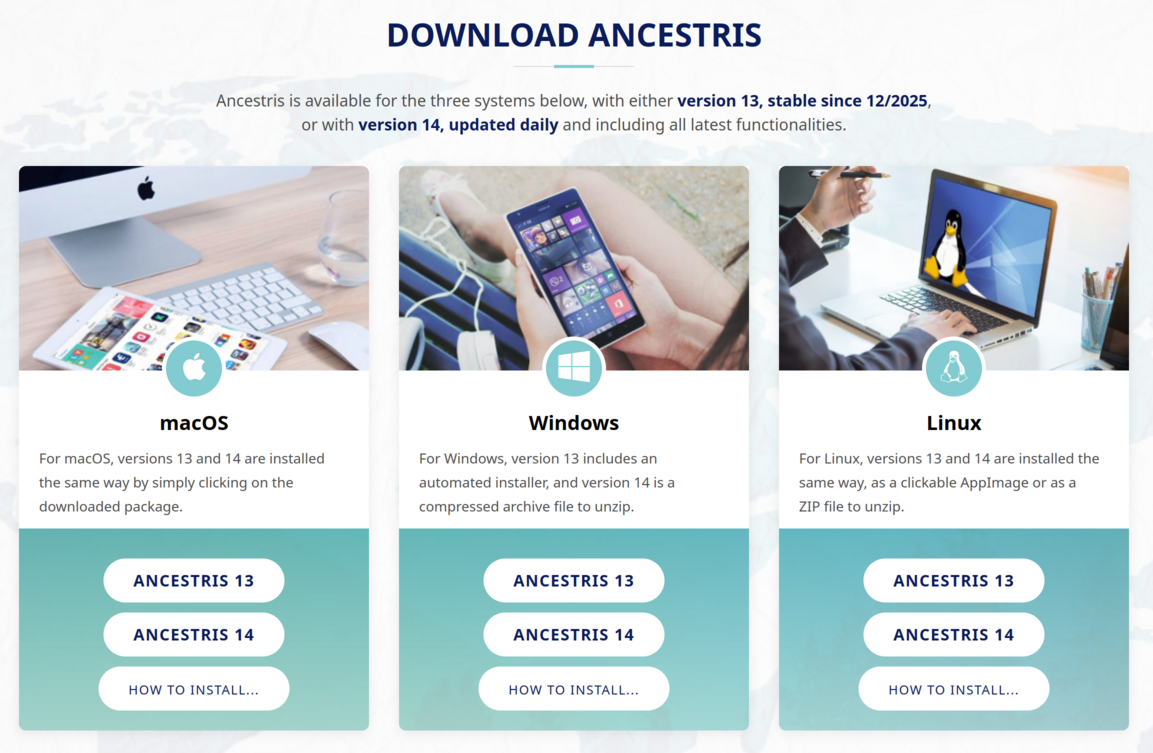](https://docs.ancestris.org/uploads/images/gallery/2025-11/en-install-download.png) - Click on the Ancestris version button of your operating system - **macOS**. It will download a pkg file. - **Windows**. It will download an exe or zip file depending on the Ancestris version. - **Linux**. Hovering over the buttons, a menu will appear where you can pick the AppImage file or a ZIP file. - The downloaded file will be specific to the operating system you choose - Follow the steps suggested by your Internet browser and save the file - The download will take a few seconds and will result in a file of about 95Mb or 141 Mb for Windows exe file. ## Choose Ancestris folder At the end of the download, the file will be placed in your default `download` folder. If you don't know what this folder is, check your Internet browser's settings or else click on the downloaded icon of your browser. From that folder, feel free to move the downloaded file wherever you want on your computer. The software platform used by Ancestris is Netbeans. Therefore, accents in the installation path are prohibited. - On macOS, the stable version is installed by default in /Applications. - On Linux, the AppImage file will implement a launcher in the launch bar. Yhis launcher will be using the AppImage file so do not erase it later. Make sure you move it to a place where you will keep it. ## Start Ancestris The way to start Ancestris slightly differs depending on the OS system you have. Ancestris's files will be inside the resulting `ancestris` folder. Refer to the [Software files](https://docs.ancestris.org/books/user-guide/page/software-files-and-user-settings-files-%28m%29#bkmrk-software-files "Software files and User settings files") page to have the detailed view of the `ancestris` folder.**To start Ancestris**, run the downloaded file or else run the executable in the bin folder that corresponds to the operating system you are using.
- **macOS** : click on the package file and Ancestris will install itself in the Applications folder, from which you can start Ancestris. - **Windows** : for the stable version, just double-click on the downloaded exe file `AncestrisSetup.exe`. This installation program will assist you in the installation of Ancestris and it will also create the launcher icon. For the daily version, run the ancestris64.exe file in the bin folder. - **Linux** : - For the AppImage file: once it is downloaded, move it to a better folder, right clic on it to give it executable right and then double clic on it - For the ZIP file, unzip it and then locate the ancestris/bin folder, and double-click on the 'ancestris' file. This is an executable script. Regardless of the version, here is what you will see when Ancestris is started. [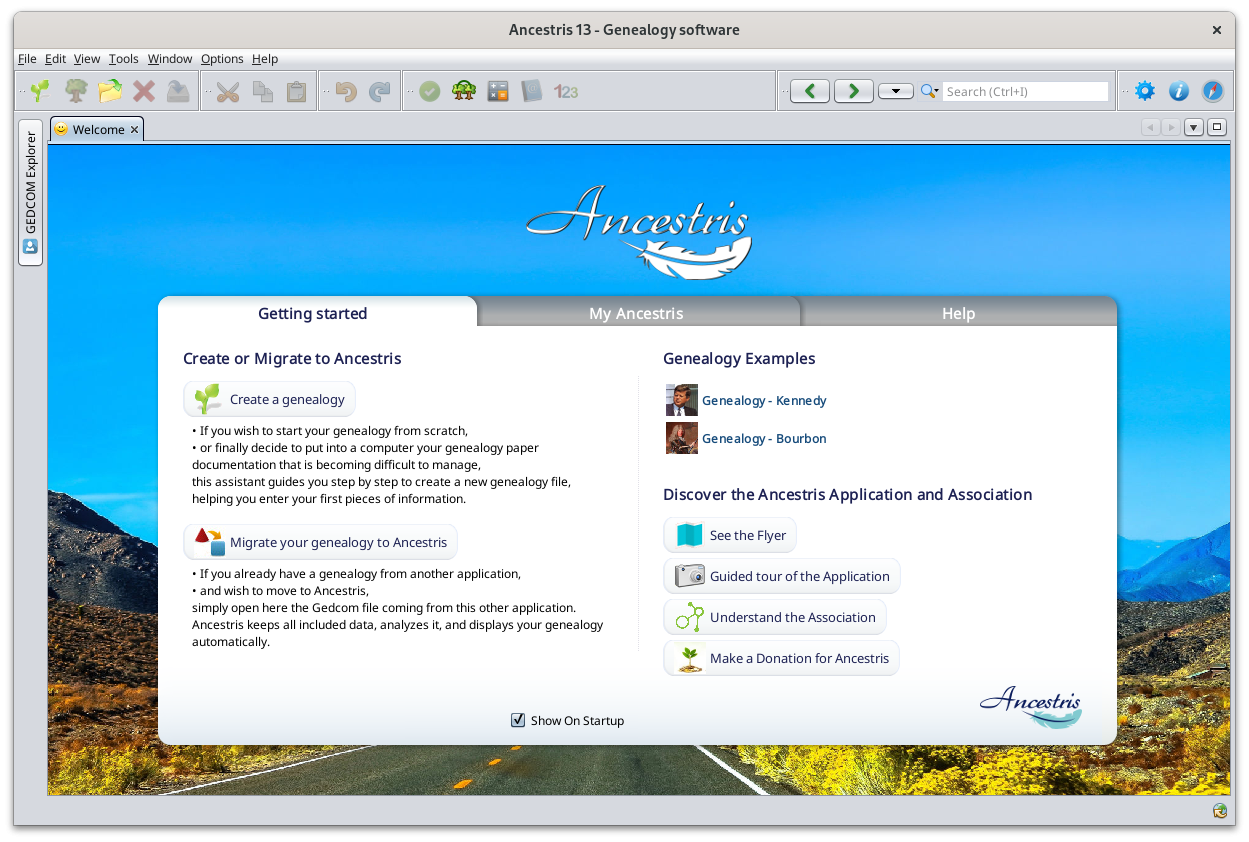](https://docs.ancestris.org/uploads/images/gallery/2024-06/en-ancestris.png) ## TroubleshootingIf you need detailed installation steps, please read the step-by-step guide below corresponding to your system : ✔ [Step-by-step installation guide for macOS](https://docs.ancestris.org/books/user-guide/page/step-by-step-installation-on-macos "Step-by-step installation on MacOS") ✔ [Step-by-step installation guide of the stable version for Windows](https://docs.ancestris.org/books/user-guide/page/step-by-step-installation-of-version-10-on-windows "Step-by-step installation guide of the stable version for Windows") ✔ [Step-by-step installation guide of the daily version for Windows](https://docs.ancestris.org/books/user-guide/page/step-by-step-installation-of-version-11-on-windows "Step-by-step installation guide of daily version 13 for Windows") ✔ [Step-by-step installation guide for Linux](https://docs.ancestris.org/books/user-guide/page/step-by-step-installation-on-linux "Step-by-step installation guide for Linux")
**If Ancestris does not start**, or shows the Ancestris splash screen and stops, it is most generally related to an issue with the Java installation. Either Java is not installed or Ancestris does not find it or finds an incompatible version or finds a corrupted version. Please check the [Java installation page](https://docs.ancestris.org/books/user-guide/page/java-installation-%28m%29 "Java installation procedure") for help.
## ## Personalisation ### Shortcut icon**If you need to customize a shortcut with a nice icon to start Ancestris**, please check your operating system's documentation on how to create it, and feel free to use the included image file ancestris.gif provided within the softwares files. For macOS, see the [step-by-step guide](https://docs.ancestris.org/books/user-guide/page/step-by-step-installation-on-macos-%28m%29#bkmrk-docking-ancestris-in "Step-by-step installation on MacOS"). For Windows, see the [step-by-step guide](https://docs.ancestris.org/books/user-guide/page/step-by-step-installation-of-version-11-on-windows "Step-by-step installation of the development version on Windows"). For Linux, there are several of these procedures, and quite different from one system to another.
### Launch settings**You can personalise the way Ancestris starts such as the memory allocation** for instance. In case you need to personalise the way Ancestris is launched, please refer to the [Launch settings page](https://docs.ancestris.org/books/user-guide/page/launch-settings-%28m%29 "Launch settings").
### User settingsIf you are interested in knowing where the **user settings files** are, please refer to the [Software and user settings files page](https://docs.ancestris.org/books/user-guide/page/software-files-and-user-settings-files-%28m%29 "Software files and User settings files").
---