The possibility of being able to provide all the information allowed by the [Gedcom standard](https://docs.ancestris.org/books/user-guide/page/gedcom "Gedcom").
In a user-friendly interface with ergonomic windows
The advantage is to be able to do everything, from A to Z, from Alpha to Omega.Did you know? Its name comes from the constellation of Aries, the first constellation of the zodiac, crossed by the sun in spring. The horns of Aries, in the shape of spirals, also symbolize the impulse towards life, the eternal restarting or rebirth of life, of light, also corresponding to the beginning of spring in the cycle of seasons.
The possibilities of Aries are numerous and cover 100% of the needs. The compromise is that adding the same information can be done in several ways and you will have to choose your most efficient mode. There is something for everyone, and Ancestris users often choose to use two main editors: Aries + Gedcom, or Cygnus + Gedcom. Some prefer to use only the Gedcom editor. Here is a comparison of the 3 editors if you still had to make a choice.| **Cygnus** | **Gedcom** | **Aries** | |
| Focus | The individual and his close environment | The Gedcom standard | Completeness of information |
| Ease of use | ++ | +++ | + |
| Ergonomics | +++ | + | +++ |
| Coverage of needs | 80% | 100% | 100% |
| Data Transparency | + | +++ | ++ |
| Efficiency | +++ | + | + |
| Editable Gedcom entities | Many | All | All |
| Compliance with Gedcom standard | 100% | 100% | 100% |
The source needs to be attached at the event level, via these 2 buttons. You can attach for example birth and death certificates, after having previously entered and documented them in [Source Entities](#bkmrk-entit%C3%A9-source "Source Entities").
The other fields are: - **Role in event**: this is a free text but roles such as husband, wife, father, mother, wife, child are proposed. - **Certainty assessment**: qualifies the quality of the information according to the following predefined criteria: [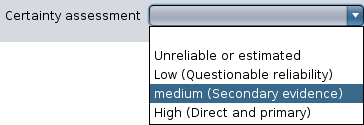](https://docs.ancestris.org/uploads/images/gallery/2020-09/en-aries-event-source-edit-quality.png) - **Recording date**: date when the vent was recorded, and therefore not necessarily the date of the event of the individual we have been talking about since the beginning. - **Text from source**: extract of the source text justifying the individual's event. - If the text of the source has already been transcribed in the Source entity, it is not worthwhile to put it here. The **Notes Tab** and **Gallery Tab** of the window modifying the quotation characterize the source quotation. These tabs are used throughout the Aries Editor like the other Notes and Gallery tabs. Apart from this difference in how they are attached to source citations, you will find their use in the [Notes Tab](#bkmrk-onglet-notes-0 "Notes Tab") and [Gallery Tab](#bkmrk-panneau-galerie "Gallery Tab") of an individual. Regarding the photos of the sources (deeds, certificates, etc.), they'd rather be put in the gallery of the source than the gallery of the individual. ##### Notes Tab Notes can be added to an individual's event using the Notes Tab. [](https://docs.ancestris.org/uploads/images/gallery/2020-09/en-aries-event-note.png) This tab is used throughout the Aries editor. Apart from this difference in the attachment to events, you will find its use in the [Notes Tab](#bkmrk-onglet-notes-0 "Notes Tab") of an individual. ##### Gallery tab Media can be added to an individual's event using the Gallery Tab. [](https://docs.ancestris.org/uploads/images/gallery/2020-09/en-aries-event-gallery.png)We will put here, at the level of the event, the photos of the individual at the time of these events.
This tab is similarly used throughout the Aries editor. Apart from this difference in the attachment to events, you will find its use in the [Gallery Tab](#bkmrk-panneau-galerie "Gallery Tab") of an individual. #### Parents and Siblings tab This tab manages the parents and siblings of the selected individual. [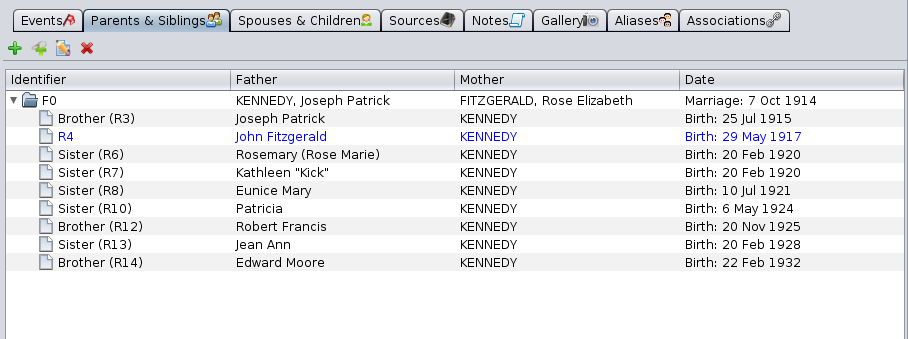](https://docs.ancestris.org/uploads/images/gallery/2020-09/en-aries-parents.png) This tab is in the form of a [Tree list](#bkmrk-liste-arborescente "Tree list") with [Edit buttons](#bkmrk-boutons-communs "Edit buttons"). Their principle is the same as described in the corresponding paragraph, namely : - The button **Add parents to that person** [](https://docs.ancestris.org/uploads/images/gallery/2020-05/EditeurAries_Boutons_Edition_Cr%C3%A9er.png) allows you to add the father and mother of the selected individual. - A new window of the Aries editor opens on a Family entity, where you can specify the parents. - The **Link to an existing family** button [](https://docs.ancestris.org/uploads/images/gallery/2020-05/EditeurAries_Boutons_Edition_Lier.png) allows you to create a genealogical link between the selected individual and an existing family in the genealogy. - A new window is displayed with a list of already registered families. - The **Edit Selected Family** button [](https://docs.ancestris.org/uploads/images/gallery/2020-05/EditeurAries_Boutons_Edition_Modifier.png) edits the family that is selected in the list underneath. Aries opens a new editor positioned on the family. - The **Delete Selected Family** button [](https://docs.ancestris.org/uploads/images/gallery/2020-05/EditeurAries_Boutons_Edition_Supprimer.png) deletes the family that is selected in the list underneath. #### Spouses and children tab This tab manages the different spouses of the selected individual as well as the children he or she has had with each of them. [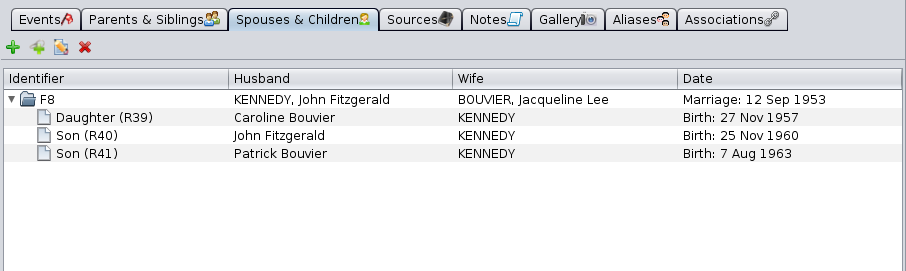](https://docs.ancestris.org/uploads/images/gallery/2020-09/en-aries-spouse-children.png) This tab is in the form of a [Tree list](#bkmrk-liste-arborescente "Tree list") with [Edit buttons](#bkmrk-boutons-communs "Edit buttons"). Principles are the same as the tab described above. #### Sources Tab Sources can be added to the individual directly through a Sources Tab. This tab is used throughout the Aries Editor. Apart from this difference in the attachment to an individual, you will find its use in the [Sources Tab of an event](#bkmrk-panneau-sources "Manage the source tab"). #### Notes Tab This tab is in the form of a [selection list](#bkmrk-liste-de-s%C3%A9lection "Selection list") with the [Edit buttons](#bkmrk-boutons-communs "Edit buttons"). [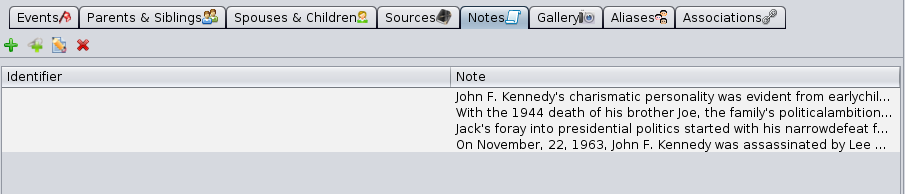](https://docs.ancestris.org/uploads/images/gallery/2020-09/en-aries-note.png) The notes created or attached qualify the selected event. We can see that there can be two types of notes in the list: - **Notes Entities**, therefore shareable with other entities of the genealogy, identified by an ID number. - **Specific (embedded) notes**, not shareable, without ID number. See [shared information](https://docs.ancestris.org/books/user-guide/page/shared-information "Shared Information") for more details. With the create button [](https://docs.ancestris.org/uploads/images/gallery/2020-05/EditeurAries_Boutons_Edition_Cr%C3%A9er.png) it is possible to create a shared Note Entity or a note specific to the event (therefore embedded) as indicated by the check mark in the window that appears. [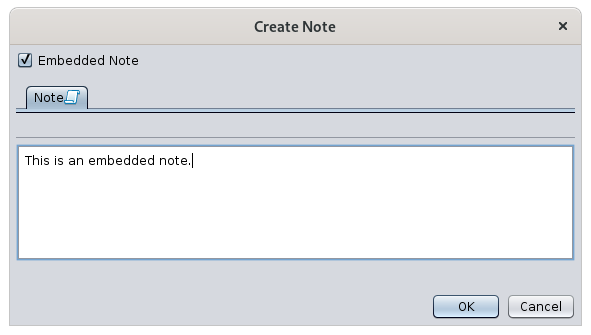](https://docs.ancestris.org/uploads/images/gallery/2020-09/en-aries-note-create.png) With the edit button [](https://docs.ancestris.org/uploads/images/gallery/2020-05/EditeurAries_Boutons_Edition_Modifier.png) it is possible to modify a note. In this case, if the References tab is visible and if the window shows an identification number for the note, it is a shared note (window below). Otherwise it is a specific note (similar to the window above). [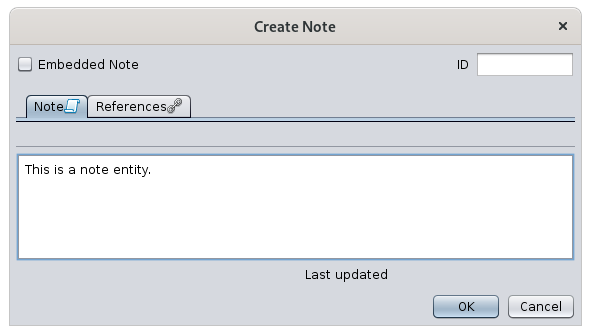](https://docs.ancestris.org/uploads/images/gallery/2020-09/en-aries-note-create-entity.png) The References tab is described below. #### Gallery tab This tab is in the form of a [selection list](#bkmrk-liste-de-s%C3%A9lection "Selection list") with the [Edit buttons](#bkmrk-boutons-communs "Edit buttons"). [](https://docs.ancestris.org/uploads/images/gallery/2020-09/en-aries-gallery.png) The media created or attached qualifies the individual independently of any event.We will put here, at the level of the individual, and not at the level of the events, the pictures of this individual that will be displayed in the [Dynamic tree](https://docs.ancestris.org/books/user-guide/page/dynamic-tree "Dynamic tree").
Note here the blue star [](https://docs.ancestris.org/uploads/images/gallery/2020-05/EditeurAries_Boutons_Edition_Pr%C3%A9f%C3%A9rer.png) which allows you to specify the media to be displayed by default in the family tree, in case there are several media to choose from for the individual. The buttons for creating, linking or editing a media displays the media editing window. #### Aliases Tab This tab manages the different aliases of the selected individual.An alias is a relationship between two individuals who are supposedly distinct a priori but who perhaps designate the same person.
- Their identification numbers are different - Their names may or may not be identical, indicating that there is a possibility that these two individuals are in fact one and the same person. When such a possibility exists, the user can create an alias in order to bring the two individuals together, so that the Aliases tab of the first individual will mention the name of the second, while, conversely, this same tab of the second individual will mention the name of the first. The presence of an alias expresses a simple hypothesis. - If later it turns out that the two individuals are two distinct physical persons, the alias must naturally be removed. - If, on the contrary, it is proven that the two individuals are one and the same natural person, the two records must then be merged. The Alias tab is presented in the form of a [selection list](#bkmrk-liste-de-s%C3%A9lection "Selection list") with the [Edit buttons](#bkmrk-boutons-communs "Edit buttons"). [](https://docs.ancestris.org/uploads/images/gallery/2020-09/en-aries-alias.png) - The **Add an Alias** button [](https://docs.ancestris.org/uploads/images/gallery/2020-05/EditeurAries_Boutons_Edition_Cr%C3%A9er.png) associates the selected individual with another individual by means of an alias. - The **Edit selected alias** button [](https://docs.ancestris.org/uploads/images/gallery/2020-05/EditeurAries_Boutons_Edition_Modifier.png) edits the record of the individual whose alias is selected in the grid below.This command opens a new editor window inviting you to modify the data of the individual. - The **Delete selected alias** button [](https://docs.ancestris.org/uploads/images/gallery/2020-05/EditeurAries_Boutons_Edition_Supprimer.png) allows you to delete the alias selected in the list below. - The deletion does not remove the individual itself but the link between the two individuals. - An alias is a reciprocal link between two individuals. Consequently, the deletion of an alias from the first individual, induces the automatic deletion of the same alias from the second individual. #### Associations Tab This tab manages associations between the selected individual and other individuals in the genealogical.An association is a link put between two individuals to indicate that one has been involved in one of the other's events. Example: the godfather of a baptism, the witness of a groom.
An association is a separate link from parental relationships or aliases. The Association tab is in the form of a [selection list](#bkmrk-liste-de-s%C3%A9lection "Selection list") with the [Edit buttons](#bkmrk-boutons-communs "Edit buttons"). [](https://docs.ancestris.org/uploads/images/gallery/2020-10/en-aries-association.png)This list of associations contains the events of people in which the edited individual has been involved and the role of the edited individual in these events.
In the example above, if we assume that the individual referenced being edited is called Jacqueline Bouvier, this means that Jacqueline Bouvier was witness of Caroline Lee's blessing (and not that Caroline Lee was informant of Jacqueline Bouvier's blessing). The associations listed here have therefore been added: - Either by using the **Associate a person to this event** button on the **Event Details** tab of the associated person. - In the example above, it is therefore by editing the individual Caroline Lee, selecting her blessing event, clicking on the association button, choosing the individual Jacqueline Bouvier and specifying "Informant". - [](https://docs.ancestris.org/uploads/images/gallery/2020-09/en-aries-association1.png) - Either by using the Add Association button in this tab: [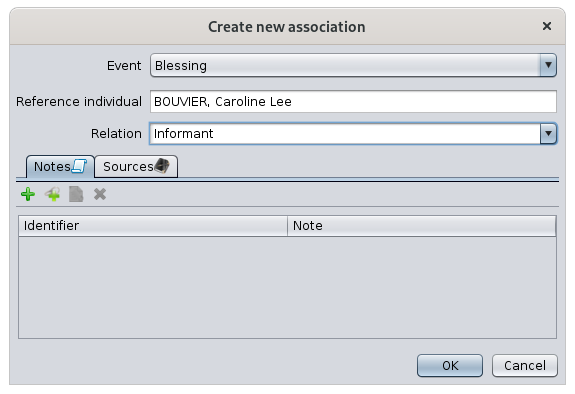](https://docs.ancestris.org/uploads/images/gallery/2020-09/en-aries-association2.png) As you can see, it's the same window and only the person's name changes. It is therefore the starting point that indicates the meaning of the involvement of an individual in the event of the other. - Either we start from the event that took place, and we go and look for the individual involved, - Or we start with the individual involved and point out the event of the other. --- ## Family Entity When the selected entity is a family, the Aries Editor is divided horizontally into two areas: the description of the couple at the top, and the events and relationships of the family at the bottom, with tabs. ### Description of the couple The upper area is dedicated to the description of the two individuals of the couple currently selected in Ancestris. [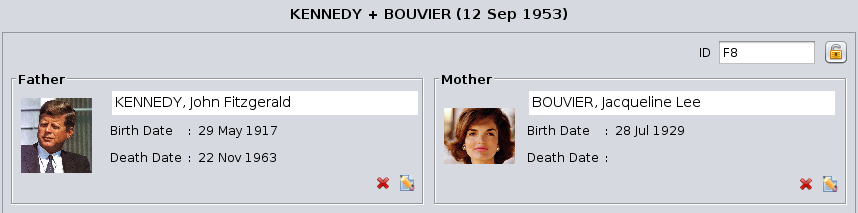](https://docs.ancestris.org/uploads/images/gallery/2020-09/en-aries-family.png) #### ID number Before the couple, at the top right, the family [ID number](https://docs.ancestris.org/books/user-guide/page/generate-id-numbers "Generate ID numbers") is displayed. #### Privacy padlock There is also a Padlock button [](https://docs.ancestris.org/uploads/images/gallery/2020-05/EditeurAries_cadenas.png). It marks the family as confidential if pressed. #### The couple The husband is on the left and the wife on the right. For each of them there is a description, which can be modified with the Modify button: - Photo - Last and first names - Date of birth - Date of death Depending on whether this description is occupied by an individual or not, the following buttons appear. #### Buttons - The **Add button** [](https://docs.ancestris.org/uploads/images/gallery/2020-05/EditeurAries_Boutons_Edition_Cr%C3%A9er.png) creates an individual, male or female, in order to add him/her to the selected family. - This button appears only when no individual is in the description . - The **Link button** [](https://docs.ancestris.org/uploads/images/gallery/2020-05/EditeurAries_Boutons_Edition_Lier.png) allows you to select the person you are looking for from the list of individuals already registered in the genealogy. - This button appears only when no individual is in the description. - The **Modify button** [](https://docs.ancestris.org/uploads/images/gallery/2020-05/EditeurAries_Boutons_Edition_Modifier.png) modifies the description of the couple's individual. Aries opens the edit window for an individual, as described above. - This button only appears when an individual is already in the description. - The **Delete button** [](https://docs.ancestris.org/uploads/images/gallery/2020-05/EditeurAries_Boutons_Edition_Supprimer.png) removes the individual from the family. It does not delete the individual, it simply removes him/her from the family. - This button appears only when an individual is already in the description. ### Events and relations with the Family The lower area is dedicated via tabs to the events of the Family entity, and to the relationships of this family with other entities. [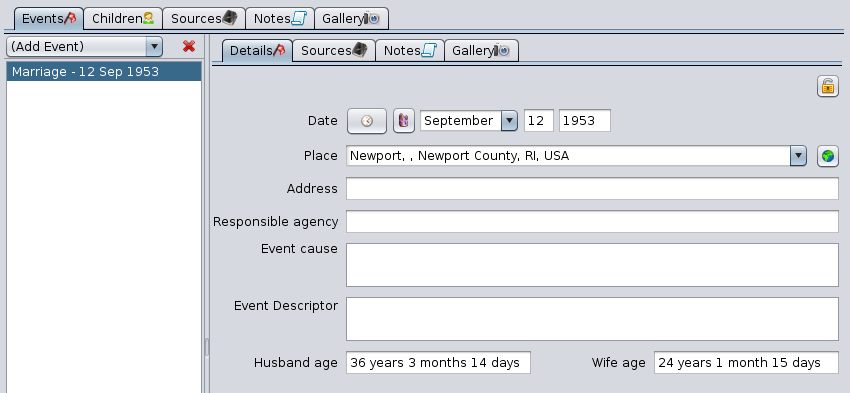](https://docs.ancestris.org/uploads/images/gallery/2020-09/en-aries-family-events.png) The Events, Sources, Notes and Gallery tabs have been described in the [Individual section](#bkmrk-zone-inf%C3%A9rieure-de-l "Individual section"). #### Children Tab This tab manages the children of the selected family, their respective spouses, as well as the children they have had with each of them. [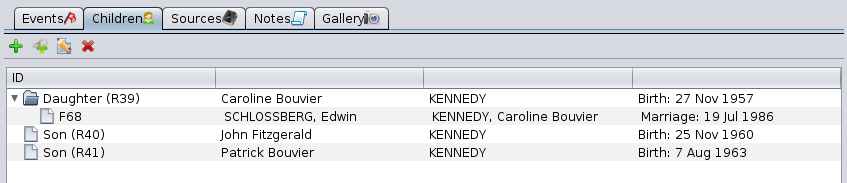](https://docs.ancestris.org/uploads/images/gallery/2020-09/en-aries-family-children.png) This tab is in the form of a [Tree list](#bkmrk-liste-arborescente "Tree list") with the [Edit buttons](#bkmrk-boutons-communs "Edit buttons") and works as described in the corresponding paragraphs. ## Multimedia Entity When the selected entity is a multimedia entity, the Aries Editor displays the exact name of this object in the Title field and, below it, the Image, Note and References tabs. [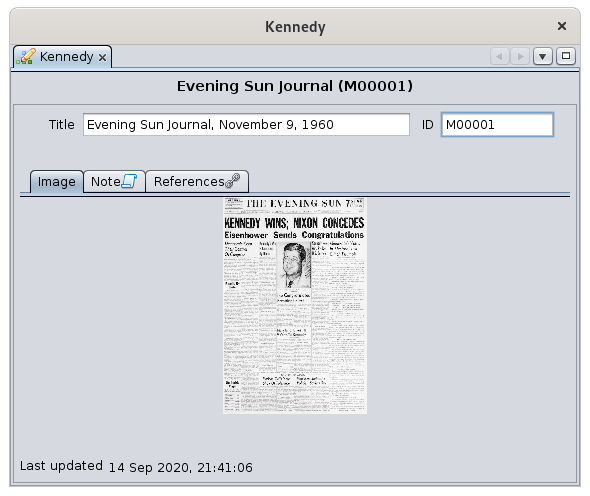](https://docs.ancestris.org/uploads/images/gallery/2020-09/en-aries-multimedia.png) The [Note](#bkmrk-onglet-notes-0 "Note tab") and [References](#bkmrk-panneau-r%C3%A9f%C3%A9rences "References") tabs are common to all entities. They are described in this page. ### Image Tab It displays the image associated with the currently selected media. Clicking on the image or on its location modifies it or loads another one. The **Please choose an image** window that appears prompts you to choose the file corresponding to the image to be displayed. ## ## Note Entity When the selected entity is a Note entity, the Aries editor displays two tabs. For the purpose of the demonstration, we have created a note entity out of the note property provided in the Kennedy file example. [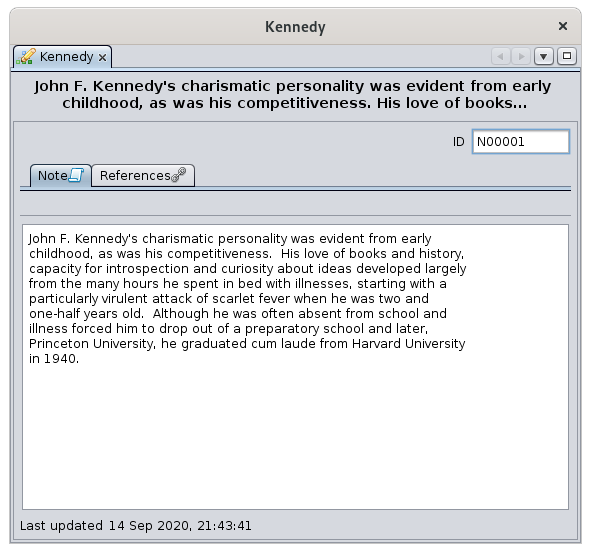](https://docs.ancestris.org/uploads/images/gallery/2020-09/lMDen-aries-note.png) The [References](#bkmrk-panneau-r%C3%A9f%C3%A9rences "References") tab is common to all entities. It is described below. ### Note text tab This tab displays the text content of the selected note, for consultation or for modification.This tab should not be confused with the common Notes tab present in the other entities. Indeed, the latter is used to list and manage the notes associated with these entities, while the Notes tab of the Notes entity displays the value of the note itself.
## Source Entity When the selected entity is a source ensity, the Aries Editor displays four fields describing the source and then a few tabs underneath. The [Notes](#bkmrk-onglet-notes-0 "Notes"), [References](#bkmrk-panneau-r%C3%A9f%C3%A9rences "References") and [Gallery](#bkmrk-onglet-notes-0 "Gallery") tabs are common to all entities. They characterize the source but their use is the same as described in the Individual section. [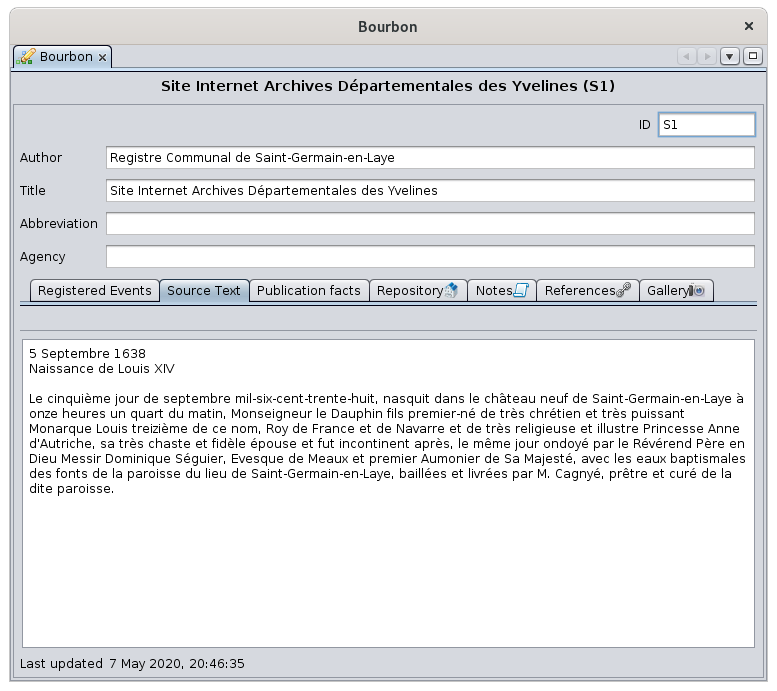](https://docs.ancestris.org/uploads/images/gallery/2020-09/en-aries-source.png) ### Description of the Source - **Author**: this is the name of the author or creator of the source. - **Title**: this is the most important field in the record, since it is the one used by other entities to refer to it. - Consequently, the user is strongly encouraged to fill in this field in a very precise and sufficiently detailed manner, so that the source can be identified without risk of confusion. - **Abbreviation**: this is the abbreviation of a source, or an organization associated with it. - **Agency**: is the person or organization responsible for managing that source. ### Source Text Tab This tab lets you enter or modify the source text as it appears on the original document or physical support. It is displayed above. It is by far the most useful information of the source. ### Repository tab It indicates the **repository** or storage location containing the currently selected source. There can only be one repository. [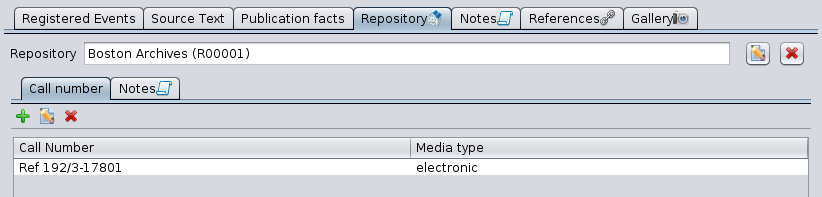](https://docs.ancestris.org/uploads/images/gallery/2020-10/en-aries-source-repository.png) This tab displays the name of the repository, followed by the [Edit buttons](#bkmrk-bouton-modifier "Edit buttons"): - select the repository with the **Add repository** button [](https://docs.ancestris.org/uploads/images/gallery/2020-05/EditeurAries_Boutons_Edition_Cr%C3%A9er.png) or **Link existing repository** button[](https://docs.ancestris.org/uploads/images/gallery/2020-05/EditeurAries_Boutons_Edition_Lier.png) - edit [](https://docs.ancestris.org/uploads/images/gallery/2020-05/EditeurAries_Boutons_Edition_Modifier.png) - delete it [](https://docs.ancestris.org/uploads/images/gallery/2020-05/EditeurAries_Boutons_Edition_Supprimer.png) The buttons appear depending on the situation and work as described in the corresponding section. #### Buttons for selecting or modifying the repository One - and only one - repository must be indicated in order to locate the selected source. Whether you are creating or modifying a repository, the following window for editing a repository appears. We will see it in the [Repository Entity](#bkmrk-entit%C3%A9-d%C3%A9p%C3%B4t "Repository Entity") section below. [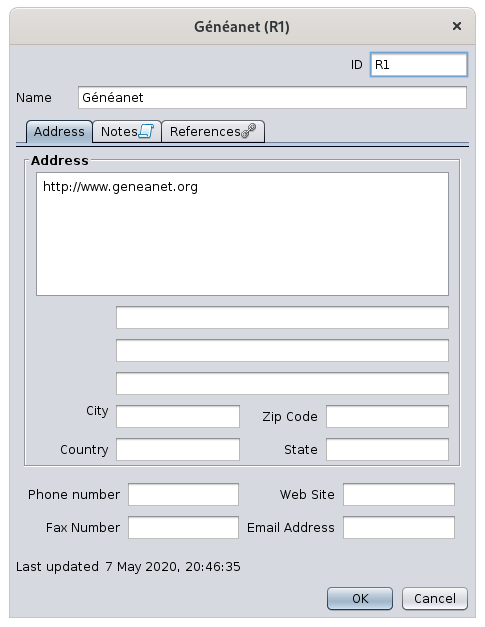](https://docs.ancestris.org/uploads/images/gallery/2020-09/en-aries-source-repository-edit.png) Once the repository is filled in, two tabs, **Call number** and **Notes**, appear underneath. The [Notes](#bkmrk-onglet-notes "Notes") tab is common to all entities. It characterizes here the attachment of the source to the repository, but its use is the same as the one described in the individual section. #### Call number tab The **Call number** tab lists the different references and media types used in the repository to specifically identify the source in that repository. Example: call number referenced Ref 192/3-17801 for parish registers in a regional archive building, in electronic format. For each item in the source, if there are several, indicate the name of the call number and the type of media (audio, card, electronic, card, film, newspaper, book, magazine, manuscript, photo, tombstone, video, etc.). Use the [Edit buttons](#bkmrk-bouton-modifier "Edit buttons") to add, edit or delete a call number / media type line item. ### Recorded Events tabs This tab lets you describe the list of different events in the selected source. [](https://docs.ancestris.org/uploads/images/gallery/2020-09/en-aries-source-registered-events.png) For each date and location mentioned in the source, it consists listing the types of events that took place on that date at that location. - The Create Source Event button [](https://docs.ancestris.org/uploads/images/gallery/2020-05/EditeurAries_Boutons_Edition_Cr%C3%A9er.png) creates a new row. It opens a window that allows you to define events for a given place and date. [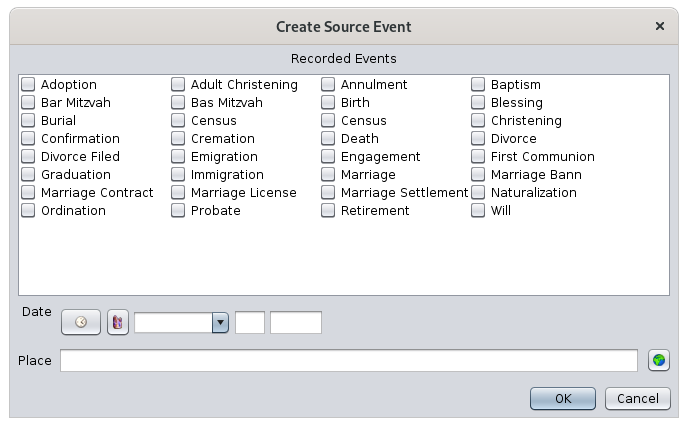](https://docs.ancestris.org/uploads/images/gallery/2020-09/en-aries-source-registered-create-source.png) - - Check the corresponding events - Enter the date of these events - Enter the location of these events - The **Edit Source Event** button [](https://docs.ancestris.org/uploads/images/gallery/2020-05/EditeurAries_Boutons_Edition_Modifier.png) opens the same window for editing the information. ### Publication data tab This tab allows you to indicate the publication details of the source, at least where and when the source was created. [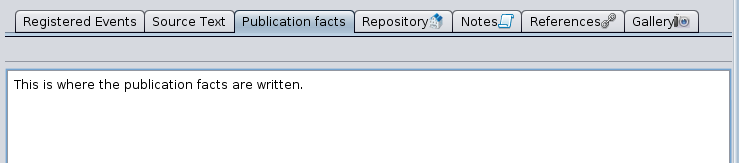](https://docs.ancestris.org/uploads/images/gallery/2020-09/en-aries-source-publication-facts.png) These indications are made by entering a free text. For published sources, the city of publication, the name of the advertiser, and the year of publication must be indicated. For unpublished sources, the date and place of the source must be indicated. ## Submitter Entity When the selected entity is a submitter entity, the Aries Editor displays the description of the submitter and three tabs underneath. [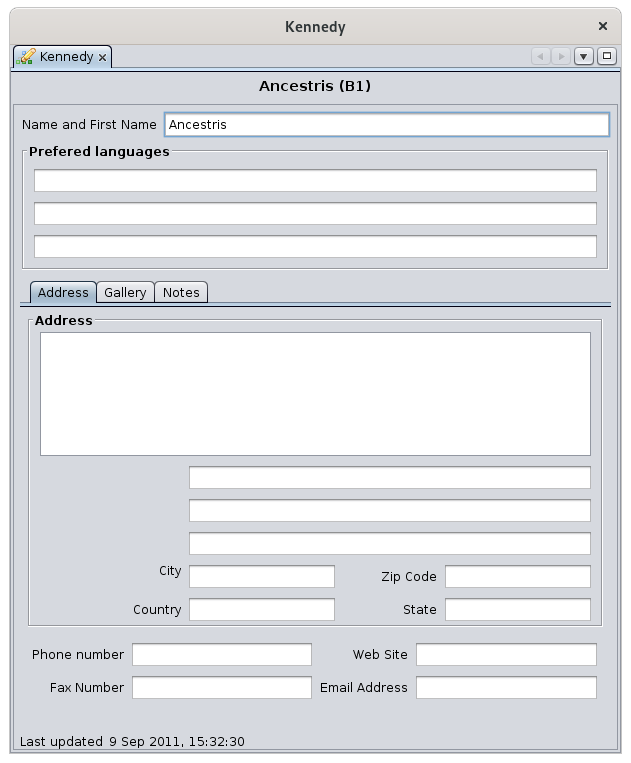](https://docs.ancestris.org/uploads/images/gallery/2020-09/en-aries-submitter.png) The first field, Name and First name, indicates the identity of the information submitter. The three fields below allow you to enter the three preferred languages of this submitter. The [Gallery](#bkmrk-panneau-galerie "Gallery") and [Notes](#bkmrk-onglet-notes-0 "Notes") tabs are common to all entities. They characterize the Information Submitter here, but their use is the same as described in the Individual section. The [Address](#bkmrk-onglet-adresse-0 "Address") tab is used in the same way as the tab for a Repository. ## Repository Entity When the selected entity is a repository or storage location entity, the Aries editor displays the following window: [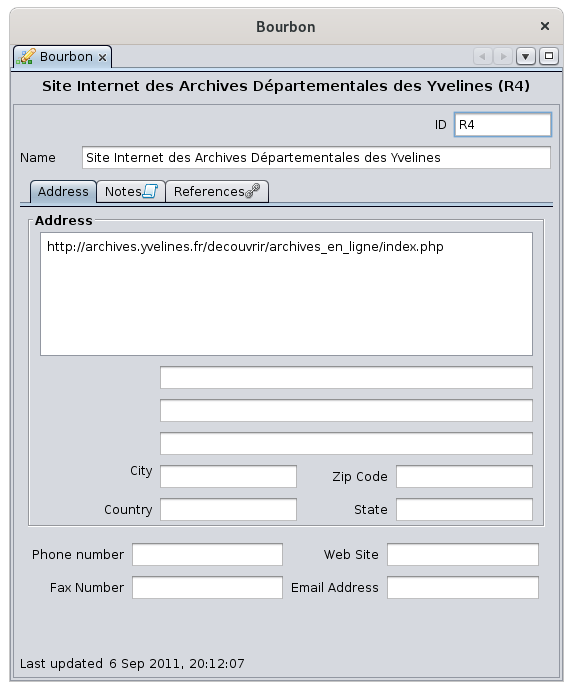](https://docs.ancestris.org/uploads/images/gallery/2020-09/en-aries-repository.png) You enter the exact name of this repository in the Name field, and underneath, three tabs Address, Notes and References allow you to complete the description. The [Notes](#bkmrk-onglet-notes-0 "Notes") tab is common to all entities. It characterizes the repository here, but its use is the same as that described in the Individual section. ### Address tab It allows you to enter the precise adress of the repository. It presents the fields of a classic address form (zip code, city, country, etc.). See picture. You can also enter the Internet details (e-mail address and website) as well as telephone numbers. ### References tab The References panel is in the form of a [selection list](#bkmrk-liste-de-s%C3%A9lection "Selection list") with three columns. [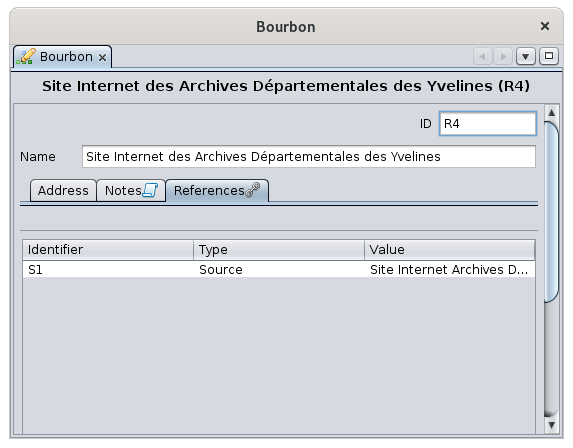](https://docs.ancestris.org/uploads/images/gallery/2020-09/en-aries-repository-reference.png) The table lists all the sources that use this repository. This References tab is also used in other circumstances, for other entities than for repositories. So more generally, the table is related to a given entity, and it lists all the entities that use that given entity. - The **Identifier** column, which indicates the ID number of the entity using the given entity - The **Type** column, which indicates the category of entity - The **Value** column, which indicates the name of the entity (for example, for an individual entity, it will be the name of the individual). This tablee is for information only. It cannot be edited or modified. - Examples : - In the image above, the repository being edited is used by Sources S1, named Site Internet Achives. - If a record individual I1, contains in his birth certificate a link to a source S2, this entity S2 will display in its References tab a line corresponding to the individual I1.When you are about to delete an entity such as a media file, note, source or repository, it is strongly recommended that you first check that the References table of this entity is empty. When this table is not empty, a deletion will generate a broken link of the entities using it to an entity that no longer exists.
--- ## Common editing controls The following controls are used in the Aries Editor in several places. ### This list is for consultation and selection of the displayed data. [](https://docs.ancestris.org/uploads/images/gallery/2020-09/en-aries-list.png) **Selection**: a simple click on one of the lines selects it. **Edition** : when the line represents an entity, a double-click opens an aries editor window to edit the entity clicked. **Sorting**: column headers can be clicked to sort. A new click reverses the sort direction. **Move column**: the columns can be moved with the mouse by clicking and dragging the column header. The column order is memorized from one time to the next. ### Tree list This is a list of individuals ordered in an certain way according to the genealogical hierarchy. It has a flap to unfold or fold the branches. [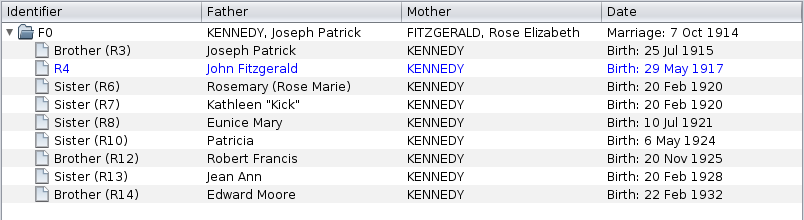](https://docs.ancestris.org/uploads/images/gallery/2020-09/en-aries-tree-list.png) This type of list is present for the editions of the Individuals ([Spouses and Children and Parents and Siblings tabs](#bkmrk-panneau-parents-et-f "Individual tabs")) and Families ([Children tab](#bkmrk-panneau-enfants "Children tab")) entities. **Selection**: a single click selects the line. **Edition**: when the row represents an entity, a double-click opens an entity edition window. **Sorting**: This list is not sorted since it would disorganize the tree structure. **Moving column**: Columns can be moved with the mouse by clicking and dragging the column header. The column order is not memorized from one time to the next. ### Edit Buttons The Edit buttons allow you to create, link, modify, delete, prefer data. They are used by most categories of entities. [](https://docs.ancestris.org/uploads/images/gallery/2020-05/EditeurAries_Boutons_Edition.png) These buttons work in conjunction with the selection list displayed below them. They appear according to the status of the list. #### Add Button [](https://docs.ancestris.org/uploads/images/gallery/2020-05/EditeurAries_Boutons_Edition_Cr%C3%A9er.png) The Add button adds an item to the selection list by creating it from scratch. #### Link Button [](https://docs.ancestris.org/uploads/images/gallery/2020-05/EditeurAries_Boutons_Edition_Lier.png) The Link button adds an item to the list without creating it, but linking it to the shared entity already existing in the genealogy. #### Edit Button [](https://docs.ancestris.org/uploads/images/gallery/2020-05/EditeurAries_Boutons_Edition_Modifier.png) The Edit button allows you to modify the indicated item. #### Delete Button [](https://docs.ancestris.org/uploads/images/gallery/2020-05/EditeurAries_Boutons_Edition_Supprimer.png) The Delete button deletes the indicated item. When the item is an entity, the deletion does not delete the entity itself, but the connection only. #### Favorite button [](https://docs.ancestris.org/uploads/images/gallery/2020-05/EditeurAries_Boutons_Edition_Pr%C3%A9f%C3%A9rer.png) The Prefer button designates the default media to be used if there are several. This button is only used for the media of an individual (Gallery tab) and is used to designate which one should be displayed by default in the dynamic tree. ###