# Welcome page
The **Welcome page** helps you get started with Ancestris as well as in its daily use.
## Description
The Welcome page is automatically opened the first time you use Ancestris.
It includes 3 tabs.
### Getting Started
[](https://docs.ancestris.org/uploads/images/gallery/2020-09/en-welcome-getting-started.png)
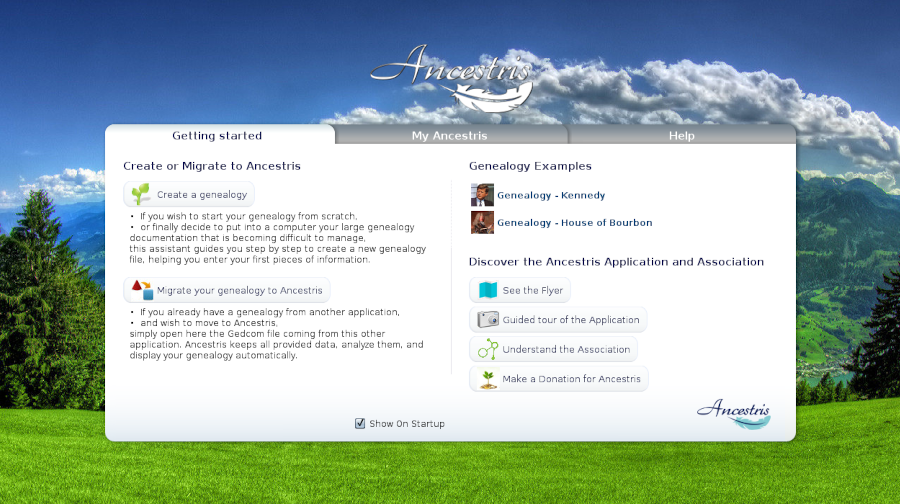
This tab contains the main elements necessary to get started.
These elements are accessible via the corresponding buttons.
- **Creating or migrating a genealogy**
- **Two examples** of genealogy, Kennedys and Bourbons French kings
- The **Ancestris flyer**
- Access to a **guided tour**
- The role of the **Ancestris association** to offer you this software.
- And the possibility of **making a donation** to Ancestris to support our development.
### My Ancestris
[](https://docs.ancestris.org/uploads/images/gallery/2020-09/en-welcome-my-ancestris.png)
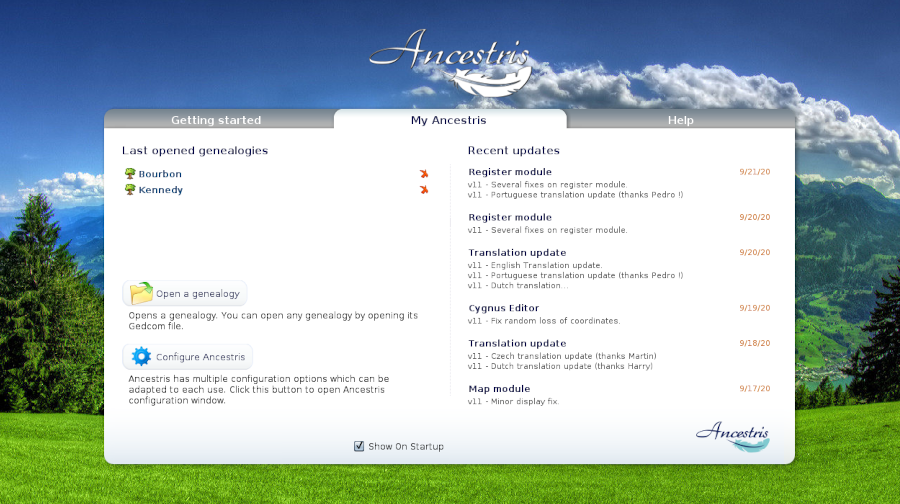
The second tab is for daily use.
It gives a quick access to the latest genealogy files used. A click on the red cross removes the name from the history.
It also gives you a quick access to open a genealogy or to modify your preferences.
Finally, it gives you the list of the lastest modifications of the software. Click on a message to be taken to the forum where you can see the entire message as well as the complete list..
### Help
[](https://docs.ancestris.org/uploads/images/gallery/2020-09/en-welcome-help.png)
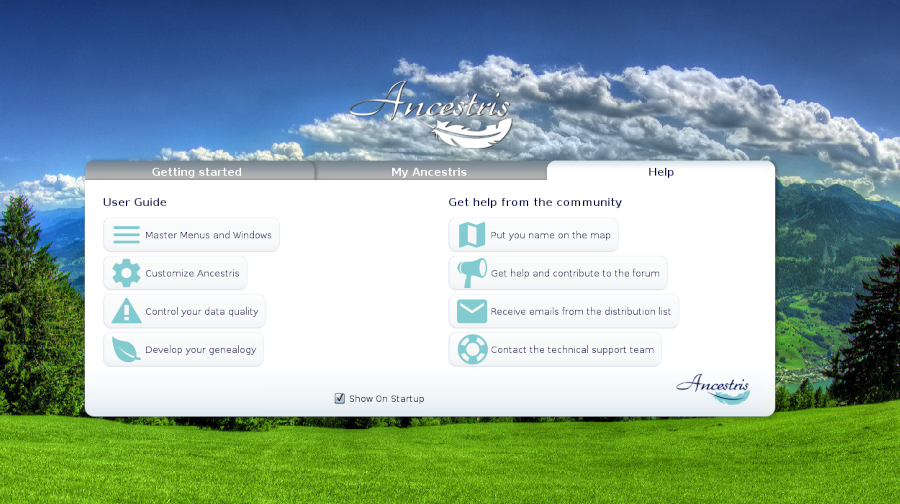
This tab of the Welcome page gives you direct access to the main chapters of this comprehensive documentation.
## Usage
Access the different functions by clicking on the corresponding tab and button.
To see the full background image, click on the image.
It is also possible to change the background image by **ctrl+clicking** on the image.
A click on the Ancestris logo takes you to the Ancestris website.
## Customization
It is possible not to display the Welcome page every time Ancestris is opened.
If you want to hide the Welcome page at startup, uncheck the **Show at startup** check box.
- Uncheck this check box so that the welcome page will not appear after the next startup.
- To display it again, go to the **Window/Welcome Page** menu to make it appear, then you can check the box.