The result list can then be exploited in other Ancestris tools, in particular be positioned on the [geographical map](https://docs.ancestris.org/books/user-guide/page/geographic-map#bkmrk-options "Geographic map"), be [exported in a specific Gedcom file](https://docs.ancestris.org/books/user-guide/page/save-as#bkmrk-utilisation "Save as"), be used in the [Find/Replace tool](https://docs.ancestris.org/books/user-guide/page/find-replace "Find / Replace"), [be marked as special entities](https://docs.ancestris.org/books/user-guide/page/mark-special-individuals#bkmrk-recherche-avanc%C3%A9e "Mark special individuals"), or be used for the [Information Sheets of Individuals/Families](https://docs.ancestris.org/books/user-guide/page/information-sheets-of-individualsfamilies-%28l%29#bkmrk-comment-utiliser-le- "Information Sheets of Individuals/Families") report.
## Description The Advanced search offers two different search modes: - **Multi-criteria mode** - Search according to a set of predefined properties - Multiple criteria - Among the genealogy individuals - The result of the search is a list of individuals - **Property mode** - Search according to any property - Single criteria - Among all the properties of the genealogy - The result of the search is a list of properties, grouped by entity ### Toolbar The toolbar works in the same way for both search modes. [](https://docs.ancestris.org/uploads/images/gallery/2020-05/Recherche_Avanc%C3%A9e_Barre_Outils.png) #### Start Search Button This button launches the search according to the criteria entered in the visible tab, and displays the results underneath. The number of results found is shown in the upper right corner of the visible pane. #### Cancel Search Button This button stops the search if it should last for too long. #### Clear Search Criteria Button This button resets the criteria and clears all fields. The criteria previously entered is kept in the different drop-down menus of each of the search tabs. #### Clear Search Criteria History Button This button clears the history of the drop-down menus. A confirmation request is made before deleting. #### Change Settings Button This button opens the Search Settings panel which lets you to set the following options: - **Maximum number of results displayed**: limits the number of results to the first 'n' found. The default value is 5000 - The checkbox **Case sensitive** forces the search to match upper and lower case letters. ### Multi-Criteria The Multi-criteria tab searches for individuals according to the predefined criteria displayed. [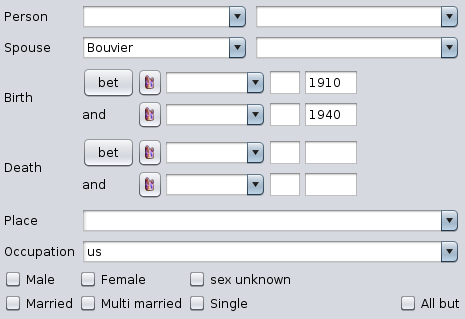](https://docs.ancestris.org/uploads/images/gallery/2021-12/en-advanced-search-criteria.png) The different criteria are explicit with the second lastname field being the spouse lastname. If several criteria are filled in, all conditions must be met. In the example above, we are looking for all individuals whose spouse name is "Bouvier", born between 1910 and 1930, having the "US" letters in their occupation, and married. If you want to reverse a set of conditions, simply check the "All but" box. The choice for the criteria family status includes: - **Married**: individuals have been married at least once - **Multi-Married**: individuals have been married at least twice - **Single**: individuals have never been married ### By Tag The By Tag tab searches for all the [properties](https://docs.ancestris.org/books/user-guide/page/properties "Properties") of the genealogy that meet a certain criterion. [](https://docs.ancestris.org/uploads/images/gallery/2020-09/en-advanced-search-tag.png) #### Search value - The field is the search criteria. It is a string of characters. - The Regular expression checkbox, when checked, asks Ancestris to interpret the search criteria as a search pattern, also called a **regular expression**. See the examples in the [Usage section](#bkmrk-utilisation "Usage section") and check the internet for [Regular Expressions](https://en.wikipedia.org/wiki/Regular_expression "Regular Expressions (source: Wikipedia)"). - The "..." drop-down menu, located on the left, offers examples of the main regular expressions used. #### Search tag - The field is the name of the Gedcom property, or tag, on which the search must be carried out. - The "..." drop-down menu on the left allows you to choose among frequently used properties. ### List of results The list of results is displayed in alternating colors by entity, to better locate the different lines of the same entity, especially for the results of the search by property.Each result can be clicked. It will display the corresponding entity in the other Ancestris views and editors.
As said at the top of this page, the list is usable in other views and tools. - In the [Geographic map](https://docs.ancestris.org/books/user-guide/page/geographic-map#bkmrk-options "Geographic map") view to view the features found on the map - In the [Save As](https://docs.ancestris.org/books/user-guide/page/save-as#bkmrk-utilisation "Save as") function to make a Gedcom file extract - In the [Find / Replace](https://docs.ancestris.org/books/user-guide/page/find-replace "Find / Replace") function to make a targeted text replacement - In the [Special Individual marking](https://docs.ancestris.org/books/user-guide/page/mark-special-individuals#bkmrk-recherche-avanc%C3%A9e "Mark special individuals") tool ## Usage The Multi-Criteria search is quite explicit. You have an example at the top of this page. We don't go into more details here. On the other hand, searching by Property requires a few examples. ### Search for a text anywhere The following example searches for the word "assassinated" in the whole genealogy. There are 5 properties located in 3 entities that meet the criteria. [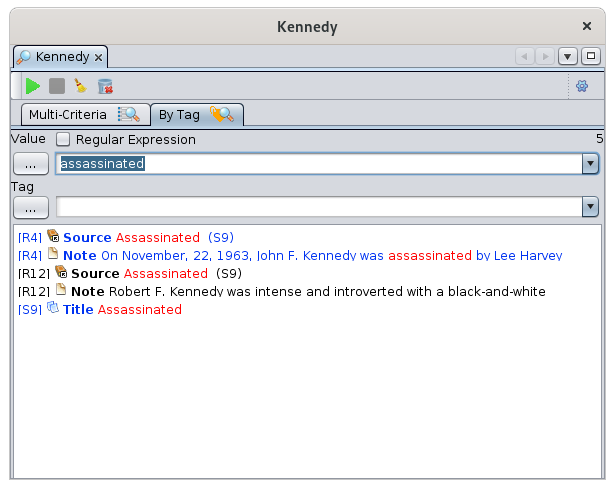](https://docs.ancestris.org/uploads/images/gallery/2020-09/en-advanced-search-tag-result.png) ### Search for a particular name The following example searches for all names containing the word "John". In the genealogy, the name of an invidividual is a property registered with the label NAME. You can find out the name of a label by looking at the [Gedcom editor](https://docs.ancestris.org/books/user-guide/page/gedcom-editor "Gedcom editor") since in this editor each line starts with the name of the label. The result is 28 properties, in 14 entities. [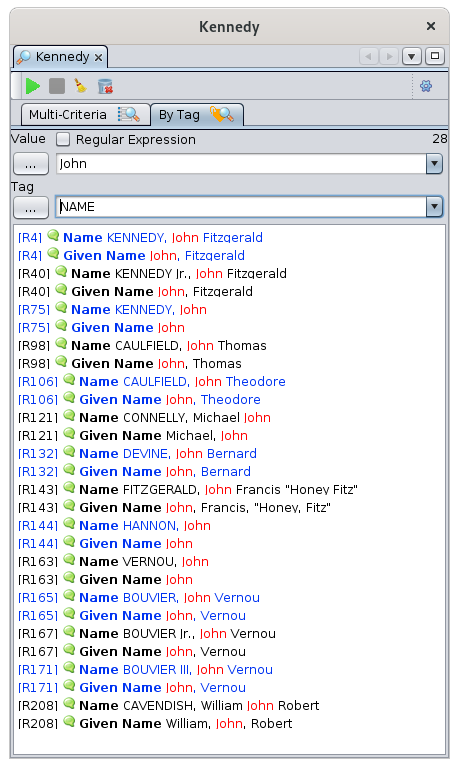](https://docs.ancestris.org/uploads/images/gallery/2020-09/en-advanced-search-name.png) ### Search for first names ending in "hn" As soon as the search requests differs from "contains the characters", it is necessary to use a regular expression.In computer science, a **regular expression** is a word that describes a set of words. Regular expressions are also called **regex** (a word suitcase formed from the English regular expression). Regular expressions are derived from mathematical theories of formal languages from the 1940s.
By clicking on the "..." button you have some basic rules for writing a regular expression. [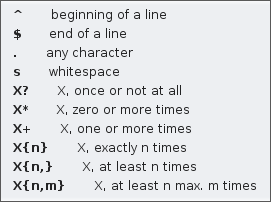](https://docs.ancestris.org/uploads/images/gallery/2020-09/en-advanced-search-regular-expression.png) - For example, the word `ex-(a?e|æ|é)quo` describes all words that begin with "ex-" that end with "quo", and that in between have one of the following 3 groups of letters: "a or not" + e", "æ" or "é". So the words "ex-equo", "ex-equo", "ex-aequo" and "ex-aequo" are included. But the words "ex-equo", "ex-aequo", "ex-aeko", "ex-aequo" are not part of it. - Another example if you want to select pure \_SOSA numbers from \_SOSADABOVILLE numbers: `^[^-]*$` selects all strings that do not include "-". The following example searches for all first names ending in "hn". The regular expression is written "hn$". And first name matches the GIVN label according to what you see in the Gedcom editor. Click Regular Expression and press Enter. [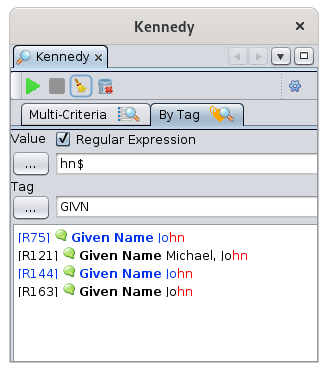](https://docs.ancestris.org/uploads/images/gallery/2020-09/en-advanced-search-regular-expression-example.png) ## Customization There are no customization elements in this tool.