Ancestris needs Java and is compatible with Java 8 (also called 1.8) and Java 11. **We recommend you use Java 8**.
**If Ancestris does not start**, or shows the Ancestris splash screen and stops, it is most generally related to an issue with the Java installation. Either Java is not installed or Ancestris does not find it or finds an incompatible version or finds a corrupted version.
The following sections offer a step-by-step check to ensure Ancestris is using a valid Java 8 version.
### ## General principle - **You need a Java Runtime Environment (JRE)**. The JDK (Java Development Kit) is not required, but since the JDK includes a JRE, a JDK alone is also sufficient. - **Ancestris works with Java versions 8 and higher**. It is developed in version 8 for better compatibility with the most users. It has been tested and works on Java 11 and Java 14, which are LTS (Long Term Support) versions. We do not check on Short Term versions which are obsolete and cannot be downloaded after 18 months. - **You can install a JRE from any vendor**: Oracle, OpenJdk or AdoptOpenJdk or one that you compiled yourself. - **The Oracle JRE installation is recognized by all systems and programs.** - Only the Oracle version is recognized directly by the programs and does not require any additional configuration. - If you install Oracle version, only JRE 8 does not require any registration with Oracle. - On Windows, there is not only a JAVA\_HOME variable or the PATH variable, there is also a registry key - **If you opt for a free distribution**, you will have to tell Ancestris where your installation is. In this case, [as indicated below](#bkmrk-using-several-java-v "Set Java version to be usedd by Ancestris"), uncomment the `jdkhome` line in the `ancestis.conf` configuration file located in the "`etc`" directory of your Ancestris installation and set the appropriate path. ## Identify which Java version is set by default If you don't know if Java is installed or which version is installed, please visit the [official detailed explanation page](https://www.java.com/en/download/help/version_manual.xml "Checking the installed versions") or directly open a command line terminal and type on the command line: ``` java -version ```There are alternative methods for MacOS and Windows. - for MacOS systems, [check the step-by-step instructions](https://docs.ancestris.org/books/user-guide/page/step-by-step-installation-on-macos#bkmrk-2.-open-a-terminal-a). - for Windows systems, [check the step-by-step instructions](https://docs.ancestris.org/books/user-guide/page/step-by-step-installation-on-windows#bkmrk-knowing-which-java-v).
- **If you see an error message** in the terminal, then Java is not installed on your system. Ancestris cannot run. Please [follow the Install section](https://docs.ancestris.org/books/user-guide/page/java-installation#bkmrk-install-java "Install Java 1.8") below to install Java 1.8 and then start Ancestris. - **If you see something like this where Java 1.8 is displayed**, it means you have the proper version installed and set by default. ``` java version "1.8.0_251" Java(TM) SE Runtime Environment (build 1.8.0_251-b08) Java HotSpot(TM) 64-Bit Server VM (build 25.251-b08, mixed mode) ``` According to the display above, we can see that the installed Java version set by default is version 1.8, aka version 8. If Ancestris does not start, either Ancestris does not find it or finds an incompatible version or finds a corrupted version. Please [follow the instructions to identify which Java version Ancestris finds](https://docs.ancestris.org/books/user-guide/page/java-installation#bkmrk-identify-which-java- "Identify which Java version Ancestris finds"). - **If you see a different Java version from 1.8 or 11,** it means you have another Java version by default. ``` java version "10.0.1" 2018-04-17 Java(TM) SE Runtime Environment 18.3 (build 10.0.1+10) Java HotSpot(TM) 64-Bit Server VM 18.3 (build 10.0.1+10, mixed mode) ``` According to the display above, we can see that the installed Java version set by default is version 10. Ancestris will not run. Please [follow the Install section](https://docs.ancestris.org/books/user-guide/page/java-installation#bkmrk-install-java "Install Java 1.8") below to install Java 8. Once done, you will then have several Java versions installed on your system. If you are happy to set Java 8 as the default version, please [follow the instructions to set the default java version](https://docs.ancestris.org/books/user-guide/page/java-installation#bkmrk-using-several-java-v "Set the default Java version") on your system and then start Ancestris. If you would rather keep the Java version set as it is, then you need to tell Ancestris to not use the default Java version. Please [follow the instructions to force Ancestris to use a specific java version](https://docs.ancestris.org/books/user-guide/page/java-installation#bkmrk-forcing-ancestris-to "Force Ancestris to use a specific java version") and then start Ancestris. ## Identify which Java version Ancestris finds To know which Java version Ancestris finds, you will need to check the Ancestris [configuration file](https://docs.ancestris.org/books/user-guide/page/software-files-and-user-settings-files#bkmrk-the-configuration-fi "Location of the configuration files"). **1. Check the line defining `default_options`** This line should look like this: `default_options="--branding ancestris -J-Xms96m -J-Xmx1g --laf javax.swing.plaf.nimbus.NimbusLookAndFeel"` If one of the options in this line includes `--jdkhome="/path/to/java`, make sure the path specified in this option is the path to Java version 1.8. Otherwise, edit the configuration file and change it. Then launch Ancestris. If this line does not include a java path, follow the instructions below. **2. Check the line defining `jdkhome`** If the line looks like `jdkhome="/path/to/java"`, then make sure the path specified in this option is the path to Java version 8. Otherwise, edit the configuration file and change it. Then launch Ancestris. If the line starts with "#", or if the line does not exist, then it means the line is not used by Ancestris and that Ancestris uses the default Java version set on your system. If the default version checked above was Java 8, it means your installed Java 8 version might be corrupted. Try reinstalling it using the [Install instructions](https://docs.ancestris.org/books/user-guide/page/java-installation#bkmrk-install-java "Install Java") and restart Ancestris. --- ## Install JavaTo install version Java 8 on your system, you can get it from the [Oracle's main page](http://www.java.com/en/ "Site Java.com"), or more precisely, directly [from the download page](https://www.oracle.com/technetwork/java/javase/downloads/jre8-downloads-2133155.html "Oracle's download page for Java 8 ").
- If you need to **know if your device can run Java**, go to this [configuration page](http://www.oracle.com/technetwork/java/javase/config-417990.html#os "Configuration required to execute Java") to learn the minimum needed configuration. - If you want to **choose from all the available Oracle Java versions**, check this [available versions page](http://www.oracle.com/technetwork/java/javase/downloads/jre8-downloads-2133155.html "Java versions download page"). - Java Version 8 is recommended as it supports all Ancestris features. - For full details on how to install version 8 - For MacOS, see [JRE 8 Installation for MacOS](https://docs.oracle.com/javase/8/docs/technotes/guides/install/mac_jre.html#CHDGECEB). - For Windows, see [JRE Installation for Windows](https://docs.oracle.com/javase/8/docs/technotes/guides/install/windows_jre_install.html#CHDEDHAJ). - For Linux, see [JRE Installation for Linux](https://docs.oracle.com/javase/8/docs/technotes/guides/install/linux_jre.html). - - Java Version 11 support most Ancestris features. - Download and install [Java Development Kit (JDK) Version 11](https://www.oracle.com/technetwork/java/javase/downloads/jdk11-downloads-5066655.html) - For MacOS, choose the .dmg file. - For full details on how to install version 11 - For MacOS, see [Installation of the JDK for MacOS](https://docs.oracle.com/en/java/javase/11/install/installation-jdk-macos.html#GUID-2FE451B0-9572-4E38-A1A5-568B77B146DE). - For windows, see [Installation of the JDK for Windows](https://docs.oracle.com/en/java/javase/11/install/installation-jdk-microsoft-windows-platforms.html#GUID-A7E27B90-A28D-4237-9383-A58B416071CA). - For Linux, see [Installation of the JDK on Linux](https://docs.oracle.com/en/java/javase/11/install/installation-jdk-linux-platforms.html). - If you **prefer an Open Source Java version**, it is possible to use [OpenJDK](http://openjdk.java.net/ "Download OpenJDK Site") and you can also install Java from the free [AdoptopenJDK](https://adoptopenjdk.net/ "AdoptopenJDK") solution. ## Set the default Java version The procedures depend on your operative system. - [For MacOS](https://docs.ancestris.org/books/user-guide/page/java-installation#bkmrk-set-the-default-java "Choosing java version for MacOS") - [For Windows](https://docs.ancestris.org/books/user-guide/page/java-installation#bkmrk-swaping-java-version-0 "Choosing java version for Windows") - [For Linux](https://docs.ancestris.org/books/user-guide/page/java-installation#bkmrk-swaping-java-version-1 "Choosing java version for Linux") ### Set default version for MacOS The version of Java running on your system may be incompatible with Ancestris, so it will not run. If you want to keep your current Java version and, for instance, run Java Version 8 (aka 1.8) at the same time, you need to swap Java versions. To swap between different Java versions, open a Terminal window and follow the steps below. In the following example, the instructions let you set Version 8 (aka 1.8) by default, without removing Java Version 10: **1/6 - Check which version of Java is set by default** ``` java -version echo $jdkhome ``` You can see the java version you are running. **2/6 - Get a list of all installed versions on your system and check Version 8 or 11 is among them** ``` /usr/libexec/java_home -V ``` If the version you want is not in the list, then install it as explained in [this section](https://docs.ancestris.org/books/user-guide/page/java-installation#bkmrk-install-java). If it is in the list, but not the one you had above, force the path to the java version with the following step. **3/6 - Type in the following 2 lines in the Terminal** ``` echo 'export JAVA_HOME=`/usr/libexec/java_home -v 1.8`' >>~/.bash_profile echo 'export jdkhome==`/usr/libexec/java_home -v 1.8`' >>~/.bash_profile ``` These two lines will add the command to set your default Java version in your personal profile. Here, we force version 1.8 (or 8). Replace with your java version. The first line defines the default Java version for all programs (JAVA\_HOME, in uppercase). The second line defines the default Java version to use for Ancestris (jdkhome, lowercase). **4/6 - Close the Terminal** ``` exit ``` **5/6 - Reopen a Terminal and check that the running Java is now the one you want (version 8 in our example)** ``` java -version echo $jdkhome ``` You can now start Ancestris. **6/6 - Start Ancestris** When Ancestris starts, a Terminal window opens at the same time. You can see in the title bar that version 8 of Java is being used by Ancestris. ### Set default version for Windows You have to create a BAT file per Java version you wish to keep. Use your favourite text editor to create those files, using the code below, and place them in a folder available from your PATH. **JAVA8.BAT** ``` @echo off echo Setting JAVA_HOME set JAVA_HOME=C:\Program Files\Java\jdk1.8.0_12 echo setting PATH set PATH=C:\Program Files\Java\jdk1.8.0_12\bin;%PATH% echo Display java version java -version ``` **JAVA11.BAT** ``` @echo off echo Setting JAVA_HOME set JAVA_HOME=C:\Program Files\Java\jdk1.11.0_11 echo setting PATH set PATH=C:\Program Files\Java\jdk1.11.0_11\bin;%PATH% echo Display java version java -version ``` While creating these files, make sure you specify the correct name for the Java files for the lines JAVA\_HOME, depending on your Java installation When you decide to change the Java version, just run the corresponding BAT file: JAVA8 for version 1.8, or JAVA11 for version 11. The Java version at use will be shown on the terminal. To check if the change is really in effect, type `java -version` on a console or check [this page](https://www.java.com/en/download/help/version_manual.xml). If you wish to keep your latest Java version and force the use of another version of Java for Ancestris, you have to change the [configuration file](https://docs.ancestris.org/books/user-guide/page/software-files-and-user-settings-files#bkmrk-the-configuration-fi "Location of the configuration files"), line `jdkhome="C:\path\to\java" ` ### Set default version for Linux Type the following on a console : ``` sudo update-alternatives --config java ``` [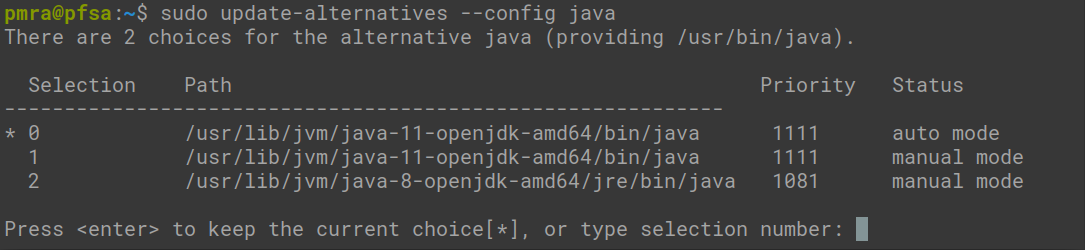](https://docs.ancestris.org/uploads/images/gallery/2020-05/en_linux-java-versions.png) Select from the list the version needed. If you wish to keep your latest Java version and force the use of another version of Java for Ancestris, you have to change the [configuration file](https://docs.ancestris.org/books/user-guide/page/software-files-and-user-settings-files#bkmrk-the-configuration-fi "Location of the configuration files"), line `jdkhome="/path/to/java" ` To get help using this tool : ``` sudo update-alternatives -l ``` ## Force Ancestris to use a specific Java version Whatever your operating system is, if the default active Java version is different from the one to be used with Ancestris, you have to modify Ancestris's [configuration file](https://docs.ancestris.org/books/user-guide/page/software-files-and-user-settings-files#bkmrk-the-configuration-fi "Where are the configuration files ?") like this: ``` jdkhome="/path/to/java" ``` Note: you have to exclude /bin/java in the path description. For example: if java executable is /usr/java/jdk1.8.0\_291-amd64/bin/java, then you should indicate ``` jdkhome="/usr/java/jdk1.8.0_291-amd64/" ```Reversely, if this line is not commented out, that is if it does not start with the "#" character, Ancestris will take it into account first and **the path indicated to the Java version must exist and correspond to a functional version of Java**. Otherwise Ancestris will not look for other locations for a better Java version and Ancestris will not start.